
Ace Drawback Summary Claim Detail
The following sections cover the
ACE Drawback Summary Claim Detail
screen’s tabs and subtabs.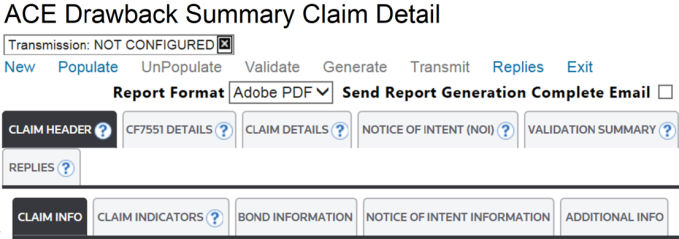
The ? to the right of a tab name is referred to as a tool tip. Hovering over a tool tip will cause a definition or tip for how to use the tab to appear on the screen. To close the tool tip message, click the
X
to the far right.
Claim Header
The
Claim Header
tab must be completed, as the data within it relates to the Drawback claim as a whole. The other tabs will automatically populate by the entry and export data processed in the system. Below are the data elements available under these tabs. If a data element is required, it will have an asterisk (*) next to the field on the screen.Claim Info Fields | Description |
|---|---|
Claim Number | The claim number for the report. This can be calculated by the system or manually entered by the user. |
Action | The action the user is transmitting to Customs. |
Add - Transmitting a new claim to Customs. | |
Delete - Transmitting a deletion to Customs for a previous claim. | |
Create CF7553 (NOI) | Yes/No flag determining whether or not a 7553 was created. |
CF7553 (NOI) Accepted | A checkbox for users to identify if the NOI was accepted by CBP. |
Drawback Provision | The type of drawback for the claim. |
Drawback Port | The four-digit Schedule D port code for where the claim will be filed. This must be a port where a drawback center is located. |
Description | A description of the claim goods. |
Claimant ID | The identification number of the claimant within the Customs automated system. The associated information is taken from the “Company Partners” maintenance tables. |
Broker Reference Number | The filer’s reference data. This field is optional and can be left blank. |
Notify Party | The party to be notified of the drawback claim. |
Preparer | The name of the person preparing the drawback claim. The associated information is taken from the “Company Partners” maintenance tables. |
Filing Method | Method of Filing: ABI or Manual. |
Accounting Method | The two-digit Drawback Account Method used to create the claim, as identified in Appendix E of the Drawback CATAIR. |
Use As Template | If this box is checked, the system will save the completed claim as a template. Once a template is saved, it can be used as the base for future claims. |

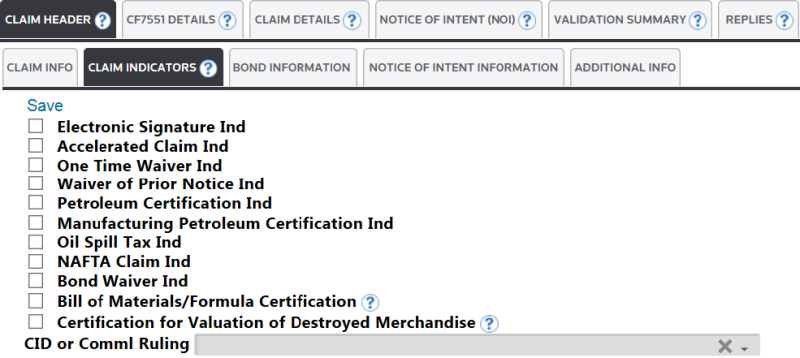
Claim Indicators Fields | Description |
|---|---|
Electronic Signature Ind | If users are providing an electronic signature, check this box. If a user is certifying that the data or information being transmitted is true and correct to the best of the filer’s knowledge and belief, check this box. |
Accelerated Claim Ind | If the claim has been approved for the accelerated payment option, check this box. |
One Time Waiver Ind | If a one-time waiver was used with this claim, check this box. |
Petroleum Claim Ind | If the claim is for petroleum or a petroleum-based product, check this box. |
Manufacturing Petroleum Certification Ind | If the claim is for manufactured petroleum or a manufactured petroleum-based product, check this box. |
Oil Spill Tax Ind | If the user is claiming drawback on oil spill taxes, check this box. |
NAFTA Claim Ind | If the user is claiming a NAFTA Drawback for export to Canada or Mexico, check this box. |
Bond Waiver Ind | If the bond has been waived in accordance with regulation, check this box. |
Bond Reason Ind | If the Bond Waiver Ind is checked, choose the code explaining the reason the bond has been waived in accordance with regulation. |
Bill of Materials/Formula Certification | If the claimant is in possession of the applicable Bill of Materials (BOM) or formulas for the articles exported or destroyed, check this box. |
Certification for Valuation of Destroyed Merchandise | If the value of the recovered materials (including the value of any tax benefit or royalty payment) that accrues to the drawback claimant has been deducted from the value of imported (or substituted) merchandise designated by the claimant, check this box. |
CID or Comml Ruling | Choose the Commercial Interchangeability or Commercial Ruling reason. |
Bond Information Fields | Description |
|---|---|
Bond Information Type Code | Indicate the type of bond coverage required for the accelerated payment of duties, fees, and taxes, when required. |
Bond Designation Type Code | Indicate the general purpose of the bond. |
Surety Company Code | The Surety company that has underwritten the bond. |
Single Transaction Bond (STB) Amt | Single Transaction Bond (STB) coverage amount in whole U.S. dollars. |
STB Producer Account Num | The Surety Reference Number from CBP Form 301 as assigned by the Surety company of the STB. |

Notice of Intent Information Fields | Description |
|---|---|
Examination/Witness Ind | Indicate whether an examination was required and witnessed or an examination was waived. |
Results of Examination or Witness of Destruction | The indication identifying whether the examination/witness was discrepant, non-discrepant, or waived. |
Record Indicator | Indicate whether the Examiner/Witness was a Processor or Examiner. |
CBP Name | Full Name of CBP Personnel. |
Badge Number | Badge Number of CBP Personnel. |
CBP Personnel Phone Number (digits only) | Contact telephone number of CBP Personnel, provided as digits only. |
Processing/Examination Date | Date of Processing or Examination. |

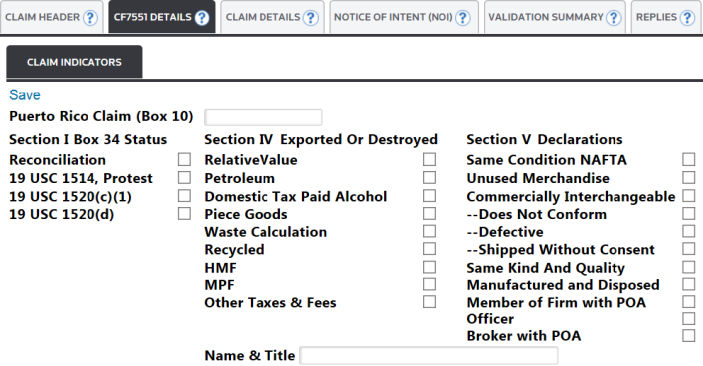
CF7551 Details Fields (Claim Indicators) | Description |
|---|---|
Section I | The checkboxes in this section populate Section I, Boxes 10 and 34 on the front of the CF7551 Form. |
Section IV | The checkboxes in this section populate Section IV on the back of the CF7551 Form. |
Section V | The checkboxes in this section populate Section V on the back of the CF7551 Form. |
Claim Details
The
Claim Details
tab is split into three sub-tabs that break out the specific record details populated on a claim. These details are transactional level data on the claim.Sub-tabs | Description |
|---|---|
Entry Details | Displays all associated import entries on the claim. |
Export Details | Displays all associated export shipments on the claim. |
Manufacture Details | Displays all associated manufacturing information on the claim. |
Entry Details

Export Details

Manufacture Details

CF7551 Details
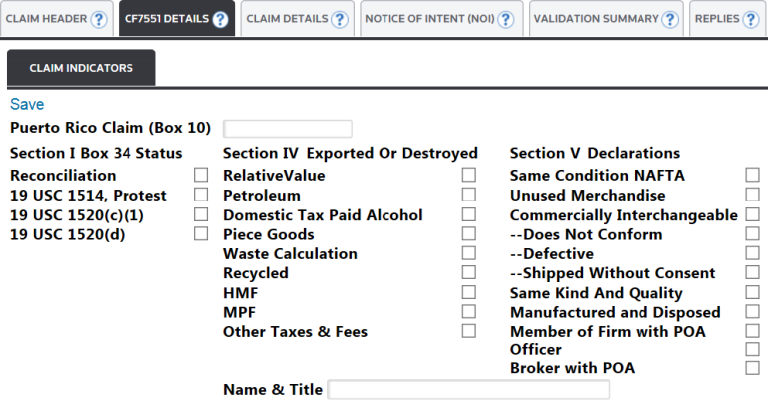
CF7551 Details Fields (Claim Indicators) | Description |
|---|---|
Puerto Rico Claim (Box 10) | This field is used to populate Box 10 on the front of the CF7551 Form. |
Section I | The checkboxes in this section populate Section I on the front of the CF7551 Form. |
Section IV | The checkboxes in this section populate Section IV on the back of the CF7551 Form. |
Section V | The checkboxes in this section populate Section Von the back of the CF7551 Form. |
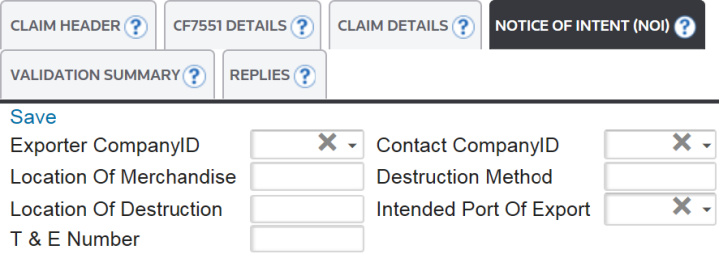
Notice of Intent (NOI)
Notice of Intent (NOI) Fields | Description |
|---|---|
Exporter CompanyID | The Exporter (Box 1) to be printed on the CF7553 (if generating out of ONESOURCE). This drop-down can be modified by adding, updating, or deleting companies in your Company Partners screen. |
Contact CompanyID | The Contact (Box 6) to be printed on the CF7553 (if generating out of ONESOURCE). This drop-down can be modified by adding, updating, or deleting companies in your “Company Partners” screen. |
Location of Merchandise | The merchandise’s location, which will be printed in Box 7 on the CF7553. |
Destruction Method | The method in which merchandise was destroyed, which will be printed in Box 8 on the CF7553. |
Location of Destruction | The location where merchandise was destroyed, which will be printed in Box 9 on the CF7553. |
Intended Port of Export | The claimant-identified port where merchandise is expected to be exported. This is printed in Box 11 on the CF7553. |
T&E Number | The T&E number associated to the merchandise in this claim, which will be printed in Box 13 of the CF7553. |
Validation Summary
After the
Claim Header
information has been input into the system and the drawback claim has been populated with the transactional level information (via Populate
), you are ready to validate the claim to confirm all necessary fields are filled in. This is done by clicking Validate
.
If validation is successful, a message will appear at the top of the screen.

If there are errors related to the claim, these errors will appear in the
Validation Summary
tab. No further action can be taken on the claim until all errors have been resolved.
Replies
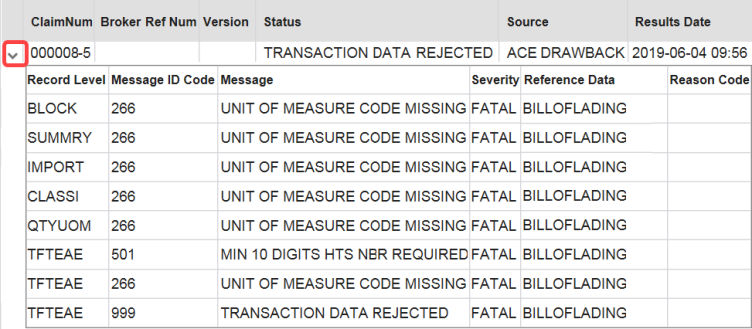
After a claim has received replies from CBP for a claim transmitted out of ONESOURCE Drawback, the replies will be loaded into the
Replies
tab. The Replies
tab retains any previous transmission history, as well as any additional details that may have been sent back on the response file from CBP.
Additional details can be viewed by clicking the chevron available on each reply line to open up the response details.
After validation has completed successfully, you are ready to generate and transmit the claim.
To generate the claim, click “
Generate
” in the upper right. The following reports will generate:- CF7551 Drawback Entry
- CF7551 Drawback Entry Back
- CF7551 Drawback Continuation Section II
- CF7551 Drawback Continuation Section IV
- MPF Drawback Calculation Worksheet (if applicable)
After reviewing the claim documents, you can transmit the claim to Customs by clicking
Transmit
. The reply for this claim can be viewed on the Drawback Summary
screen.
Related Content
-
ABI
Format: Article