
Drawback Details
The
Drawback Details
screen displays the details of a claim from the Drawback Summary
screen. This screen is opened through the Drawback Summary
screen under the ABI
menu.To create a new claim, click
New
. When creating a new claim, input the header level information for the claim and click Save
.After the claim is saved, the user can then populate the claim with the exports and entries that have finished being processed through the system. This is done by clicking
Populate
.To view an existing claim, click
Details
next to a claim record in the grid.
The following sections cover more detail about the tabs and subtabs in this screen.
Claim Header
The
Claim Header
tab must be completed, as the data within it relates to the drawback claim as a whole. The other tabs will automatically populate by the entry and export data processed in the system. Below are the data elements available under these tabs. If a data element is required, it will have an asterisk (*) next to the field on the screen.
Claim Info Fields | Description |
|---|---|
Claim Number | The claim number for the report. This can be calculated by the system or manually entered by the user. |
Est. Claim Date | The estimated date the user plans to file the claim. |
Earliest Export Date | The date of the earliest export being claimed. |
Bond Type | The single-digit numeric code representing the bond type. |
Agent Broker | The ID Number for the broker filing the claim. |
Claim Type | The type of drawback for the claim. |
Description | A description of the claim goods. |
Claimant ID | The identification number of the claimant within the Customs automated system. The associated information is taken from the “Company Partners” maintenance tables. |
Surety Code | The three-digit numeric code required for accelerated payments. |
License Port | The port where the filer is actively permitted. |
Preparer | The name of the person preparing the drawback claim. The associated information is taken from the “Company Partners” maintenance tables. |
Use As Template | If this box is checked, the system will save the completed claim as a template. Once a template is saved, it can be used as the base for future claims. |
Action | The action the user is transmitting to Customs.
Add : Transmitting a new claim to Customs.Delete : Transmitting a deletion to Customs for a previous claim. |
Claim Port | The four-digit Schedule D port code for where the claim will be filed. This must be a port where a drawback center is located. |
Broker Reference Number | The filer’s reference data. This field is optional and can be left blank. |
Filing Method | Method of Filing: ABI or Manual. |
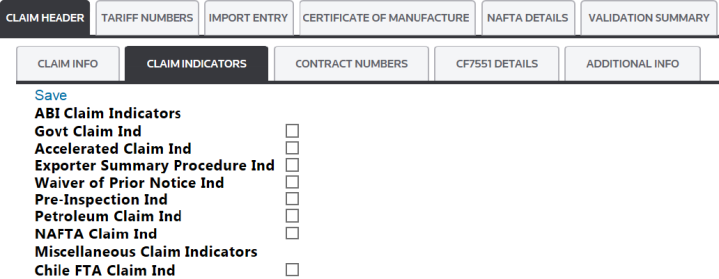
Claim Indicators Fields | Description |
|---|---|
Govt Claim Ind | Indicates whether or not the claim is a government claim. In order to be categorized as a government claim, the claimant must be a US Government agency. |
Accelerated Claim Ind | If the claim has been approved for the accelerated payment option, check this box. |
Exporter Summary Procedures Ind | If the claim is supported by a Chronological Summary of Exports, check this box. |
Waiver of Prior Notice Ind | If the claim has been approved to be filed with a waiver of prior notice, check this box. |
Pre-Inspection Ind | If pre-inspection is indicated for this claim, check this box. |
Petroleum Claim Ind | If the claim is for petroleum or a petroleum-based product, check this box. |
NAFTA Claim Ind | If the user is claiming a NAFTA Drawback for export to Canada or Mexico, check this box. |
Contract Numbers
Contract Numbers are required for manufacturing drawback types 41 and 44. To add a contract number, type the contract number in the “Add New Contract Number” field in NN–NNNNN–NNN format and click
Save
.
CF7551 Details Fields (Claim Indicators) | Description |
|---|---|
Section I | The checkboxes in this section populate Section I, boxes 10 and 34 on the front of the CF7551 Form. |
Section IV | The checkboxes in this section populate Section IV on the back of the CF7551 Form. |
Section V | The checkboxes in this section populate Section V on the back of the CF7551 Form. |

CF7551 Details (Statutory Provisions)
The
Statutory Provisions
sub-tab of the CF7551 Details
tab contains information regarding the transmission of the drawback claim as well as the user who created and last modified the claim. The user has three internal reference fields for potential use. To choose a statutory provision for a claim, choose a provision from the drop-down and click Save
. The provision will then display in grid below the drop-down.
Tariff Numbers
The
Tariff Numbers
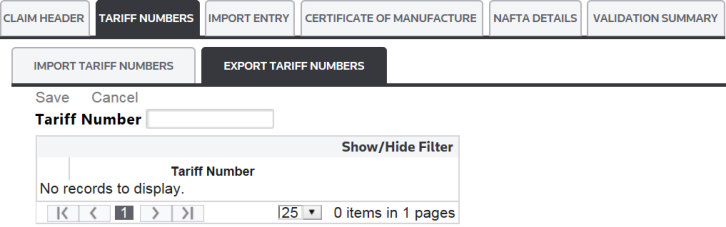
tab is split into two sub-tabs, both of which automatically populate when Populate
is clicked. They both associate transactional level data to the claim.Sub-tabs | Description |
|---|---|
Import Tariff Numbers | Displays all tariff numbers associated with the import entries on the claim. |
Export Tariff Numbers | Displays all tariff numbers associated with the export shipments on the claim. |
Import Tariff Numbers

Export Tariff Numbers
Import Entry
The
Import Entry
tab automatically populates when Populate
is clicked. This tab displays all entries associated with the drawback claim.
Certificate of Manufacture
The
Certificate of Manufacture
tab will populate if a Certificate of Manufacture (CM) was issued.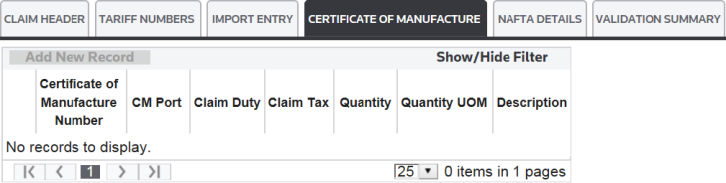
NAFTA Details
The
NAFTA Details
tab will populate if an entry on the claim qualifies for NAFTA.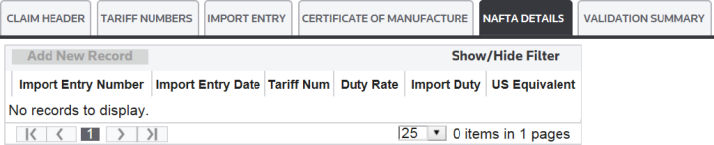
Validation Summary
After the Claim Header information has been input into the system and the drawback claim has been populated with the transactional level information (via
Populate
), you are ready to validate the claim to confirm all necessary fields are filled in. This is done by clicking Validate
.
If validation is successful, a message will appear at the top of the screen saying “Validation has completed successfully”. If there are errors related to the claim, these errors will appear in the
Validation Summary
tab. No further action can be taken on the claim until all errors have been resolved.
After validation has completed successfully, the user is ready to generate and transmit the claim. To generate the claim, click
Generate
in the upper right. The following reports will generate:- CF7551 Drawback Entry
- CF7551 Drawback Entry Back
- CF7551 Drawback Continuation Section II
- CF7551 Drawback Continuation Section IV
- MPF Drawback Calculation Worksheet (if applicable)
After reviewing the claim documents, you can transmit the claim to Customs by clicking
Transmit
. The reply for this claim can be viewed on the Drawback Summary
screen.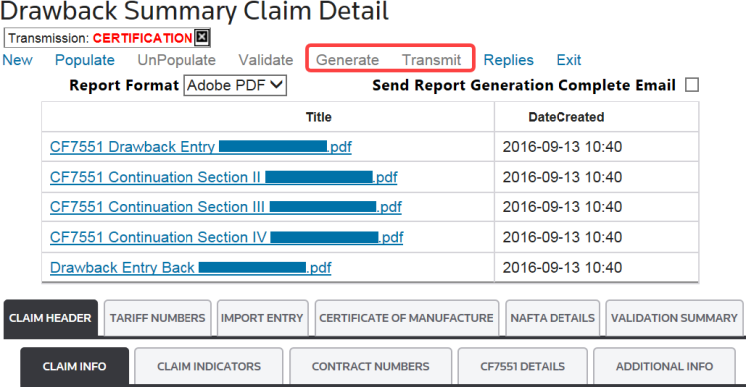
Related Content
-
Drawback Summary (ACS)
Format: Article