
Drawback Search
The
Drawback Search
screen allows you to create custom queries. This screen can be opened by choosing “Drawback Search” from the Tools
menu.To begin, choose the data sources. Once the data source is specified, the user can choose which columns to add to the query by moving
Source Columns
to the Display Columns
section of the screen. This can be done by utilizing the arrow buttons between the two boxes. The single arrow will move only the selected column. The double arrow will move all columns.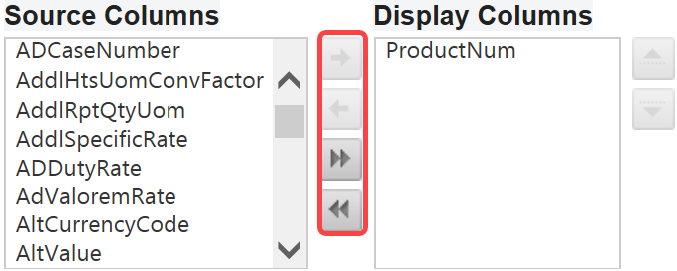
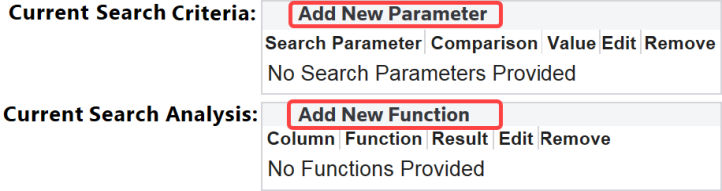
Once columns are chosen, additional parameters and functions can be added to the search by utilizing
Add New Parameter
and Add New Function
.
To save the search, click
Save Search
. Once a search is created, the results are viewable at the bottom of the screen.
Extracting Searches
To extract the search results to Microsoft Excel
, select “Extract”.important
You can extract up to 1 million results in a single operation. If you need to extract more than 1 million results, contact your system administrator for assistance.
Once the extract is complete, open or save the report to the local drive.
Related Content
-
Tools
Format: Article