
Port of Lading
The
Port of Lading
screen is used to maintain Port of Lading information. This screen displays all port codes utilized by the subzone and allows the user to add, modify, and delete port codes.This screen can be opened by choosing
Port of Lading
from the Maintenance
menu.Information that is provided regarding the Port for the update includes the reconciliation team number for the port, as well as an indicator if a port is a deep water port. Receipts into ports indicated to be a deep water port will not be included in Harbor Maintenance Fees.
Both foreign and US ports are entered into the system using this screen. The system uses this code when determining if the port will appear in
Port of Lading
fields on form screens, or inPort of Unlading
fields on form screens.When adding a US port, the value “US” should be included in the Type field.
When adding a foreign port, the value “FO” should be included in the Type field.
To perform a search for a specific port, choose a column header to search in the
Search
drop-down, and then set the date parameters. Click Search
…. Searches can either be new or successive.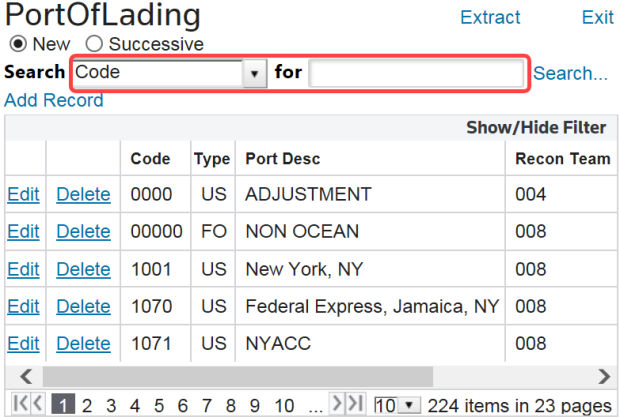
Adding a New Port of Lading
To add a new port, click
Add Record
.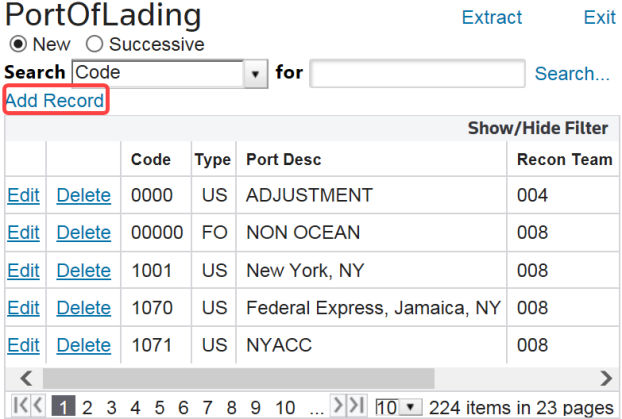
A new line will appear at the top of the grid. Enter the information, ensuring that the new item is unique from another entry in the system. When finished, click Insert. The new record will then appear in the grid.

Modifying an Existing Port of Lading
To edit a Port, choose a port in the grid and click
Edit
.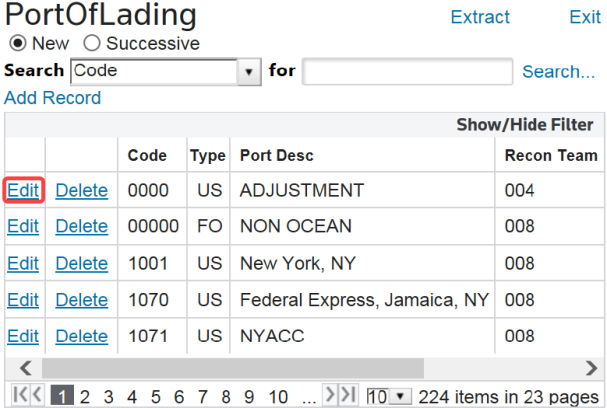
At the top of the grid, the fields for this record will become editable. Make the necessary changes and click
Update
.
Deleting an Existing Port of Lading
To delete a Port, choose a port from the grid and click
Delete
.
Related Content
-
Maintenance
Format: Article