
Bonded Move Entry Type TE62: Transportation/Exportation (No AMS Information)
The steps listed below involve the process for adding a Bonded Move TE62 where no AMS information has previously been entered for the relative shipment.
Enter the new Bonded Move Number. Choose
TE62
from the Entry Type
drop-down. Click Transmit AMS
Info, then click Save
. The screen will reload with the required data entry fields for a TE62 entry, along with the tabs listed below.
When choosing this option, the system will require completion of the
Header, Bills of Lading, BOL AMS Information
, and Container Data
tabs. Certain Modes of Transport are considered fully automated by CBP (e.g. vessel
) and attempting to file a Bonded Move for vessel Mode of Transport with Transmit AMS Info
checked will result in a rejection.Header: Bonded Move

Each new Bonded Move record contains various fields, many of which are required for submission to Customs. The following are explanations of each field when completing the Bonded Move for a TE62 entry.
Header: Bonded Move (TE62), Data Entry Fields | Description |
|---|---|
Action Code | Add or Delete. Delete can only be chosen if the user is attempting to delete a record that has been accepted by Customs and is already on file. |
Value | The whole US Dollar (USD) value of the shipment. If the value is unknown, $20 per kg may be used. As of the implementation of ACE, this field is no longer optional for TE62. |
BTA FDA Indicator | If the cargo is subject to reporting in accordance with the Bioterrorism Act, use Y (YES). This field will default toN (NO). |
Bonded Carrier Name | Choose the appropriate carrier from the drop-down. Once a carrier is selected, the system will reload the screen and populate carrier details into the required fields.
If the carrier is not listed in the drop-down, the user will need to add the carrier information to the Company Partners Maintenance table. |
US Destination Port | Choose the appropriate US Port of Destination from the drop-down. |
Foreign Destination Port | Select the foreign destination port in the case of an export. This field allows the selection of port codes previously registered in the system, including only foreign ports when an export operation is conducted (required for TE62 or IE63 entry types). |
Bonded Carrier SCAC | This field contains the Standard Carrier Alpha Code (SCAC), a unique four-letter identifier assigned to a company responsible for freight transportation. The SCAC is automatically populated when the Bonded Carrier Name is selected, with the information stored in the company's partner maintenance table. This code is used for tracking shipments and customs clearance in the United States. For movements out of an FTZ, FIRMS Code may be used. If used, it also must be entered for Importing Carrier and FTZFIRMS on BOL AMS Information. |
Bonded Carrier EIN | The EIN of the carrier is stored in the Company Partners Maintenance table and will be populated once a Bonded Carrier Name is selected. |
Carrier License Num | The Customs House License ( CHL ) of the carrier (if applicable) is stored in theCompany Partners Maintenance table and will populate once a Bonded Carrier Name is selected. |
Conveyance Data
In the top right corner of the
Conveyance Data
tab is an option to Show All CF7512/Conveyance Fields
. To view all CF7512 fields that will appear on the paper document, check this box.The fields added by the checked
Show All CF7512/Conveyance Fields
box will not be transmitted when adding a new Bonded Move to a previously existing Bonded Move.

Conveyance Data (TE62), Data Entry Fields | Description |
|---|---|
Mode of Transport | Choose the appropriate Mode of Transport from the drop-down.
|
Importing Carrier Code | A code representing the importing carrier. For vessel carriers, this will be the Standard Carrier Alpha Code (SCAC). This field is required if the Bonded Move is an air transport. |
Carrier Flag | Choose the appropriate country from the drop-down representing the flag country of the importing carrier. |
Vessel Name | Enter the name that identifies the conveyance. |
US Port of Arrival (Unlading) | Choose the appropriate US Port of Arrival from the drop-down. |
Voyage Number | Enter the voyage, flight, or trip number for the importing carrier as shown on the shipper’s manifest. This field is required if the Bonded Move is an air transport. |
Arrival Date | Enter the date representing the scheduled arrival at the Port of Unlading. |
Voyage Number | The voyage, flight, or trip number of the importing carrier as shown on the shipper’s manifest. |
CF7512 Fields
At the top right of the
CF7512 Fields
tab, the user will see boxes for the options listed below:CF7512 Fields (TE62), Option Bar | Description |
|---|---|
Show All CF7512 Conveyance Fields | If this box is checked, all CF7512 fields that appear on paper documents will show on the screen. This gives the user the ability to populate these fields for printing purposes. |
Include CF7512 Form Fields in Validation | If this box is checked, the system will validate the data entered in this section of the document. |
Validate Check Digit | If this box is checked, the user can validate the entry number format throughout the entire FTZ system. |

CF7512 Fields (TE62), Data Entry Fields | Description |
|---|---|
Origin Port | The US Customs Port where the Bonded Move entry is being presented (Schedule D). If the Origin Port is not listed in the drop-down, the user will need to add the Port Code information to the Port Codes Maintenance table. |
Bonded Move Date | The date the entry was prepared. |
Goods Now At | A Facilities Information and Resources Management Systems (FIRMS) code representing the location of the goods. |
Entered Or Imported By | The party who imported the merchandise (importer or consignee). This could also potentially be the party who presents the entry to Customs, if this is a different entity than the importer or consignee (e.g. importing carrier, bonded carrier, or a customs broker acting as an agent). |
Last Foreign Port (Via) | The code of the last foreign port, if applicable (US Census Schedule K). This must be a 5-digit Port Code. If the Last Foreign Port is not listed in the drop-down, the user will need to add the Port Code information to the Port Codes Maintenance table. |
Country of Export | The 2-character ISO Country Code of the country of export, if applicable (US Census Schedule K).
If the Country of Export is not listed in the drop-down, the user will need to add the information to the Country Maintenance table. |
Export Date | The date of export from the foreign country, if applicable. |
Previous US Unlading Port | Identifies merchandise which has been entered previously (Bonded Move, consumption, warehouse, etc.). Port Code information to the Port Codes Maintenance table. Previous Entry Num Identifies merchandise which has been entered previously (Bonded Move, consumption, warehouse, etc.). |
Previous Entry Date | Identifies merchandise which has been entered previously (Bonded Move, consumption, warehouse, etc.). |
G.O. No. | Identifies merchandise that has been withdrawn from the General Order (GO). The General Order ledger number will populate here. |
Foreign Port of Lading | Identifies the shipment by the inward foreign manifest of the importing carrier. This must be a 5-digit Port Code.
If the Foreign Port of Lading is not listed in the drop-down, the user will need to add the Port Code information to the Port Codes Maintenance table. |
Description | A description of the merchandise. Terms such as “general merchandise”, “Freight All Kinds”, and “FAK” are not acceptable. |
Certificate of Lading for Transport or Export | The US Destination and/or exportation port.
This is part of the Certificate of Lading for Arrival or Exportation. Paper forms only. |
Seal Numbers | Prints the entered Seal 1 and Seal 2 information. Paper forms only. |
Withdrawn For Vessel Supplies | Checks the box labeled Withdrawn For Vessel Supplies . Paper forms only. |
The user may click the
Show All CF7512/Conveyance Fields
box to view all data fields available. These fields will only show when Show All CF7512/Conveyance Fields
is checked.
CF7512 Fields (TE62), Supplemental Fields | Description |
|---|---|
Import Date | The date the importing conveyance arrived in the US. |
Sailing Date | Identifies the shipment in terms of the inward foreign manifest of the importing carrier. |
GrossWeight | The gross weight of the shipment. |
GrossWeight UOM | The gross weight unit of measure (kg). |
Consignee | Identifies the consignee named on the Bill of Lading, Air Waybill, or Invoice. |
Cleared For | This item is only used when exportation is involved and a CBP officer would complete the paper form to certify export and relieve the bonded carrier of its liability. |
Cleared For Date | The date of signature by the CBP officer noted above. Paper forms only. |
Laden On | The vessel of export completed by the CBP officer noted above. Paper forms only. |
Once data entry is complete, users should click on
Update
at the top of the Header screen. The system will save the updates and the user may now proceed to the Bills of Lading
screen.Bills Of Lading
The
Bills of Lading
tab (right of Header
tab) is used for reporting Bill of Lading data.Bonded Moves for non-air Modes of Transport must include a valid SCAC and Bill of Lading number.
Bonded Moves for air Modes of Transport must include either a Simple Air Waybill or both a Master Air Waybill and House Air Waybill. If no AMS information exists, Air Bonded Moves are not possible.
To add a new Bill of Lading, click
Add New BOL
. The screen will reload with all available fields.
Bills of Lading (TE62, e.g. Air Bonded Move), Data Entry Fields | Description |
|---|---|
SCAC | A code that identifies the party who issued the Bill of Lading. This field does not apply to goods imported by air.
important
The issuer of the bill could be different than the original importing carrier. |
Master BOL | The Master Bill of Lading Number. |
House BOL | The House Bill of Lading Number. Used only for Air BOLs that are House BOLs. |
Manifest Qty | The total number of pieces on the Bill of Lading. |
Bonded Move Qty | Populate with a quantity equal to or less than the Manifest Quantity. |
Quantity UOM | The Unit of Measure of the Manifest Quantity. |
Previous Bonded Move Num | Identifies the previous Bonded Movement, if applicable. |
Show Status Info | When selected, this field will display the description and status of the Bonded Move (Arrived, Exported, Transfer of Liability) after the record is processed. |
Click
Update
to save the new Bill of Lading record. The screen will refresh with the new data.
To add/modify secondary notify parties or Reference Identifiers; click
Edit/Show/AddlIDs
on the far left. The next two sub-sections will explain the process for adding each of these types.

Add New Secondary Notify Party
Notify parties are indicated by their respective SCAC or FIRMS code and must be automated in Ocean/Rail AMS before a message will be sent.
To add a new secondary notify party, open the
Bills of Lading
tab and click Edit/ShowAddlIDs
. Next, click Add New Secondary Notify Party
.
If the secondary notify party is an ABI filer, the code is NNNNXXXNN where NNNN is the Census Schedule D code which represents the CBP port of the secondary notify party, XXX is the Filer Code, and NN is the Office Code (if applicable).
Filers must participate in a Bonded Move before a message will be sent from Customs. To confirm that these codes are set up in Customs’ system, contact the ABI representative.
A Secondary Notify Party representing the QP filer must be added in order to receive Status Notifications from CBP. The software will automatically add the appropriate Secondary Notify Party during Validation if it does not already exist.
The user may add up to four (4) secondary notify parties for each Master Bill of Lading.
If four (4) Secondary Notify Parties already exist at that time and none of them represent the QP filer, a validation error will appear on the screen. The user can then edit or remove one of the existing Secondary Notify Parties and validate again.

Add or edit the Secondary Notify Party as needed. Click
Update
when finished.
Add New Reference Identifier
Reference identifiers are used to tie records back to transactions associated with FTZ inventory processing (FTZ-ICRS). Multiple Reference Identifiers can be used for each record. However, Reference Identifiers cannot be attached to an Air Bonded Move.
To add a new Reference Identifier to the record, open the
Bills of Lading
tab and click Edit/ShowAddlIDs
. Next, click Add New Reference Identifier
.
Column | Description |
|---|---|
Reference Qualifier | For a list of available codes to define the Reference Identifier, please see Appendix B of this Help. |
Reference ID | This field is the reference identification to define a valid Reference Qualifier. For example, SO as a Reference Qualifier would indicate that the Reference ID would be the Shipper’s order number. |
Use the fields listed above to create the Reference Identifier. Click
Update
when finished.
BOL AMS Information
The
BOL AMS Information
tab will appear to the right of the Bill of Lading
tab if Transmit AMS
Info was checked on the Bonded Move
screen. This screen is used for reporting AMS Bill of Lading data. Each Bonded Move must include a valid SCAC and bill number.To add additional details, click
Edit
on the far left.
The screen will reload with appropriate fields enabled for data entry.

BOL AMS Information (TE62), Data Entry Fields | Description |
|---|---|
SCAC Master/ House | The combined Carrier Code and Bill of Lading information. This data is populated from the Bills of Lading tab. |
Weight | The gross weight of the shipment. When populated, this field should equal the entered weight from the “Header” tab. |
Weight UOM | The unit of measure for the gross weight of the shipment. |
Measure | The value representing the total measurement of the goods in cubic feet or cubic meters. |
Measure UOM | A code representing the unit of measure (e.g. CF = Cubic Feet, CM = Cubic Meters). |
Foreign PreReceipt | The city/country name where the pre-carrier took possession of the cargo (if applicable). |
Foreign Port of Lading | A code representing the foreign port in which the cargo was laden on board the importing conveyance (Census Schedule K). This must be a 5-digit Port Code. |
Foreign Shipper | The name of the foreign shipper. The foreign shipper must be listed in the Company Partners Maintenance table. |
Consignee | The name of the consignee. The consignee name must be listed in the Company Partners Maintenance table. |
Notify Party | The name of the party to notify. The notify party name must be listed in the Company Partners Maintenance table. |
Make all necessary changes, then click
Update
on the far left.
Container Data
The
Container Data
tab is used to report container and harmonized code data. This tab will appear to the right of the BOL AMS Information
tab if Transmit AMS Info
was checked on the Bonded Move
screen.To add a container, click
Add New Container
.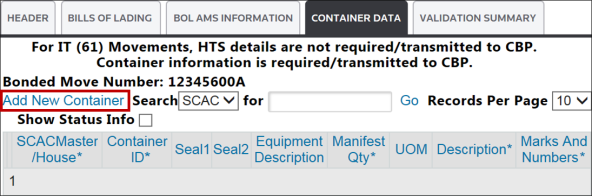
The screen will reload with appropriate fields enabled for data entry.

Container Data (TE62), Data Entry Fields | Description |
|---|---|
SCAC Master/House | This field will populate from the Bills of Lading tab. Choose the relevant Bill of Lading from the drop-down. |
Container ID | Enter a valid container/equipment number associated with the Bill of Lading number exactly as it appears on the container. Indicate NC for a non-containerized freight. Neither an identical container number nor theNC designation should be repeated within the same Bill of Lading. |
Seal 1 | A valid carrier seal number associated with the container. Not required if the Container ID is NC . |
Seal 2 | A second valid carrier seal number associated with the container (if applicable). Not required if the Container ID is NC . |
Equipment Description | The type of container/equipment used for the shipment. This field may be left blank if the Container ID was listed as NC . A comprehensive list of valid codes is provided in Appendix B of this User Guide. |
Manifest Qty | The total number of pieces on the Bill of Lading. Use the smallest exterior packaging unit. For example, if there are 10 cartons and 10 bales on one bill, insert the number 20 . |
UOM | A code representing the manifest unit of measure. |
Description | A description of the cargo. |
Marks and Numbers | A written description of the symbols and markings on the outside of the packaging. |
Make all necessary changes, then click
Update
on the far left.
Container Data: HTS Items
To view the current HTS Items for a Bonded Move, choose a container from the grid below and click
Edit/ShowHTS
on the far left.
All current HTS information will then appear on the screen. Next, click
Add New HTS Item
at the bottom of the screen.
A new row will appear for the user to enter the new HTS item. Complete the fields listed below:
Container Data (TE62), Add New HTS Items | Description |
|---|---|
Select or Enter An HTS Number | Enter a valid HTS Number. This can be done by choosing a valid number from the drop-down or entering a number in the HTS field. |
HTS | This field will populate when choosing from the above drop-down or when a number is manually entered. At least 6 digits of the HTS are required, provided the full HTS is known. |
HTS Value | Enter the appropriate US Dollar (USD) value associated with the HTS number. |
Weight | Enter the appropriate total weight associated with the HTS number. |
Weight UOM | Choose the unit of measure from the drop-down. |
HTS Description | This field will populate once a valid HTS number is chosen from the drop-down or entered manually. |
Make all necessary changes, then click
Update
on the far left.
The Bonded Move portion of the record is now complete. The user may proceed to the validation step as described in the
Bonded Move Validation and Transmission
section of the Help Center.Related Content
-
Bonded Movement Summary
Format: Article