
Users administration
The Admin menu is where you can add, edit, and delete users and groups. You can also review the permissions and history for groups or users.
Firm Administrators
Administrators should first create other Firm Administrators in the *** Location. This ensures there is a backup *** Administrator login.
note
Firm Configuration, a right available under Administrator Rights, allows access and edit of Firm Configuration options. The Firm Configuration right may be selected for Administrators who are only in the *** Location.
Add users
- SelectAdmin, thenAccess Control. The screen opens on theUsers Administrationtab.
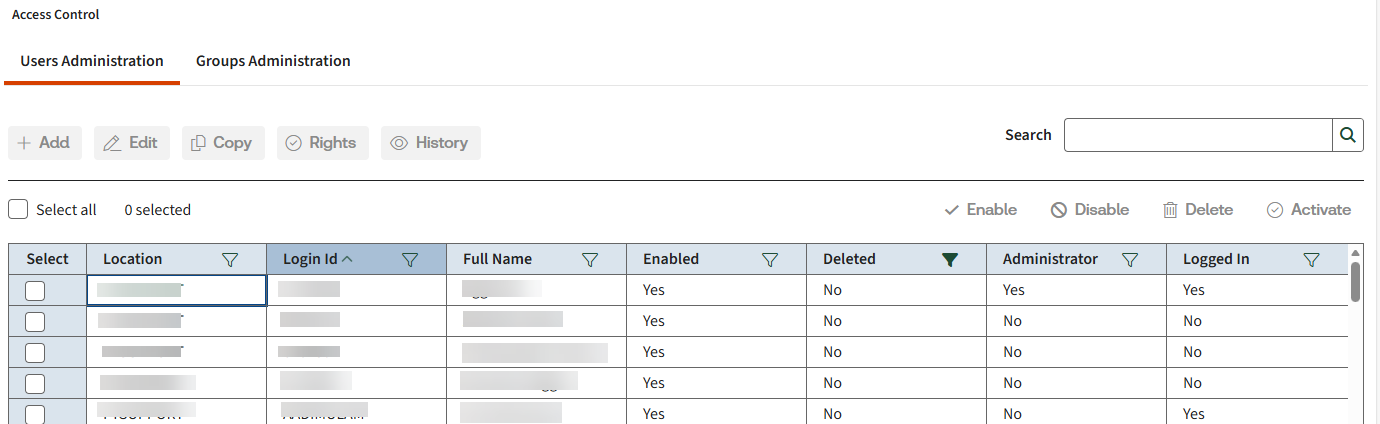
- SelectAddto create a new user.
- Select all theUser Info.noteWhen you set up new *** Administrators, theFirm ConfigurationandLetters and Filing Instructionsrights along with theDe-Federate Userright aren't automatically enabled. You must select each type of rights/permissions separately.
- Assign group(s) to this user.
- SelectCreateto add the user.
- SelectLogon Hours,Surprep,Single Sign On, andFT Supportto continue selection options for this user.
Single or multiple users tasks
Simply select the user(s) and then the appropriate action. Once you're done updating the information, select
Update
.- SelectEdit,Copy,Rights,Historyto change any of the information.
- SelectEnable,Disable,DeleteorActivatea single user or multiple users simultaneously.
Location administrators
Administrators should next create location administrators. A location Administrator can create their own groups and users.
- Users are grouped byLocation. You can filter each of the columns by selecting the funnel icon.
- Creating a user as an Administrator gives themAccess Controlpermissions.
- If you want to make this user a regional administrator, one who can modify groups and users in multiple locations (but not all locations), check theRegional Administratorcheck box, and then select theRegional Administratortab. Select the locations that the regional administrator can modify, and then selectAssign.
- SelectUpdatewhen you are done.
User rights and reports
- SelectRightsto see the rights or permissions for the user. This window shows you theLogin ID,Location,current login statusof the user, the date and time the user last logged in, as well as user rights and effective account rights.TheRightswindow shows the various accounts the user can access and the access levels ofFull,Limited, orPreparerfor each of those accounts. The seven group rights that are granted as part of the group setup process and Group Membership are also displayed.
- SelectAdmin, thenAccount Informationto see groups that grant access to specific accounts.
- SelectReports, thenList Users.
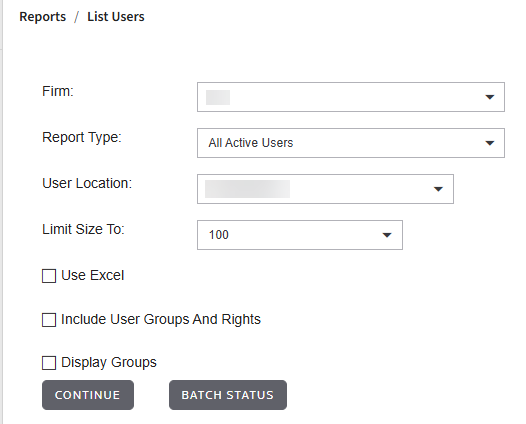
- Select the search criteria for your list, thenContinueand you'll see the report.
Related Content
-
Assign rights to use letters and filing instructions (LAFI)
Format: Article,
1 min read
Article,
1 min read

