
Submit linked and unlinked state returns
Submit state returns as linked or unlinked filings, and resolve common reject codes for state e-file submissions.
Linked filing
Linked filing connects your state tax return to your federal tax return and submits them either simultaneously or soon after.
- Go to theCreate Electronic Filing Batchscreen, then go to theSelect Return/Extensionsection.
- SelectCheck Federal ReturnandCheck State Returnfor the federal and state returns.
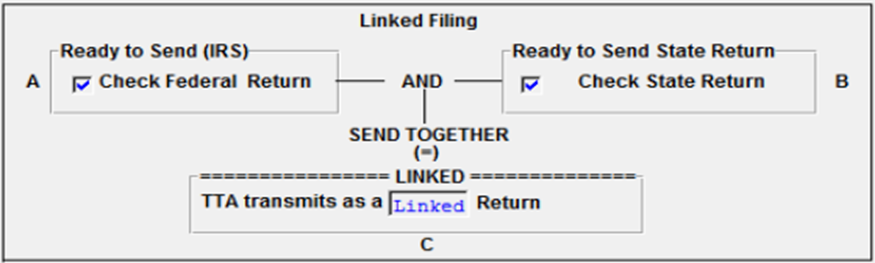
- Select theQualifiedreturns to submit.
You can submit linked returns using 2 methods, depending on whether the IRS has already accepted your federal return.
For federal returns that the IRS has already accepted
:- Create the qualified state e-file.
- Follow each step of theSteps of Electronic Filingscreens in the State Organizer.
- Ensure your federal return details are accurate. You need this to link your state and federal returns and to attach a federal return copy.
- Close the return after creating the qualified state return.
- On theCreate Electronic Filing Batchscreen, in theSelect Return/Extensionsection, select both thefederal ready to sendand thestates ready to sendoptions.
For Federal returns that
the IRS hasn't yet accepted
:- Create the qualified state e-file.
- Follow each step of theSteps of Electronic Filingscreens in the State Organizer.
- Ensure your federal return details are accurate. You need this to link your state and federal returns and to attach a federal return copy.
- Close the return after creating the qualified state return.
- On theCreate Electronic Filing Batchscreen, in theSelect Return/Extensionsection, select both thefederal ready to sendand thestates ready to sendoptions.
Thomson Reuters first submits your federal return while holding your state return. When the IRS accepts your federal return, Thomson Reuters submits your state return as a linked filing. If the IRS rejects your federal return, your state return is also rejected. If this happens, correct your federal return and resubmit both returns.
Unlinked filing
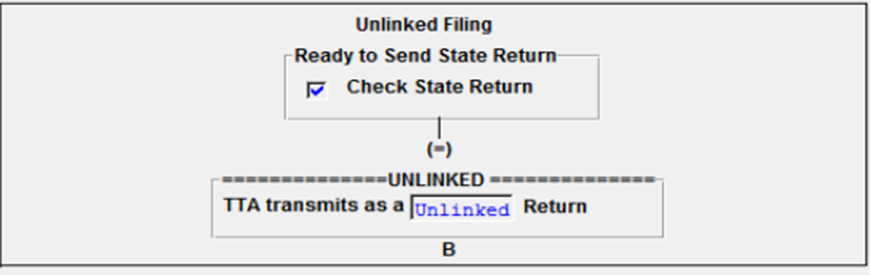
Unlinked filing lets you submit your state return independently, without directly connecting it to a federal return submission.
- Go to theCreate Electronic Filing Batchscreen, then go to theSelect Return/Extensionsection.
- SelectCheck State Return.
- Select theQualifiedreturns to submit.
To submit an unlinked filing:
- On theCopy of Federal Returnscreen within the State Organizer or Common State Organizer, selectState Only Copy of the Federal Return.
- Create the qualified state e-file by following each step on the State Organizer'sSteps of Electronic Filingscreens.
- Ensure your federal return details are accurate. You need this to link your state and federal returns and to attach a federal return copy.
- Close the return after creating the qualified state return.
- On theCreate Electronic Filing Batchscreen, in theSelect Return/Extensionsection, selectstates ready to send.
Reject codes
Thomson Reuters may reject otherwise qualified state returns if conditions exist that would cause MeF to reject the return. These reject codes are specific to MeF filing:
- Error 9501: For both linked and unlinked submissions. The system was checking in the state return, but couldn’t find a federal file.
- Error 9502: For linked submissions only. The IRS rejected the federal return and the state return was dependent on the IRS accepting the federal return.
- Error 9974: Only unlinked submissions can be made. This error occurs if you selectedCreate a federal copy for state only return. To correct this error:
- Go to .
- SelectFederal Copy State Only Opt (Optional)- Federal Copy for state Only Return.
- Send returns to e-file when they're ready to submit.
- Go to theSend Returnscreen. Mark onlyState Ready to send.
- Submit the selected returns asState Only.noteIf you don’t submit this as aState Onlyreturn, the system will reject the return.

