
Electronic organizer data entry for insurance returns
Show all hidden content
If the insurance company is not required to file an Annual Statement, they can enter their data directly into the 1120-L or 1120-PC Electronic Organizer. The data source method selected should be Electronic Organizer, not Annual Statement.
note
You can't enter data directly into the Annual Statement Organizer pages. All data entry should be made in the 1120-L or 1120-PC Electronic Organizer.
Schedule M-3
There are two ways to complete the data entry for Schedule M-3 in the Electronic Organizer. The first method, DIF import files, is preferred because it saves you the most time.
- DIF import files are used to import data for all three parts of Schedule M-3.
- Part I of Schedule M-3 is used only for single company or top consolidated returns.
- DIF import files are available for 1120-L, 1120-PC, and 1120 separate returns, including Part I for top consolidations.
- Use the Schedule M-3 DIF/KAT files in theData imports and exportstable on the product landing page to import the data.
Enter Schedule M-3 data directly into the electronic Organizer in the M-3 Organizer fields.
- 1120L: In Organizer, selectLife Electronic Organizer Page 7, thenSchedule M-3.
- 1120PC: In Organizer, selectPC Electronic Organizer Page 8, thenSchedule M-3.
Statutory-to-Tax Adjustments
Because tax adjustment balances are entered directly into the Organizer, there are no statutory-to-tax adjustments. Statutory tax adjustments are only used for Annual Statement customers.
Adjustments and Reclasses
Adjustments, which are made either automatically or entered directly in the Organizer while preparing the return, are one-sided only. However, reclasses are two-sided entities with both a debit and credit amount entered. An example of a reclass adjustment occurs when an amount is included in Other Income when it should have been included in Interest Expense.
You can reconcile a balanced return back to the statutory calculations through a summary of reclasses and tax adjustments. This summary is an important part of the supporting documentation of the insurance return.
- Select Tax Forms, .
- Select the link on line 13 to view the yellow detail.
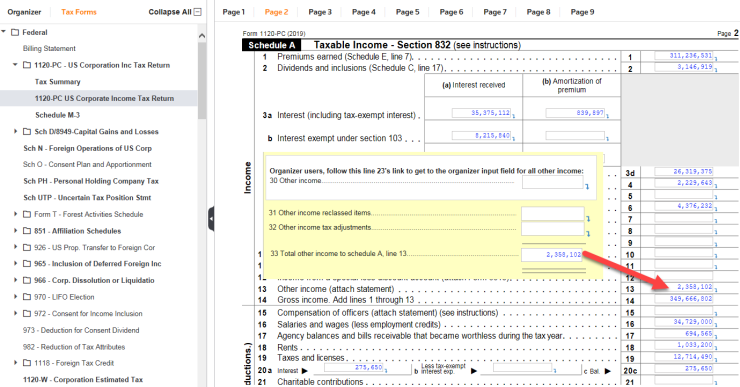 Select the link (blue turn-down arrow) in the Other Income field on the tax return.
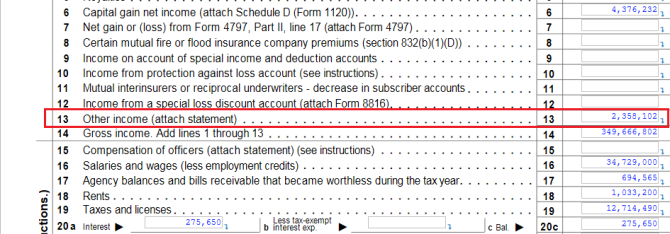 Find the Other Income Reclassed Items or Other Income Tax Adjustments, which are shown on the yellow detail image. Select theOther Incometab to view a screen where you can enter adjustments.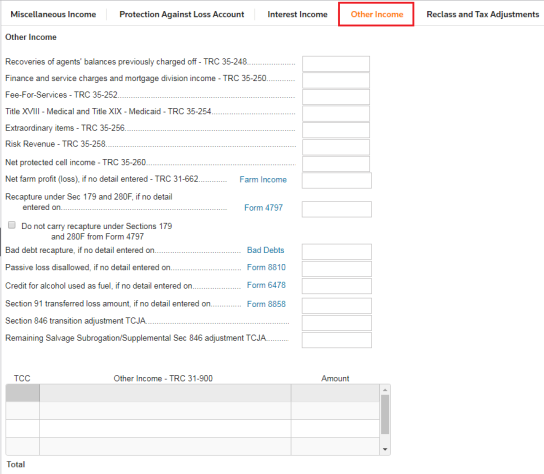
Reclasses In Balance
- Select the Tax Forms tab, then .
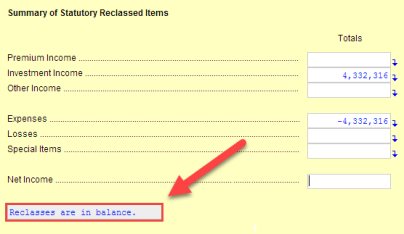
- Reclass items need to be balanced entries to keep a return in balance. You can verify that the return is balanced by going to theTotal Reclasses per reconciliationfield.
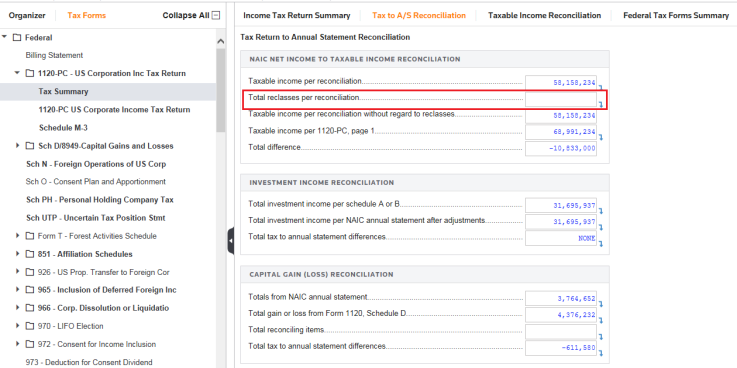
- You can select the field and use the down arrow link to open theSummary of Statutory Reclassed Items. If the return is in balance, a message stating this appears at the bottom of the screen.
Related Content
-
Select data source
Format: Article
-
NAIC Annual Statement transfer for insurance returns
Format:
Article

