
State consolidated/combined return - step 1
Follow these steps to enter a state consolidated/combined return.
- InOrganizer, selectConsolidated Returns, thenStep 1 - What to Consolidate, States to Combine/Consolidate.
- SelectState and City Activation / Consolidation.
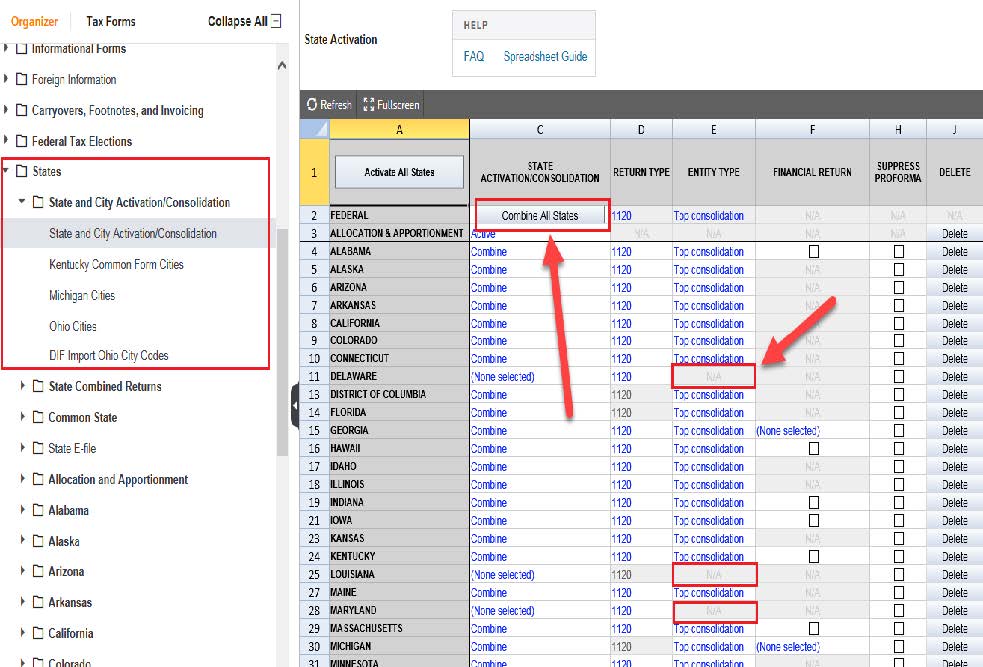
- If you want to make all states active for this return, selectActivate All States.
- Use theReturn Typecolumn to change the return type from the default, which is the federal return type. DC, FL, LA, MI, NH, TN, and TX only have 1120 return type.
- The federalEntity Typedisplays at the top of the column for reference. All states shows as the federal type except for DE, LA, MN, NJ, NC, PA. Select a different type on a state-by-state basis.
- Use theFinancial Returncolumn to add separate financial returns for the states that have them.
- Use theSuppress Proformacolumn to prevent the state from rolling over to the next year.
- SelectDeleteto delete all information previously entered for the state return.
Enter state adjustments and other state information in the parent and subsidiaries. In this instance, the system generates a state combined/consolidated return during consolidation.

