
Import a single type of data into multiple binders
- SelectBatch, thenBatch Process.
- Select 1 of the following tabs:Consolidation,Binder groups, orBinder tags.noteCategory: Internationalis only available forBinder groups.
- Select theYearfrom the dropdown.
- Select the consolidation, binder group, or binder tag from the list.
- SelectNext.
- In theBinder taskssection, selectImport.
- Select theCategory,Type, andImport Mode.noteTheTypeandImport Modeare dependent on theCategoryselected.
- If you selectAdd and replace entriesas theImport Mode, the import looks for a record with the same values, except for the amount:
- If the system finds a match, all amounts on the existing row are replaced in their entirety by the data in the import file. If a match isn't found, a new record is added.
- When you selectReplace All, the import process permanently deletes all existing data for each entity in the import file, regardless of the extent of data within the import file for an entity.noteReplace Allonly deletes existing information for a selected binder (in theConsolidation,Binder GrouporBinder Tag) when there is at least 1 valid record for the entity in the import file.cautionUsingReplace Allpermanently deletes information from ONESOURCE Income Tax.
- SelectBrowse for File.
- Select the batch file to import, thenNext.
- Select an existing template orNew Template.
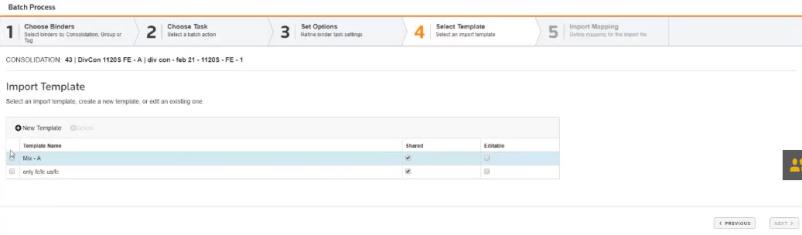
- Review or enter theTemplate NameandStart Row.
- ChangeSelect Headerto the header matching the data in each column.*Entity Numberis required. Other headers with*are required, depending on the selected import type.
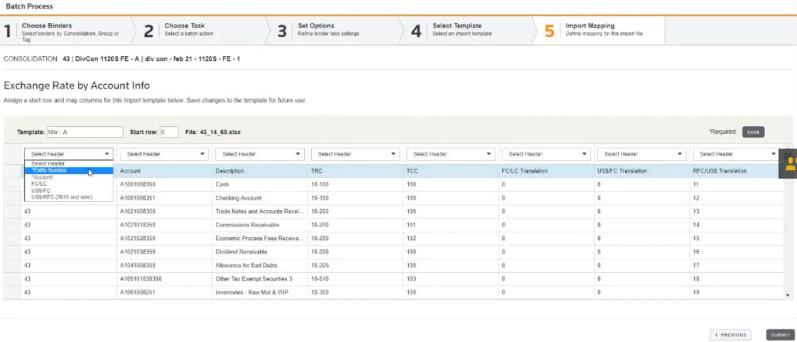
- SelectSubmit.
- InBatch Status, theStatuscolumn displaysProcessing,Complete,Completed with ErrorsorError. SelectRefreshto update the status.
- In theActionscolumn, selectDetailsto view the status by binder, orDownloadto export theError Messagesfile.

