Register the Data Import Excel Add-in
Register the Data Import Excel Add-in to access mapping and import functions after installation.
Contact your administrator to obtain permissions before you register and use the Excel Add-in.
important
Excel doesn’t display the registration prompt automatically after you install the add-in. You need to open the registration window manually.
- Open an Excel spreadsheet.
- Go to .
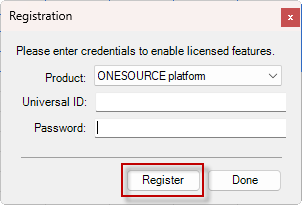
- On theRegistrationscreen,enter your ONESOURCE Universal ID and Password,then select.Register
- SelectOKwhen the registration is complete.
- (Optional): To register additional licensed products, select theProductdropdown and choose another product.
- SelectDoneafter you register all products.
Register the Data Import Excel Add-in with single sign-on (SSO)
Configure SSO settings and register the Data Import Excel Add-in to access your tax applications through single sign-on authentication.
note
If your administrator includes you on the Exemption list, you can continue to register the Excel Add-in with your ONESOURCE sign in and password using the standard registration process.
- Configure SSO settings:
- Go to tab.

- Clear theUniversal IDandPasswordfields if they contain any values. SSO users must leave these fields blank.
- Mark theUse Single Sign-oncheckbox.

- Configure your customized Single Sign-on URL:
- Double-click theURLfield.
- Enter your customized URL that includes the Excel Add-in authentication:https://customizedclientssourl.com&TargetResource=https://www.onesourcetax.com/amer1/home-login/UniversalLogin.aspx?OSTarget=opentokentipIf Registration fails:Verify the URL is auto-populated and doesn't have trailing or leading spaces. Go to , double-click to highlight and delete the Service URL. SelectOK. ReopenSettingsand verify that the Service URL auto populates before Registration.
 Contact Customer SSO at customer.sso@thomsonreuters.com if you need assistance locating your company's customized URL.
- Go to theIncome Taxtab and enter your 4-character account number in all caps.

- Go to theEstimated Paymentstab and enter your 4-character account number in all caps.
- SelectOK.
- Register with SSO:
- SelectONESOURCE Platformfrom the dropdown.
- Verify that theUniversal IDandPasswordfields remain blank.
- SelectRegister.