Troubleshooting guide
Solutions for common Workpapers NG add-in problems related to data import and export, manifest configuration, cache management, and field mapping.
Show all hidden content
Server status issue
Problem:
The manifest file added to the C drive doesn't appear under .Solution:
Verify that the server is running and set its startup type to Automatic
.- UseWindows key + R.
- Enterservices.msc, then selectOK.
- FindServerin the list and set theStartup TypetoAutomatic.
- Close and reopen Excel.
- Go toAdd-insand verify that the manifest now appears.
Data won't pull or push
Problem:
Data doesn’t pull or push after selecting GET/SET
.Solution:
Verify that the Entity Number
is unique for the Binder Year
, and map additional fields if duplicates exist.- Verify that theEntity Numberis unique for theBinder Year.
- Map theEntity Typeif 2 or more entities share the same entity number and entity name.
- Map theEntity Nameif 2 or more entities share the same entity number and entity type.
Missing latest features
Problem:
The newest features available in the current version don't appear on your machine.Solution 1: Delete the cache and re-add the add-in.
- UseWindows key + R.
- Enter%LOCALAPPDATA%\Microsoft\Office\16.0\Wef\.
- SelectOK.
- Close all Microsoft applications (such as Excel, Word, Outlook).
- Select all folders, thenDelete.
- Reopen Excel and go toAdd-ins. Add back Workpapers NG to your ribbon.
Solution 2: Remove the trusted site.
- Go to .
- Remove the add-in, then selectOK.
- Verify the add-in no longer displays in the ribbon.
- Repeat the same steps to add the add-in back.
Interesting Fields not retrieving data
Problem:
You can'tGET
information for Interesting Fields in the Organizer (for example, 5471 Foreign Corporation Information, Officer Compensation, Foreign Disregarded Entity).Solution:
Enter the wildcard *
into the cell mapped to the required field (for example, ForeignCorporation, Officer, FDEandFB). Multiple entity data import/export
Problem:
You need to import or export data for multiple entities simultaneously in 1 worksheet.Solution:
To GET/SET
for multiple entities in 1 worksheet, map the BinderGroup
field instead of BinderName.Determine acceptable field data
Problem:
You need to know what data a field accepts (checkboxes, radio buttons, dropdown lists).Solution:
You can access this information through the Data Dictionary.- Right-click on theOrganizerfield.
- SelectData Dictionary.
- ViewString values.
Sign in won't authenticate or sign-in page opens blank
Problem:
You can't sign in or the page doesn't open correctly. You might get the following error:
Unauthorized: Invalid or expired token.
Solution:
Clear local storage and reload the Workpapers NG Excel add-in.- In Excel, select theWorkpapers NGtab on the toolbar.
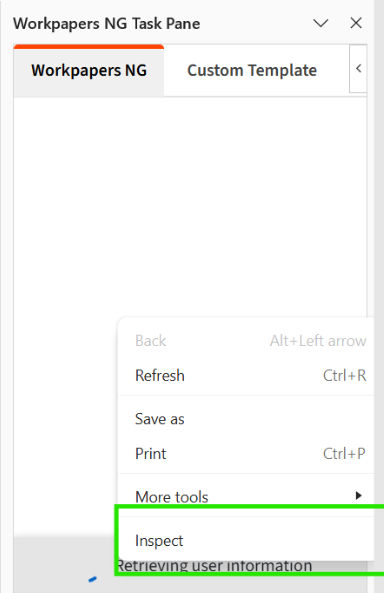
- Right-click anywhere inside theWorkpapers NG Task Pane, then selectInspect.
- In theDeveloper Toolswindow, do the following:
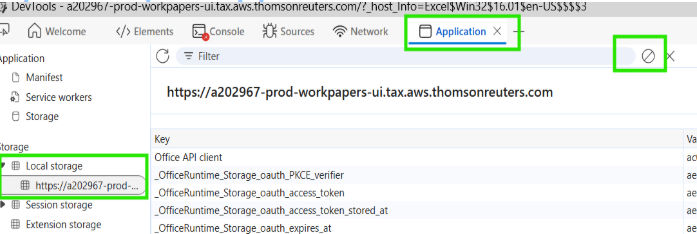
- Select theApplicationtab on the toolbar.
- Go to the Storage section, then select theLocal Storagesection to expand it.
- Selecthttps://a202967-prod-workpapers-ui.tax.aws.thomsonreuters.comfrom the list.
- SelectClear All, represented by the crossed-circle icon on the toolbar.
- Close theDeveloper Toolswindow.
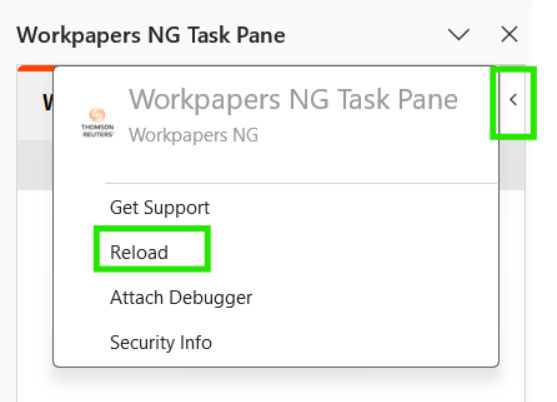
- Go back to Excel, then selectReloadin the Workpapers NG Task Pane to reload the add-in.