
2.4.0.3 integration for NetSuite
The ONESOURCE Indirect Tax Integration for NetSuite 2.4.0.3 is a patch release containing enhancement.
Supported source system versions
- NetSuite OneWorld and ERP
- Built for NetSuite (BFN) Validated
Technical changes
Issue #1:
Tax Registration Numbers are not available on NetSuite Transactions.Root Cause
: The SuiteTax Bundle did not previously support the retrieval and display of Tax Registration Numbers from ONESOURCE on NetSuite transaction records.Solution:
Tax Registration Numbers will now be retrieved from the ONESOURCE tax response and populated on the corresponding transaction records in NetSuite.
- Separate fields are provided for both Seller and Buyer Tax Registration Numbers.
- If multiple tax registrations are returned for either the seller or buyer, the corresponding field will display all values as a comma-separated list.
Implementation:
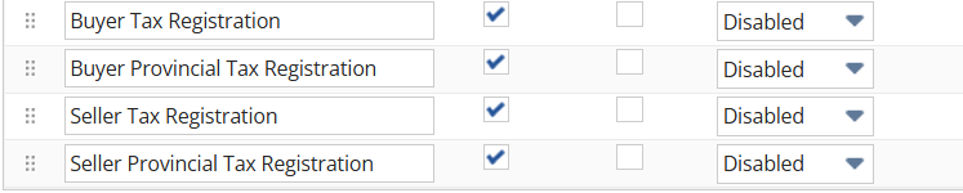
To support this enhancement, four new Transaction Body Fields have been created. Once these fields are added to the transaction form, they will be displayed under the Custom tab of the transaction record. The fields are intended for informational purposes only and will be read-only (disabled) for users, preventing manual edits by customers.Field Name | Internal ID |
|---|---|
Buyer Tax Registration | custbody_idt_buyer_registration |
Seller Tax Registration | custbody_idt_seller_registration |
Buyer Provincial Tax Registration | custbody_idt_buyer_provincial_reg |
Seller Provincial Tax Registration | custbody_idt_seller_provincial_reg |
We have modified 3 scripts - IDT.Transaction.Module.js, IDT.TaxPlugin.js, IDT.TransactionUserEventScript_v2.js
The fields will not be automatically added to existing forms in the customer's NetSuite account. Customers must manually choose to add these fields using one of the following methods:
- Add the fields to all Sales and Purchase Forms:When installing the new bundle version, select the "Show on Existing Custom Forms" option for the relevant fields. This will make the fields available on all Sales and Purchase forms.

- Add the fields to specific forms only:To add the fields to selected forms:
- Navigate to .
- Edit the form where you want the fields to appear.
- Go to tab.
- Locate the four custom fields and select theShowcheckbox for each field.
- Save the form.
- This approach allows you to control exactly which forms display the new fields.
Related Content
-
NetSuite SuiteTax
Format: Article