
Basic use of model scenario
To start to start creating and managing scenarios.
With the 3 pages you can create sample transactions and view the XML code. Determination returns the XML code and line-by-line information about the taxes due on the sample transactions.
- Model Scenario List Page: Search, filter, and manage scenarios.
- Model Scenario Add/Edit Page: Enter and modify transaction data.
- Model Scenario Results Page: View detailed tax results and XML data
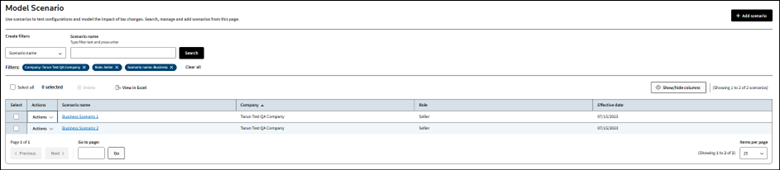
Each scenario row has an
Actions dropdown
under Actions column to perform various actions on a scenario: - Duplicate: a scenario to create a copy of existing model scenario.
- View results: this takes you directly to the results page of the selected model scenario
- View results summary: this displays the model scenario tax results on the list page without navigating to add/edit page or results page of the model scenario. Results summary is shown by expanding the model scenario row vertically.
- Edit: to update any scenario information or data.
- Rename: to change the model scenario name.
Basic Transactions
- Use descriptive names for scenarios, e.g., "WA - Sales Exemption for Machinery."
- Add comments in the Scenario Details to describe the transaction.
- Enter the basic requirements: date, company role, quantity, gross amount, and ship-to address.
- Include unique data: customer name, registration data, and product data.
Modeling Advanced Transactions
- Use TransEditors, allocations, and multiple lines with different data.
- Include customer exemptions, registrations, and licenses.