
R1.8.0.0 September 9, 2025 release notes
OEI Oracle BIP Report Automation
The ONESOURCE E-Invoicing solution (OEI) now includes a new capability: OEI Oracle BIP Report Automation. This feature enables users with Oracle to fully automate and manage their Oracle BIP reports directly from the OEI platform, positioning it as a single source of truth (SSOT) for all reporting needs and eliminating the need for Oracle Fusion Scheduler setup. This new integration connects seamlessly with the existing Oracle connector, providing a single, centralized platform for all reporting needs.
OEI connects securely to Oracle and offers centralized scheduling, BIP job execution, and visibility of execution status.
Key Features: OEI Oracle BIP Report Automation
- Manage Integration Jobs: One-time and Recurring Schedules:You can now schedule BIP extracts directly in the OEI interface with flexible frequencies—hourly, daily, weekly, or monthly—based on the job type. To get started, navigate toManage Integration Jobsto create jobs for Oracle system types, then useActionson theERP Integrationspage to configure and schedule them.noteManage Integration Jobs actions are not available for other system types—these features are specifically designed for Oracle integrations.
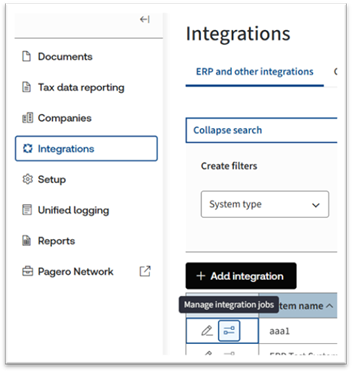
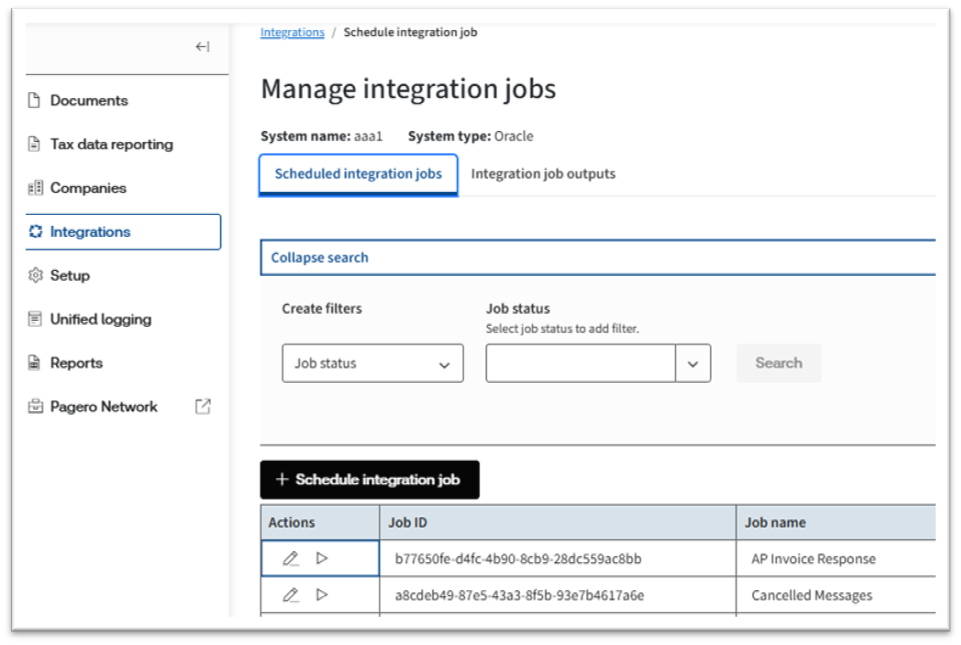
- Job Management:When you openManage Integration Jobs, actions will be available exclusively for Oracle system types through theActionscolumn in the grid. For these Oracle jobs, you’ll find two dedicated tabs for job management.
- Scheduled Integration Jobs:This tab allows you to configure and manage job schedules. Here, you can create new schedules, view job details (ID, name, frequency, created/updated on), and perform actions such as edit, run, pause, or resume. The user who scheduled the job is also displayed. Paused jobs appear as 'Inactive', while resumed jobs are marked as 'Active'.
- Integration Job Outputs:TheOutputtab provides a consolidated view of each job run. The data is available for the past 90 days and includes downloadable results and run status for auditing and troubleshooting. For each job run, you can view the:
- Job ID: A unique identifier of the scheduled job.
- Job Name: The name of the job (e.g., AP Invoice Business Response, Malaysia Self Billing).
- Executed on: The date the job run was executed.
- Execution ID: A unique identifier of the specific run instance for traceability.
- Status: The real-time outcome of the run (Processing, Done, Partial success, Error).
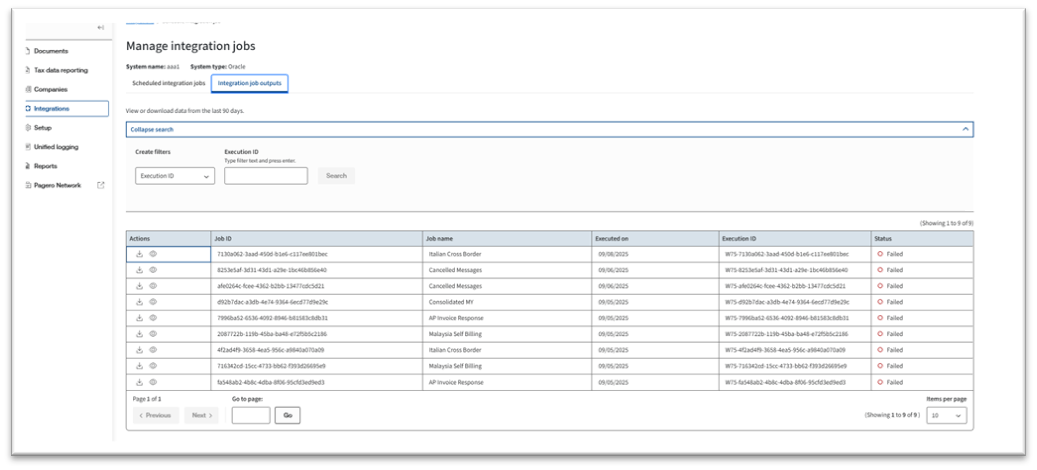
- Centralized Visibility:With these new features, OEI provides centralized visibility of all scheduled integration jobs and their outputs for easier monitoring and maintenance.
How to Access: OEI Oracle BIP Report Automation
This feature is available to all users with an active Oracle connector. The process for creating and managing an automated report is as follows:
- Log in to the ONESOURCE E-Invoicing solution dashboard.
- Use the search or navigation to locateERP Integration.
- Configure your Oracle System within OEI by selecting the appropriate settings.
- Your newly created configuration will now appear in theERP Integrationgrid.
- In theActioncolumn, locate theManage Integration Jobsicon.
- Select this icon to start creating and managing your integration jobs directly from the dashboard.
This streamlined process ensures you can efficiently set up and monitor your scheduled integration jobs within OEI.
Reports Available
- Italian Cross Border/ Italian Invoice Report
- Cancellation
- AP Business Response
- Malaysia Self- Billing
- Consolidated Invoices (Malaysia)
Customer Value: OEI Oracle BIP Report Automation
- Faster time-to-value:Set up one-time or recurring BIP extract schedules directly in OEI without relying on IT tickets or Oracle admins/no need for additional credentials are required to be configured within Oracle system to connect with ONESOURCE integrations.
- Operational agility:Quickly pause or resume recurring jobs as needs change.
- Centralized oversight:Manage schedules and outputs in one place for improved monitoring and auditability.
important
Before scheduling jobs in ONESOURCE E‑Invoicing, pause the common scheduler configured in Oracle to avoid overlapping runs. Please refer to the Oracle latest user guides for detailed instructions on BIP extracts.
Introducing Multi-Tenant Access for Partners - Partner Managed Services
The ONESOURCE E-Invoicing solution now enables partners to manage multiple client environments from a single user account. This feature streamlines the process of providing managed services by eliminating the need for separate logins for each client, centralizing access and administration.
Partners can now seamlessly move between client tenants using a new "Switch Account" feature, providing a more efficient and secure way to deliver services to multiple clients. This update is a foundational step in moving the platform away from the legacy client management process and towards a more scalable partner-centric model.
How It Works: Multi-Tenant Access
- Trusted tenant relationships:A host or partner tenant can establish trust with multiple client (child) tenants (e.g., WBH, WCF, WCA8) to enable cross-tenant access. Trust between the partner tenant and client tenants is set up by the ONESOURCE E-Invoicing database provisioning team.
- User migration and replication:Users from the host tenant may be registered in trusted client tenants without creating new profiles.
- Tenant switching:When a trusted relationship is enabled, the "Switch Account" option becomes available in the user's profile menu. Operators may switch between host and client tenants using one account, provided permissions have been assigned for each tenant.Upon switching, the user’s view is limited to the selected client tenant and only data associated with that tenant is accessible.
- Scoped permissions per tenant:Product and client permissions are assigned within each client tenant to maintain least-privilege access.
- Admin-only setup:Configuration screens for external/trusted access are accessible only to full administrators.An "External User" column appears in user lists to indicate users accessing a tenant from an external partner environment.
Getting Started: Multi-Tenant Access
To enable multi-tenant access for your partner account, please contact your account administrator or reach out to the ONESOURCE E-Invoicing database provisioning team directly. For any questions or support, contact the platform administrator.
Who is this for: Multi-Tenant Access
- Partners operating as Managed Service Providers (MSPs) managing multiple client EInvoice tenants.
- Internal administrators and Professional Services teams coordinating tenant relationships and access.
How to enable: Multi-Tenant Access
- Plan the trust model
- Identify the host/partner tenant and the list of client tenants to be trusted.
- Define required roles for EInvoice setup, submission, and reporting per tenant.
- Request provisioning
- Submit a request to the DB/provisioning team to establish trust relationships between the host and each client tenant.
- Migrate users
- From the host tenant, transfer selected operators into each trusted client tenant.
- Backend registration makes the user available in the client tenant directory.
- Assign permissions
- In each client tenant, assign client context and EInvoice product permissions.
- Validate that the operator can see setup/reporting screens as intended.
- Validate switching
- Confirm users can switch between the host and all trusted client tenants and complete end-to-end EInvoice flows.
Limitations: Multi-Tenant Access
- Manual Setup:The ONESOURCE E-Invoicing database provisioning team must manually configure multi-tenant access.
- Separate Logins:Some integrations (like Pagero network access in OEI) still require different platform users. Currently, users on the child tenant's Pagero Network page see parent tenant companies. This will be resolved when Pagero supports single user mapping to multiple company groups, allowing OEI to address this issue.
Key Benefits for Partners: Multi-Tenant Access
- Streamlined Access:Manage all clients with a single set of credentials, reducing the complexity of managing multiple logins.
- Operational Efficiency:The ability to quickly switch between client environments saves time and simplifies administrative tasks.
- Clear Data Separation:Client data and permissions remain entirely separate and are only visible when the user is within a specific client's tenant.
- Future-Ready:This feature positions the platform for future enhancements that will further support partner-driven business models.
- Secure, auditable user migration and access control.
- Clear separation of permissions and visibility between parent and child tenants.
ONESOURCE Document - DataLists API
The DataLists API is introduced as a powerful new feature that enables programmatic management of company-specific validation and enrichment rules within the Onesource E-Invoicing ecosystem. This API empowers customers to seamlessly fetch, manage, and update their data validation and enrichment rules directly through Onesource, without requiring direct access to Pagero Online.
What Are DataLists?
DataLists are company-specific validation and enrichment rules in the form of key-value pairs that serve as the foundation for automated document processing. These lists enable businesses to maintain control over how their documents are validated, enriched, and routed through their systems.
Types of DataLists
- Validation Lists:Contain predefined values required in specific document fields. If an incoming document doesn't contain the expected value in the correct location, the document processing stops and a validation message is sent back to the sender of the document.
- Enrichment Lists:Contain key-value pairs where the key represents a condition that must be met for enrichment functions to execute. When the condition is satisfied, the system automatically adds the corresponding value to enhance the document with additional business context.
Use Cases: DataLists
Document Validation:
- Supplier Code Verification:Maintain a list of approved supplier codes to ensure only authorized vendors can submit documents
- Cost Center Validation:Ensure documents reference legitimate cost centers that exist in your financial system
Document Enrichment:
- Automatic Currency Assignment:Based on supplier location or GLN number, automatically assign the correct currency code to documents
- Account Code Mapping:Map supplier-provided item codes to your internal accounting codes for seamless ERP integration
Document Routing:
- Department Routing:Route documents to specific processing inboxes based on department codes or project numbers or po numbers
- Department Code Validation:Verify that documents contain valid department codes before routing them to the appropriate processing channel
Features: DataLists
- Retrieve All DataLists: Get a complete overview of all datalists associated with your company
- View DataList Entries: Access detailed key-value pairs for any specific datalist
- Bulk Updates: Replace entire datalist contents with new entries in a single operation
Benefits: DataLists
- Eliminate manual updates in Pagero Online
- Automate datalist management through your existing systems
- Reduce time-to-market for validation rules and enrichment rules changes
note
Datalist must be created in Pagero, not OEI.
Correct and Restart Invoice Delivery
This new feature provides users with a way to easily correct and restart the delivery of invoices that fail due to an incorrect email address. The OEI user interface now includes a dedicated mechanism to update the recipient's email and restart the transaction, ensuring invoices are delivered to the correct destination efficiently. This enhancement improves operational efficiency and simplifies the troubleshooting process for delivery failures. This functionality is supported through both the user interface (UI) and API.
Key Features: Correct and Restart Invoice Delivery
- In UI Email Correction and Restart:You can now correct an invalid email address directly within the OEI user interface. When an invoice fails due to an invalid email address, OEI now flags the transaction with a clear error and offers a simple way to correct it
- New Filter:A new filter “Error Actions”, has been added to theErrorstab to help you quickly find transactions that are eligible for email correction. This filter is a single-selection field and is not included in the main grid or the exported file.
UI and Data Updates: Correct and Restart Invoice Delivery
- All references to "Resubmit" have been replaced with "Restart" in the UI and documentation.
- The system activity log for a successfully resent invoice will now include a description noting "successfully submission by pagero," providing a clear audit trail.
How to Access: Correct and Restart Invoice Delivery
- Log in to the OEI dashboard.
- Navigate to theErrorsTab.
- Select theError actionsfilter and chooseRestart with updated email.
- The grid will now display only the transactions with email delivery errors that require your action.
Email Correction and Restart Workflow
When you find a transaction with an email delivery error, you will see a hyperlinked error description in the "Error description" column. This hyperlink indicates that more action is required.
- To correct the email: Select the hyperlinked error description. A pop-up window will appear, prompting you to "Update email address details."
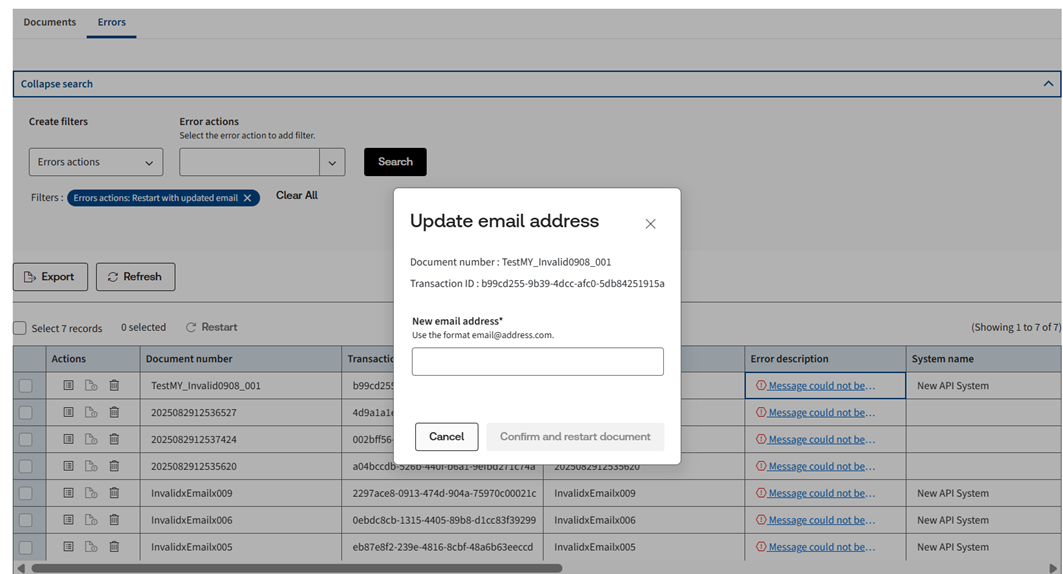
- To restart the transaction: After entering the correct email, select "Confirm and restart." The document will automatically be removed from the Errors grid and will reappear in the Documents grid with a "Processing" status as it attempts to restart the delivery.
Once the invoice is successfully distributed, its status will be updated to "Done," and the activity log will show a description of "successfully submission by pagero," confirming the delivery.
Future Enhancements: Correct and Restart Invoice Delivery
- Email Notifications:Error email notifications, both pre- and post-email address correction, will be covered in upcoming releases.
Delete Duplicate AP Invoices
This release introduces a new capability to manually delete duplicate Accounts Payable (AP) invoices directly from the OEI user interface or via API. This feature addresses issues that can arise from manual restarts on external platforms like Pagero, which may lead to duplicate documents in OEI. By providing a way to remove these redundant invoices, the system ensures data remains clean, accurate, and free of confusion for reconciliation and reporting.
Key Highlights: Delete Duplicate AP Invoices
- Duplicate Invoice Management:You can now easily remove redundant AP invoices that were created due to external system restarts.
- API and UI Support:This functionality is available through both the OEI user interface and API, giving you flexibility in how you manage your documents.
- Data Integrity:Deleting duplicate invoices prevents confusion and ensures proper data reconciliation.
- Clear Audit Trail:When a document is deleted, its status is updated to "Cancelled" in the show log, providing a clear record of the action.
Understanding Duplicate Invoices
Duplicate invoices on the AP side can occur in two scenarios:
- Scenario 1:When an invoice is manually restarted from an external platform like Pagero or OEI Action API, each restart generates a new AP invoice within OEI. All invoices will share the same File ID and Invoice Number.
- Scenario 2:When Pagero/OEI receives the same invoice from two different service providers, OEI creates multiple invoices. In this case, all invoices will have different File IDs but the same Invoice Number.
To help users identify which documents are eligible for deletion, OEI will now populate the possible actions field with "Cancel" as a value for all affected AP invoices in the GET Documents API.
How to Access This Feature: Delete Duplicate AP Invoices
Customers have two options to cancel duplicate invoices: via the user interface or via API.
Via UI
- A user logs in to the OEI dashboard.
- The user navigates to theDocumentsgrid.
- The user searches for the duplicate invoice to be deleted.
- In theActionscolumn for the desired transaction, the user selects the delete icon.
- A confirmation pop-up appears. After confirming, the invoice is deleted, and its status is updated to "Cancelled" in the show log.
Via API
Customers can call the action API to cancel AP documents by passing the specific OEI Document
important
Users should exercise caution when deleting invoices. If the correct AP invoice is accidentally deleted instead of the redundant one, the action cannot be reversed. This feature is intended for cleaning up duplicate entries and should be used with care to maintain the integrity of records.
A dedicated filter to help users more easily identify duplicate invoices will be provided in future releases.
Improved Data Reconciliation Report
The Data Reconciliation Report has been significantly enhanced to provide more comprehensive data and support for a wider range of document types. These updates simplify your reconciliation process, improve operational efficiency, and provide richer data for auditing and analysis.
Key Features: Improved Data Reconciliation Report
The reconciliation export file now includes additional fields at both the line and invoice levels to give you a more complete dataset.
- Expanded Document Details:
- Invoice creation date and Invoice issue date.
- Consolidated Invoice indicator.
- Exchange Rate.
- Sender Address and Receiver Address.
- New Party and Tax Information:
- Supplier Name and VAT ID.
- Buyer Name and VAT ID.
- Government ID.
- Tax Jurisdiction.
- Line-Level Tax Data:The VAT Code and VAT Type fields are now included at the line level in the extract file, providing more granular detail for reconciliation. The on-screen report grid has been streamlined by removing these two fields to improve usability.
- Expanded Reconciliation Capabilities:The Data Reconciliation feature now supports more document types and transaction modes.
- Certificate Mode Support:The data recon now support transactions in Cert Mode, enabling users to reconcile.
- New Document Type Support:The Analytics API now enables end-to-end reconciliation for IIR (Italian Invoice Report) and Order document types.
- Improved File Naming for Exports:The exported file name now includes the date range of the data, which simplifies file management and auditing. Provides clarity for users by explicitly indicating the selected date range for the exported data reconciliation extract file.
- If a date filter is applied, the file name will include both the start and end dates in the format: data_reco_YYYYMMDD_HHmmss_YYYYMMDD_YYYYMMDD.csv
- If no date filter is applied, the file name will include only the creation date and time: data_reco_YYYYMMDD_HHmmss.csv
The VAT Type and VAT Code fields have been removed from the
Data Reconciliation
grid within the Reports
section of OEI and are now included at the line level in the extract/export file.mTLS Public Certificate Support for SAP System Integrations
This release introduces support for Thomson Reuters Public Certificates within OEI's backend APIs. This enhancement is crucial for strengthening security and simplifying the integration process for specific partners and customers, particularly for SAP system integrations, where TR Public Certificates are a preferred method for authentication and secure communication.
Customer Value: mTLS Public Certificate Support
- Enhanced Security:This feature improves the overall security of your integrations by leveraging trusted Thomson Reuters Public Certificates for authentication, ensuring secure communication between systems.
- Simplified Management:For users whose systems require it, this streamlines the certificate management process, reducing administrative overhead.
- Improved Compatibility:It facilitates more robust and trusted connections with systems that require or benefit from TR Public Certificate authentication.
Functionality: mTLS Public Certificate Support
The OEI backend APIs are now enabled to recognize and validate Thomson Reuters Public Certificates for authentication and secure communication. Integrated systems (SAP only) can now use these certificates when interacting with OEI APIs.
note
UI support will be provided in further releases.
Revamped ERP and Integrations Management
This release introduces a new dedicated menu for all ERP-related configurations. By relocating system settings and company assignments from the cluttered
Setup
menu to a new, focused Integrations
page, users can now manage their system-specific settings more efficiently and streamline their workflow. This is part of an ongoing effort to make OEI more scalable and intuitive as we introduce more integration capabilities, such as the new Oracle BIP Reporting configuration.Key Highlights: Revamped ERP and Integrations Management
- Dedicated ERP Page:All ERP-related configurations and assignments have been moved to a single, easily accessible page, reducing clutter on the mainSetupmenu.
- Unified Search & Filters:The new page features a searchable list of all system configurations, complete with filters for system name, type (SAP Ariba, Oracle, etc.), AP file type, and sync status.
- Streamlined Company Assignment:You can now manage company assignments and trigger system-specific workflows directly from the new ERP page. Action buttons are now tailored to the system type, for example, an "Manage Integration Jobs" button for Oracle system type.
- Seamless Navigation:The old ERP and assignment sections have been removed from theSetupmenu, which now includes a clear link directing users to the newERP and Other Integrationspage.
How to Access This Feature: Revamped ERP and Integrations Management
- Log in to the OEI dashboard.
- Navigate to the main menu and select the newIntegrationstab.
- On this page, you can search, filter, and manage all your ERP-related system and company assignments.
This change ensures that OEI's interface remains clean and user-friendly as we continue to expand our integration capabilities.
Gosocket Integration
The ONESOURCE E-Invoicing solution now offers new API-based integrations for both Peru and Argentina. This feature allows customers to seamlessly onboard and manage e-invoicing for these countries directly through their existing systems, streamlining the process of sending and canceling documents.
This update simplifies compliance and provides real-time visibility into the status of all your e-invoicing documents.
Key Features: Gosocket Integration
Peru Country Integration
- Company Onboarding:You can now onboard your company for Peru e-invoicing via OEI UI. The process captures essential details like tax ID, address, and certificate information, and securely sends them to GoSocket to enable document transmission.
- Accounts Receivable (AR) & Accounts Payable (AP):The API integration supports the submission of taxable documents for both AR and AP. Documents sent through the API will appear in OEI with real-time status updates from the local tax authority.
- Document Cancellation:You can now submit a cancellation payload via API to cancel a document. This cancellation refers to the cancellation of an invoice post-clearance approval. The updated status of the cancellation will be visible in OEI.
Argentina Country Integration
- Company Onboarding:Similar to Peru, you can now onboard your company for Argentina e-invoicing via OEI UI. The process collects Argentina-specific details like tax ID, address, and user information and enables document submission.
- Accounts Receivable (AR):The API integration supports the submission of taxable documents for Accounts Receivable. These documents will be reflected in OEI with the latest status from the local tax authority.
Documentation and Support: Gosocket Integration
For comprehensive details on how to use these new integrations, refer to the API User Guides available in the Devportal documentation section of the OEI platform. For further assistance, contact customer support.
ONESOURCE Interface Localization
ONESOURCE E-Invoicing (OEI) application is now available in Turkish, Portuguese, Dutch, and Arabic, in addition to Spanish, Polish, French, German, Romanian and Italian which was released in earlier versions. Users can select their preferred language using the language selector dropdown on the ONESOURCE my account setting page.
Details: ONESOURCE Interface Localization
- Coverage:UI labels, menus, dialogs, toasts, and email notifications.
- Availability:Language can be selected in user profile or inherited from browser settings where supported.
- Right-to-left:Arabic UI renders in RTL with mirrored layouts.
- Localization scope:Dates, numbers, and status labels localized; content entered by users is not auto-translated.