
Bulk E-filing (AU)
Use the ONESOURCE E‑Filer Manager to submit multiple BAS (Business Activity Statement) returns at once to the Australian Tax Office (ATO).
To ensure a smooth filing process, verify the following:
- Your organization has registered the ONESOURCE E‑Filing Manager as its provider for secure SBR channel transmissions.
- Prepared all BAS returns you intend to file and ensure they're in the correct status for e‑filing.
Prepare a return for filing
- Go to theReturnsscreen and mark the checkboxes for all closed BAS returns you want to file together.
- For a successful batch, make sure the returns share the sameTemplate,E-File Status, andPrevious E-File Action.
- If the returns are still editable, change their status toRead-Onlywhen prompted before you proceed.
- Select to open the Bulk E-Filing Wizard.

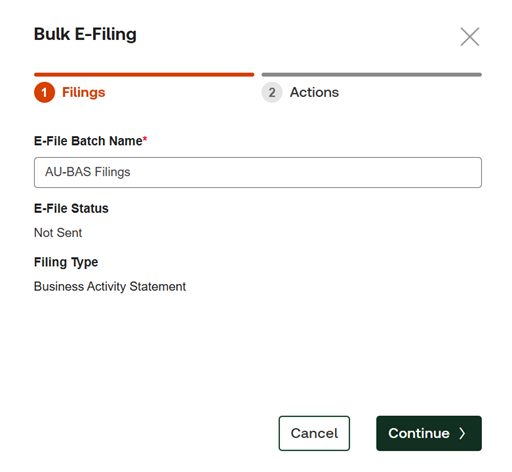
- On theBulk E-Filingscreen, enter a unique name inE-file Batch Name. This helps to track the group of returns.
- Make sureBusiness Activity Statementis selected as the filing type, then selectContinue.
- Select a filing mode on theActionsscreen:
- Manual:Review and approve each step individually.
- Autocomplete (List and Prefill steps):Perform the initial List and Prefill steps automatically for all returns in the batch.
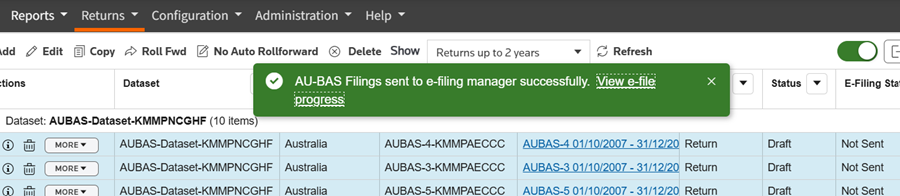
- SelectConfirmto begin the filing process, then select the hyperlink in the confirmation message to open the E-Filer Manager.
Review and submit returns
You can track the status of your submission after you prepared your return:
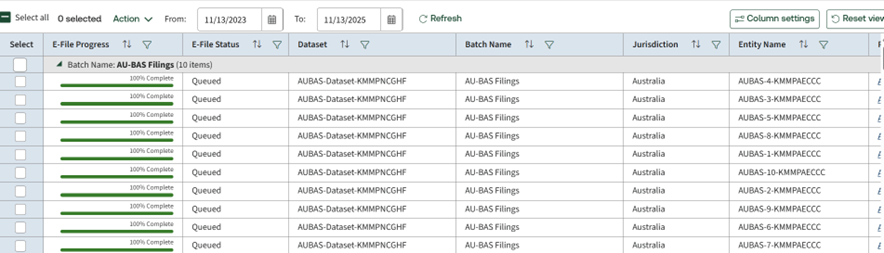
- Find your batch in the list and monitor theE-File Progressin real time for each return. Use filters such asDateandBatch Nameto locate specific filings.

- Wait until the status for all returns in your batch updates toPrefill Received, then review the data to verify accuracy.
- Select a final filing mode on theActionsscreen:
- Manual:Review and approve each step individually.
- Autocomplete (Validate and File steps):Perform the initial List and Prefill steps automatically for all returns in the batch.
- SelectFinish. The return is validated and updates toQueuedto indicate they are ready for final submission to the ATO.
- Open ONESOURCE E‑Filing Manager (Indirect Tax), then select theQueuedtab.
- Select the returns you are ready to submit and selectFile Now.
- Mark the checkbox to sign the declaration in the confirmation window, then selectSubmit.
Verify the final filing status
- Go to ONESOURCE Indirect Tax Compliance, then go to theReturnstab.
- Verify the E-Filing Status in theReturnsandE-Filer Managerscreens for a final status ofSuccessful (E File).
- Go to ONESOURCE E-Filing Manager (Indirect Tax), then select theHistorytab.
- Check the Status column for the same final status.
- If an error occurs, the automated process pauses at the step where it detects the error.
- Review the error, correct the problem, and then resume the filing process without restarting the entire batch.