
Australia BAS E-Filing Process
Once you have nominated Thomson Reuters ONESOURCE E-Filing Manager as the software provider to make secured transmissions using the SBR channel, you can file an Australia BAS return to the Australian Tax Office (ATO).
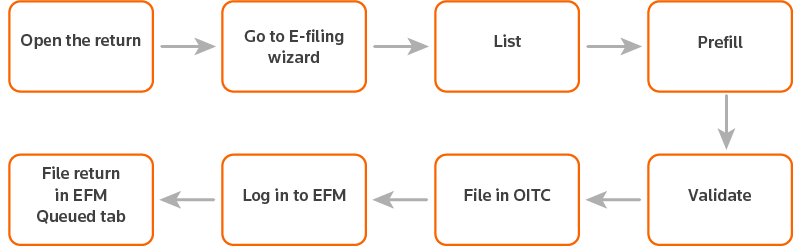
- Open the BAS return you want to file.
- SelecteFile
 on the toolbar to open the wizard.
 - On the1 Filingstab, selectBusiness Activity Statement, then selectNEXT.
- On the Actions window, selectList, then selectNEXT.
- Once the return has been sent to ONESOURCE E-Filing Manager successfully, theStatustab opens and displays a confirmation message. SelectRefresh Statusto check the status.
- Check the status of the listing. The expected status isList Received.
- Refresh and save the return.noteTo flow the ATO Listing Response to the return, it is important to refresh the return and save it.
- Relaunch the wizard.
- On theFilingswindow, selectPrefill, then selectNext.
- Once the return has been sent to ONESOURCE E-Filing Manager successfully, theStatustab opens and displays a confirmation message. SelectRefresh Statusto check the status.
- Check the status for prefill. The expected status isPrefill Received.
- Refresh and save the return. To flow the ATO Listing Response to the return, it is important to refresh the return and save it.
- Relaunch the wizard.
- On theActionswindow, selectValidate, then selectNEXT.
- Once the return has been sent to ONESOURCE E-Filing Manager successfully, theStatustab opens and displays a confirmation message. SelectRefresh Statusto check the status.
- Check the status for validation. The expected status isPassed Validation.
- Relaunch the wizard.
- On theActionswindow, selectFile, then selectNEXT.
- Once the return has been sent to ONESOURCE E-Filing Manager successfully, theStatustab opens and displays a confirmation message. SelectRefresh Statusto check the status.
- Launch ONESOURCE E-Filing Manager (Indirect Tax).
- Navigate to theQueuedtab. Select the return, then selectFile Now.
- Check the checkbox to sign the declaration and selectSubmit.
- Check the filing status. The expected status isSuccessful (E File). You can check the status using one of following methods:
- From ONESOURCE Indirect Tax Compliance: On theReturnstab, the status appears in theE-Filing Statuscolumn.
- From ONESOURCE E-Filing Manager: The status appears on theHistorytab in theStatuscolumn.
- Download the receipt from theHistorytab in E-Filing Manager using theExportsaction.