
Norway digital VAT return
Submit filings to the Norwegian tax authority using XML export or automated API e-filing in ONESOURCE. Set up authorization and select your preferred method to complete submissions.
There's 2 methods of submission currently supported by the authorities and available in ONESOURCE:
- Export of the return XML to submit in the authority portal.
- E-filing end-to-end submission via API.
Export the XML file to submit in the authority portal
The Norway Digital VAT return can be exported to XML format, then submitted to the authority portal.
In this scenario, the return is validated against the authority technical specifications at the point of export. If there are any errors, they must be corrected in the return and re-exported.
The regular e-filing process can be followed as follows.
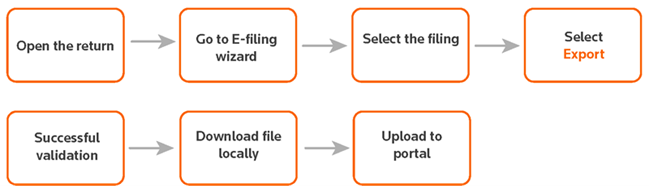
- Open the Norway Digital VAT return you want to file.
- Ensure the mandatory fieldsVAT IDandPayment IDare entered on thePInformation sheet.
- On the toolbar, select theeFileicon.
- SelectE-fileto open the wizard.
- SelectValidate.
- After successfully validating, selectE-file.
Any attachments can be manually uploaded directly in the authority's portal.
Export filing
- Open the Norway Digital VAT return you want to file electronically.
- Ensure the mandatory fieldsVAT IDandPayment IDare entered on thePInformation sheet.
- On the toolbar, select theeFileicon.
- SelectE-fileto open the wizard.
- On the1 Filingstab, selectVAT Bi-monthly.
- On the2 Actionstab, selectExport, then select theNextbutton.
- Select theExportsbutton, then theOKbutton to check the latest status and download the files.
- Go to theExportsscreen ( on the main menu bar) and select the hyperlinked name in theExport filecolumn to check the latest status and download the files.
- Upload the downloaded XML file to the Norway tax authority portal.
Submit the return automatically using API e-filing
The 2nd e-filing method is to fully automate the end-to-end submission using ONESOURCE e-filing. For this method, clients must register for their own client ID from the Norwegian Authorities and set this up in ONESOURCE Indirect Tax Compliance.

- Open the E-filing Manager.
- Enter the tax authorization.
- Enter client details.
- Enter your ID and Password in the tax authority portal.
- Access and Authentication Token gets stored.
You can then follow the regular e-filing process:
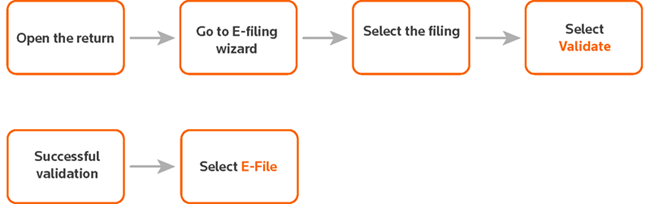
- Open the Norway Digital VAT return you want to file.
- Ensure the mandatory fieldsVAT IDandPayment IDare entered on thePInformation sheet.
- On the toolbar, select theeFileicon.
- SelectE-fileto open the wizard.
- SelectValidate.
- After successfully validating, selectE-file.
Remove an existing tax authorization:
Before you remove a tax authorization, confirm that the replacement user has valid Altinn credentials and access.
- SelectAdministration, then selectTax Authorization.
- Locate the authorization record you want to remove.
- Select theDeleteicon next to the authorization.
- Confirm the deletion when prompted.
Add a new tax authorization:
- SelectAdministration, then selectTax Authorization.
- SelectAdd.
- Complete all required fields for the new authorization, including jurisdiction, tax identifier, and client ID.
- SelectSubmitto save the new tax authorization.
- Enter and authenticate your Altinn credentials on theIDPortensign in page, which opens automatically.
- Wait while the application returns you toONESOURCE e-Filing Managerafter you authenticate successfully; the new tax authorization then becomes available for future submissions.
note
After you add and save the new authorization, the system automatically uses it for subsequent submissions.
Before you begin
We recommend that you read and understand the instructions for registering your client ID available on the following page: https://skatteetaten.github.io/mva-meldingen/english/idportenauthentication/#configuring-an-integration-in-samarbeidsportalen. This page provides detailed information on registering your client ID.
Tax authorization configuration step
The 1st step is a one-time configuration of the client ID in the E-filing Manager application.
- To go to the E-filer application, select .
- SelectAddon the toolbar.
- Complete the fields as follows:FieldDescriptionJurisdictionNorwayFiling TypeVATTax IdentifierYour VAT registration numberOrganization numberProvided by Authorities on registrationClient IDProvided by Authorities on registration
- SelectSubmit. You will be redirected to the tax authority portal, where you will be required to select an authentication mechanism for your organization.
- On theOprett ny integrasjonscreen, you must specify several settings, including thescopesto be implemented.
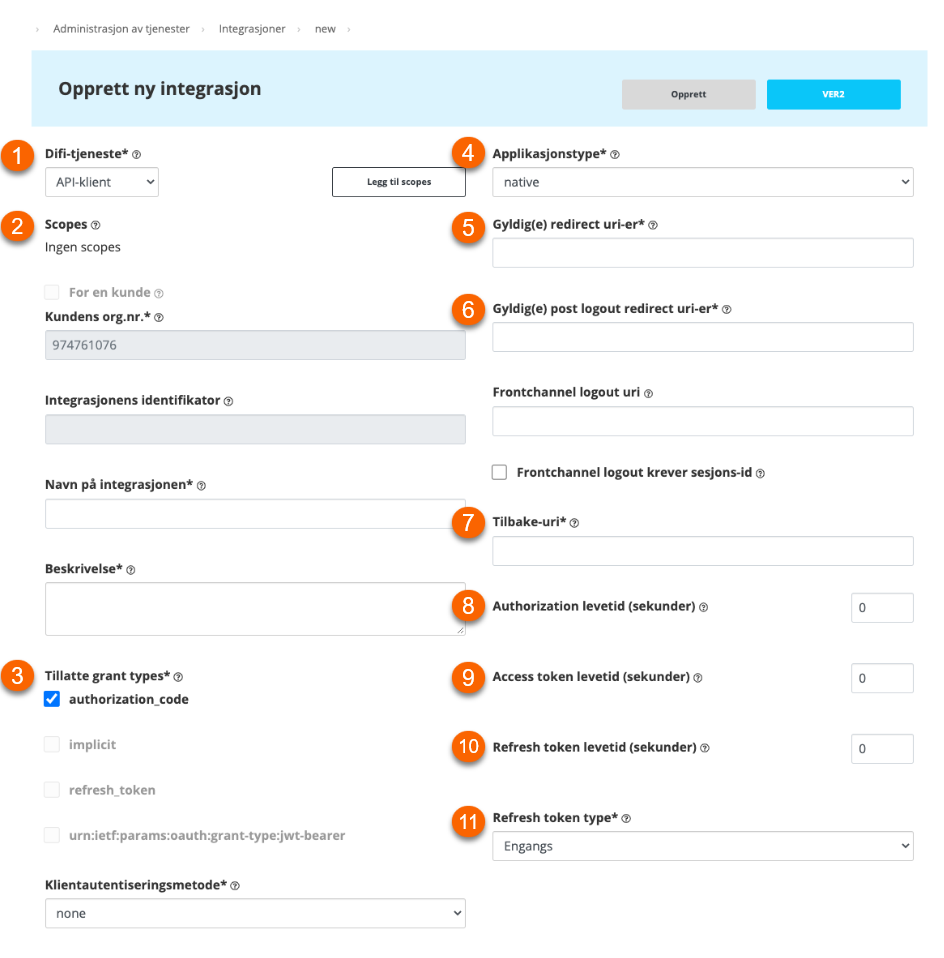 NumberFieldDescription1Difi-tjenesteAPI-klient2Scopes
- openID
- skatteetaten: mvameldinginnsending
- skatteetaten: mvameldingvalidering
3Tillatte grant typesauthorization_codeandrefresh_tokenmust be selected4Applikasjontsypeweb5Gyldig(e) redirect uri-er- EMEA customerswho accesses ONESOURCE using https://emea1.onesourcetax.com/: https://emea1.onesourcetax.com/platform/apps/modern/efiler/token
- APAC customerswho accesses ONESOURCE using https://apac1.onesourcetax.com/: https://apac1.onesourcetax.com/platform/apps/modern/efiler/token
6Gyldig(e) post logout redirect uri-er- EMEA customerswho accesses ONESOURCE using https://emea1.onesourcetax.com/: https://emea1.onesourcetax.com/platform/apps/modern/efiler/token
- APAC customerswho accesses ONESOURCE using https://apac1.onesourcetax.com/: https://apac1.onesourcetax.com/platform/apps/modern/efiler/token
7Tilbake-uri- EMEA customerswho accesses ONESOURCE using https://emea1.onesourcetax.com/: https://emea1.onesourcetax.com/platform/apps/modern/efiler/token
- APAC customerswho accesses ONESOURCE using https://apac1.onesourcetax.com/: https://apac1.onesourcetax.com/platform/apps/modern/efiler/token
8Authorization levetid (sekunder)315360009Access token levetid (sekunder)720010Refresh token levetid (sekunder)3153600011Refresh token typeGjenbrukbartThe URLs depend on which environment you use to access ONESOURCE:- EMEA Customersaccessing ONESOURCE via https://emea1.onesourcetax.com/
- Redirect URL: https://emea1.onesourcetax.com/platform/apps/modern/efiler/token
- APAC Customers accessing ONESOURCE via https://apac1.onesourcetax.com/
- Redirect URL: https://apac1.onesourcetax.com/platform/apps/modern/efiler/token
- On receipt of the client ID, you can complete your initial configuration in ONESOURCE. Enter your client ID and password and complete the authentication.
Filing the return electronically
note
The following instructions assume you have already registered for the client ID and successfully completed integration with the Norway tax authority as described earlier.
- In ONESOURCE Indirect Tax Compliance, open the Norway Digital VAT return you want to file electronically.
- Ensure the mandatory fieldsVAT IDandPayment IDare completed on the ’P’ Information sheet.
- Go to theE-filemenu to open the wizard.
- SelectVAT Bi-monthly.
- SelectValidate, then select theNextbutton. This step validates to the Authorities schema.
- On successful validation, the messagePassed Online Validationappears. Select theOKbutton, then select theNextbutton.
- On the2 Actionstab, select theFileoption, then theNextbutton.
- On the3 Add Documentstab, you can add any attachments required to supplement the VAT return. Upload the document as required. Use theCategorydropdown to selectGeneral Attachment.
- If you do not want to add attachments, select theNextbutton. The e-filing submission will be sent to the tax authority.
- To view the return receipt, go to and download the receipt from the hyperlink.