
UK VAT making tax digital e-filing
E-filing process for a company
The HMRC government gateway user ID and password are linked to the company VAT registration number.
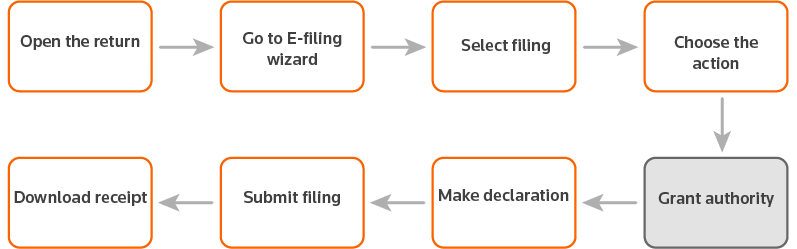
- Open the UK VAT return you want to e-file via MTD.
- Go to theE-filemenu.noteTo complete this step, the file status can't be set to read only or final.
- On the P sheet, ensure that the VAT registration number is completed.
- SelectVAT100 MTD, then selectNext.
- SelectFile, then selectNext.
- Grant authority. When you file a return, you need to grant authority to ONESOURCE to interact with the HMRC on your behalf. If you have already granted authority, proceed to step 10.
- If you have granted permission, ONESOURCE receives an authorization code. Note: The access token expires periodically and needs to be refreshed. After 18 months the access token expires, and you need to grant authority again.
- If you haven’t granted authority, a message displays. SelectGrant Authorityto let ONESOURCE interact with HMRC. The system will redirect you to the HMRC website for authorization.
- On the popup window of HMRC, selectContinue.
- Sign in using the Government Gateway user ID and password for the company. The user ID and password are specific for the VAT registration number of the company on the P sheet. Important: It is critical to sign in to HMRC with the correct credentials for the VAT registration number of the company.
- After you have signed in, the HMRC prompts you to grant ONESOURCE authority to interact with the HMRC. SelectGrant Authority. Once you have granted authority, ONESOURCE Indirect Tax will open on the same calculation.
- To submit the VAT return for this calculation in ONESOURCE Indirect Tax, selectEfileto open the e-filing wizard. (Refer to steps 2-5).
- Make a declaration and submit the filing. SelectNextto make sure the declaration and submit the VAT return to HMRC. Once the return has been sent to ONESOURCE E-Filing Manager and HMRC successfully, the Status screen opens. SelectRefresh Statusto check the filing result.
- Download the receipt. If the return has been successfully filed with HMRC, the e-filing status will update toSuccessful (EFile).
- SelectExportsto download the receipt.
E-filing process for tax Agents
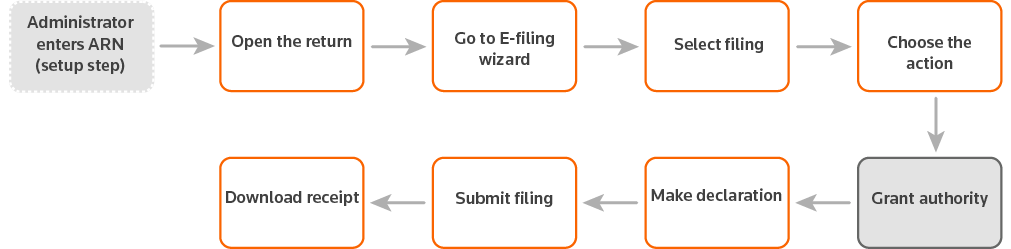
Setup
For VAT Making Tax Digital, a tax agent needs to enter their Agent Reference Number in ONESOURCE E-filing Manager by a user who is a Client Administrator.
- SelectAdministration, thenSettings.
- Enter your Agent Reference Number.
- The HMRC provides the Agent Reference Number when the Agent Services Account is created. If you don’t know your Agent Reference Number, please contact the HMRC.
- For instructions on creating an Agent Services Account, go to https://www.gov.uk/guidance/get-an-hmrc-agent-services-account.
- SelectSave.
The E-Filing process
- Open the UK VAT return you want to e-file via MTD.
- Enter the VAT registration Date. The HMRC uses the VAT registration number and the VAT registration date to verify that the client has a relationship with the agent, and that the status of the relationship is approved.
- Enter the VAT registration number on the P sheet.
- SelecteFileon the toolbar to open the wizard.
- SelectVAT100 MTD, then selectNext.
- SelectFile, then selectNext.
- Grant authority. When you file a return, you need to grant authority to ONESOURCE to interact with the HMRC on your behalf. If you have already granted authority, proceed to step 12.
- If you have granted permission, ONESOURCE receives an authorization code. Note: The access token expires periodically and needs to be refreshed. After 18 months the access token expires, and you need to grant authority again.
- If you haven’t granted authority, a message displays. SelectGrant Authorityto let ONESOURCE interact with HMRC. The system will redirect you to the HMRC website for authorization.
- On the popup window of HMRC, selectContinue.
- Sign in using the Government Gateway user ID and password for the company. The user ID and password are specific for the VAT registration number of the company on the P sheet.
- After you have signed in, the HMRC prompts you to grant ONESOURCE authority to interact with the HMRC. SelectGrant Authority. Once you have granted authority, ONESOURCE Indirect Tax will open on the same calculation.
- To submit the VAT return for this calculation in ONESOURCE Indirect Tax, selectEfileto open the e-filing wizard. (Refer to steps 5-7).
- Make a declaration and submit the filing. SelectNextto make sure the declaration and submit the VAT return to HMRC.
- Once the return has been sent to ONESOURCE E-Filing Manager and HMRC successfully, the Status screen opens. SelectRefresh Statusto check the filing result.
- Download the receipt. If the return has been successfully filed with HMRC, the e-filing status will update toSuccessful (EFile). SelectExportsto download the receipt.