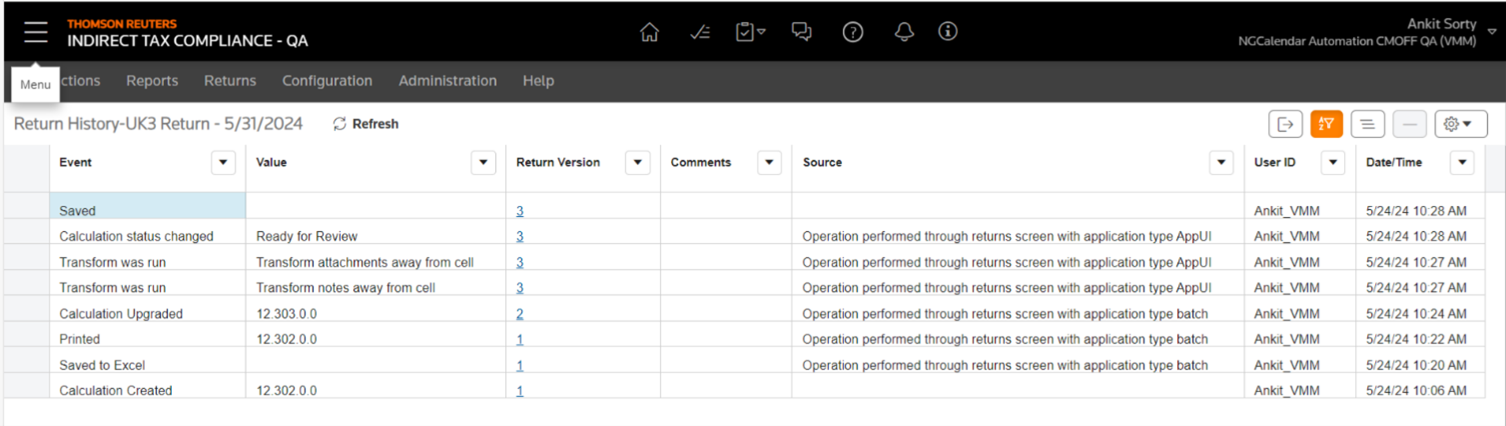
Return history
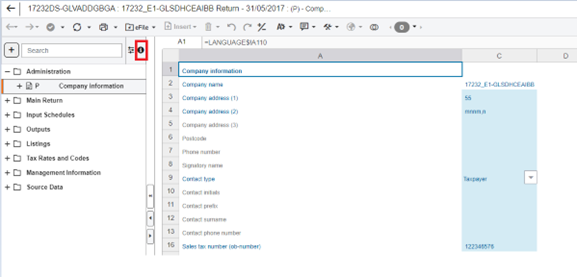
The Return Summary screen gives essential details about the return, including entity information, dataset, associated period, return history, and data imported to the return.
To get to the Return Summary screen:
- Open a return.
- Select the “i” icon next to search bar to open the Return Summary window.
Enhanced audit trail of return history
- Our enhanced Return History feature now offers a more granular view of the actions performed on returns. Whether it's insert sheets, Change Sources, Filing, Status, Print, Save to Excel, the system not only captures the action but also provides the information of the source ( Returns/Workbook) from where the action was initiated.
- In addition to this, we've made it possible to distinguish whether actions were executed via the user interface (UI) or through an API call. This level of detail in the Return History screen ensures a comprehensive and transparent audit trail of return-related activities.
- By capturing both the location and method of action on returns, this enhancement helps businesses ensure the integrity and efficiency of their return management processes, ultimately contributing to better governance and operational excellence.
- The new column Source is not visible by default and the users can opt to display it by selecting the check=box next to the column in the settings.