
Edit transactions
You can edit transactions, and any changes you make create a reportable audit trail. You can open the transactions you want by viewing transactions from the
Import Details
window, or by drilling down into a calculation. You can also make bulk edits based on warnings.
- From theTransactionsoption on the menu, selectImport Details.
- Select a hyperlink to select the records to open.
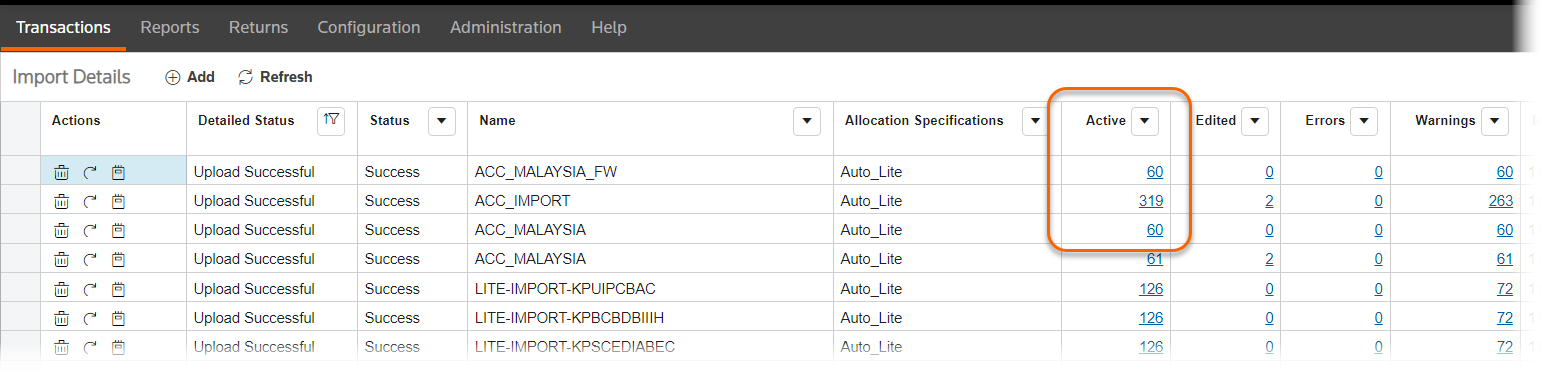
- On theView Transactionswindow, select the transactions that you want to edit and selectEdit. The items you select appear in theTo the following transactions:section in the bottom half of the screen.
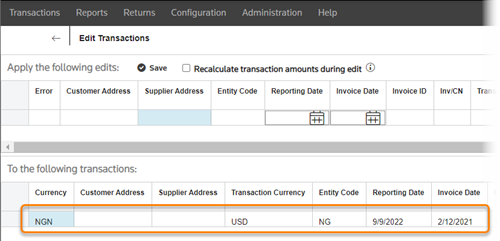
- If you want to select particular records from this selection to update, you can use the filter controls in theTo the following transactions:section to locate records by specific criteria.
- In theApply the following edits:section, enter the updated value in the field you want to change. TheCommentfield may be a required field, depending on your settings. Administrators can check this setting on the Settings page (Administration, thenSettingsfrom main menu.) If the checkbox forIs Comments field mandatory during edit?on the Settings page is selected, comments are required.
- If this option is turned on for your organization, you can choose to have the system automatically recalculate certain amounts fields while you have the record open for editing. Select theRecalculate transaction amounts during editoption on the toolbar ribbon.
- Edits toTaxClassificationCode: When editing the source tax code specified in theTaxclassificationCodecolumn from the source file, the value of the source file columnTransactionAmountTaxwill recalculate based on the value of theTransactionAmountNetcolumn and the tax rate associated with the new tax code in theTaxClassificationCodecolumn.
- Edits toTransactionExRate: If you edit the value from theTransactionExRatecolumn in the source file, the values that flow to the returns—AmountNet,AmountTax, andAmountGross—will recalculate based on the values in theTransactionAmountNet,TransactionamountTax, andTransactionAmountGrossthe net value inTransactionExRate.
- If bothTaxClassificationCodeandTransaction Ex Rateare updated as part of the same edit, the recalculations will apply sequentially—TaxClassificationCodethenTransactionExRate.
- SelectSave.
note
You can open the
Audit Edit Details
screen (Transactions
, then Audit Edit Details
from the main menu) to see your edits. The result of the edit is transparent for audit purposes.
Editing from summary warnings
If there are warnings for an import, use the dropdown and select
Summary Warnings
to return a list of the warnings.The list shows the warning that occurred in the transaction. The number in the
Count
column shows how many transactions have warnings of this type.- Select the hyperlink in theCountcolumn to open the list of transactions with this warning type.
- Check the checkboxes next to the transactions you want to edit, or the checkbox in the header column to select the entire list.
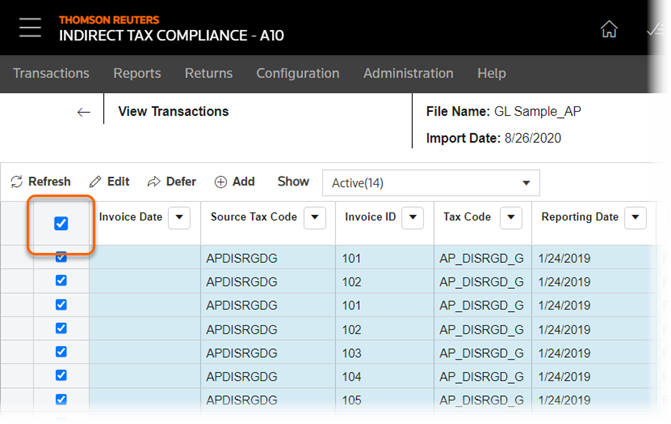
- SelectEdit.
- In theApply the following edits:section, enter the new value.
- SelectSave.
note
You can open the
Audit Edit Details
screen ( Transactions
, then Audit Edit Details
from the main menu) to see your edits.Related Content
-
Use the Bulk Edit feature
Format: Article