
Setting Exchange Rates
ONESOURCE Indirect Tax Compliance supports multiple currencies and currency conversion. You can set exchange rates at the calculation, sheet, column, or cell level. Cells inserted in Microsoft Excel sheets default to currency cells as specified in the
Exchange Rates
screen. To help avoid currency errors in multiplication or division formulae, cells can be set as currency or non-currency cells. Templates are designed to support the currency for the specific jurisdiction. It is usually not necessary to set an exchange rate. However, you can set up exchange rates when necessary that can be applied at the cell, column, or sheet level.
When an exchange rate is applied, sheets for a single entity show currency amounts as they are specified in the template. Amounts in a group are displayed with the applied exchange rate.
note
Roll Forward
carries the exchange rates to the destination calculation. Prior period linking does not carry forward exchange rates.Define an Exchange Rate Type
The exchange rate type specifies the parameters of an exchange rate. You can set up exchange rate types, then apply them at the appropriate level.
- Open the calculation.
- On the toolbar, select the international icon
 .
. - From the menu, selectCalculation.
- In theAdd Exchange Rate Typefield, type a name to identify the exchange rate type you want to set up (for example, AUD2GBP for Australian dollar to British pound), and selectAdd.
- In theSet Exchange Ratessection, select in theTypefield and use the list to select the exchange rate type you added.
- Select inside theFrom Currencyfield and use the list to select the currency to convert from.
- Type the exchange rate calculation in theEx Ratefield.
- Select inside theTo Currencyfield and use the list to select the currency to convert to.

- SelectOKto save the exchange rate type.
Applying Exchange Rates
At the Calculation Level
- Open the calculation.
- On the toolbar, select the International icon .
- From the menu, selectCalculation.
- In theSet Functional Currencysection, use the dropdown to select the origin currency.
- Use theSet Default Exchange Rate Typedropdown to select the exchange rate type.
- SelectOK. The section sign
 appears in the corner of the cell to indicate an exchange rate has been applied.
at the Sheet, Column, or Cell Level
- Open the calculation and open the sheet, column, or cell to which the exchange rate will be applied.
- On the toolbar, select the International icon .
- From the menu, selectSheet,Column, orCell.
- Use theSheet Settingdropdowns in theCurrencyandEx Ratecolumns to select the exchange rate setting to be applied.
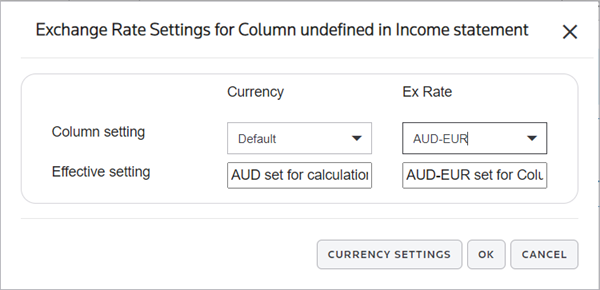 noteYou can select theCurrency Settingsbutton to see the exchange rate definition.
 - SelectOK. The section sign symbol appears in the corner of the cell to indicate an exchange rate has been applied.