
Assign entities to users or groups
Administrators can assign specific entities to users or groups, enabling operations only on entities assigned to them.
note
Ensure administrators have
Edit (All)
for Entity marked in Product Permissions
before starting this process.Assign all entities to a group or user
- Go toCompany Info, thenGroups.
- SelectEditnext to the group you want to edit.
- SelectEntityinProduct Permissions.
- Ensure the group hasAll Entitiesmarked.
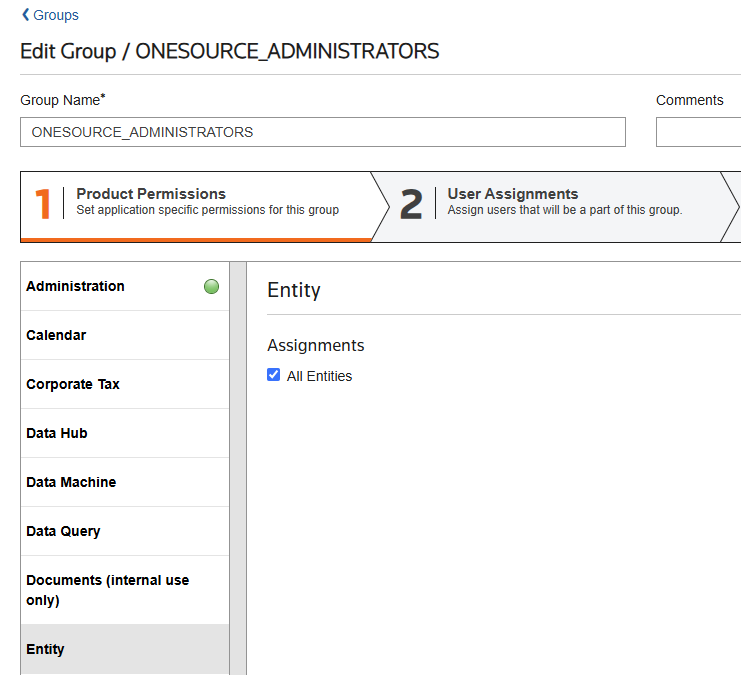
- SelectNextorUser Assignments.
- Confirm that the user you want to assign entities to belongs to the group inUser Assignments.
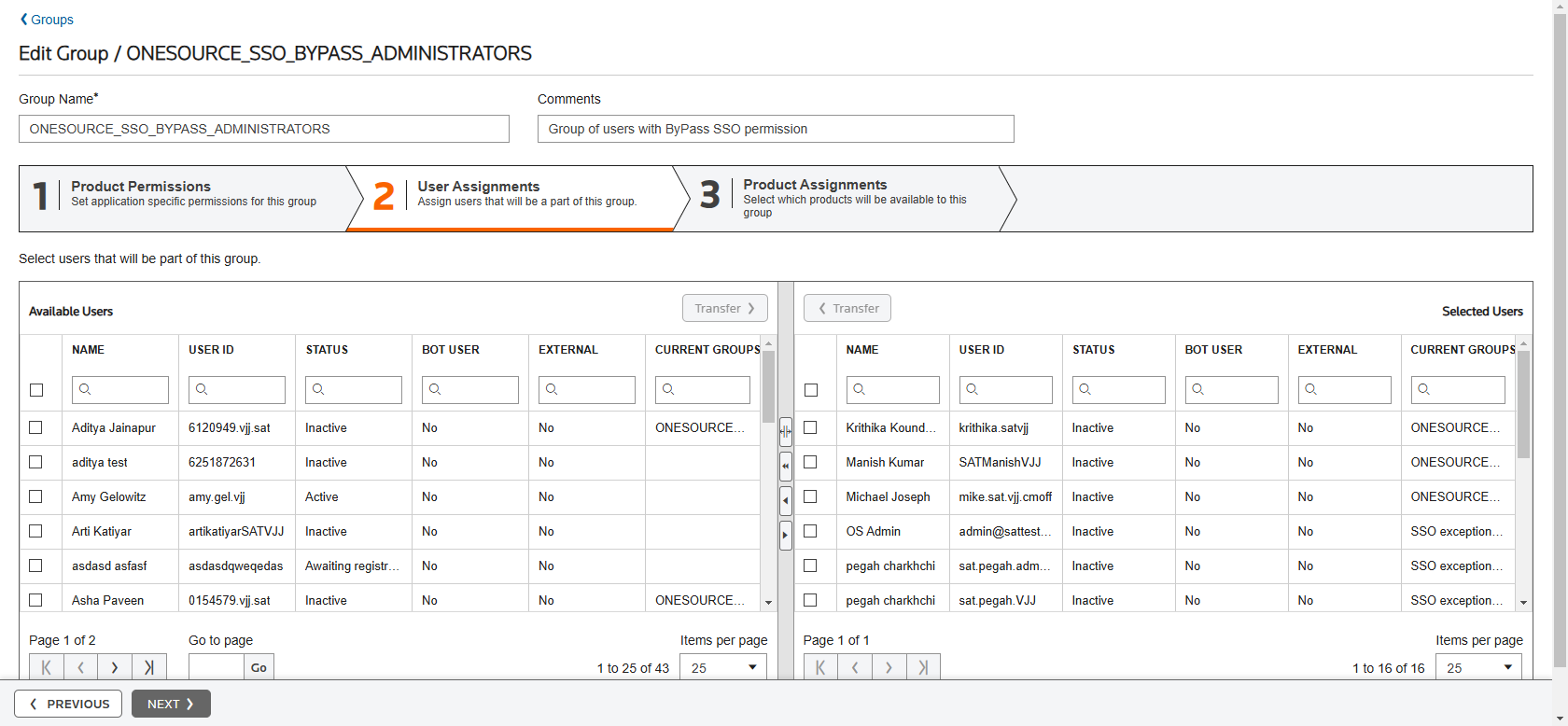
- SelectNext, thenDone.The system automatically assigns all entities to that group. Since the user is part of that group, the user now has access to all entities.
Assign specific entities to a group or user
- Go toCompany Info, thenGroups.
- SelectEditnext to the group you want to edit.
- SelectEntityinProduct Permissions.
- Remove the checkmark in theAll Entitiescheckbox. This lets the administrator assign specific entities to a group.
- SelectNextorUser Assignments.
- Confirm that the user you want to assign specific entities to belongs to the group inUser Assignments.
- SelectNext, thenDone.The system automatically assigns specific entities to that group. Since the user is part of that group, the user now has access to that entity.
note
- At the user level, users can assign additional entities from theAvailable Userssection.
- Users can't unassign entities inherited from the group at the user level.
- When you modify theAll Entitiescheckbox at the user level, this enables you to assign specific permissions.
Assign specific entities to a user
- Go toCompany Info, thenUsers.
- SelectEditnext to the user you want to edit.
- SelectProduct Permissions, thenEntity.
- Remove the checkmark in theAll Entitiescheckbox. This lets the administrator assign specific entities to a user.noteYou can only remove the checkmark in theAll Entitiescheckbox at the individual user level when the user is not part of any group. If the user belongs to a group and inherits theAll Entitiespermission from the group, you can't remove the checkmark.
- The administrator assigns entities by moving the user from the Available Users section to the Selected Users section.
note
- Clearing theAll Entitiescheckbox initially moves all entities to an unassigned state in the Available Users section by default.
- Only assigned entities remain visible on theEntitiesscreen while the checkbox is cleared.
- Entities added by the same user are automatically assigned and appear in the Selected Users section while the checkbox is cleared.
- Entities added by other users appear in the Available Users section in an unassigned state while the checkbox is cleared.
- If the signed-in user has theAll Entitiescheckbox cleared and another full-access user adds a version to an entity created by the signed-in user, both users gain access to all versions of that entity.
Related Content
-
Modify product permissions and assignments
Format: Article,
1 min read
Article,
1 min read