
Entity rollup
In a Parent-Child hierarchical view, you can create a relationship by linking 1 entity to another, letting you view the connected and related entities and publish them.
- Sign in to ONESOURCE, then selectAdministration.
- SelectCompany Info, thenEntities.
- SelectEntity Rollupon the toolbar. This opens the Entity Rollup screen.
- To create a new Entity Rollup, enter a Name.
- Use the+icon to create new versions of a rollup.
- Each rollup includes a+icon on the homepage grid. Select+to expand and view all previous version details.
- Select an Entity Rollup link from the list. The Entities List/Entity Rollup screen shows the Parent – Child details for the entities.
- Select entities from the Entities list to add to the rollup.
- All the versions for an entity will appear in the Entities list in. Also, once added to a rollup, there is an option to select the version to be added to the rollup by selecting on the edit option.
- To allocate a percentage of allocation to a rollup, select the edit option, allocate the required percentage, and selectSave.
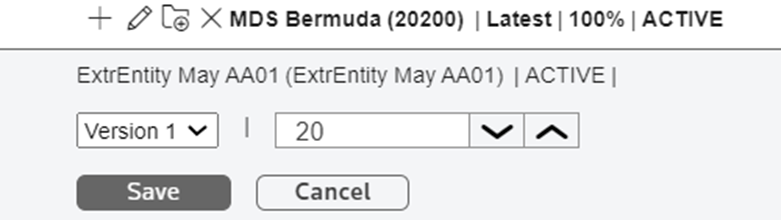 The unallocated percentage of the entity would be available in the Entities list.
- Switch the button on the toolbar
 to green to publish the Entity Rollup.noteWhen you publish an Entity Rollup, the screen is in read-only mode. To make changes, you'll unpublish the entities rollup again.