
7216-consent
The 7216 Consent is an important addition to ONESOURCE Income Tax. It helps customers manage and comply with IRS Form 7216 regulations. IRS Form 7216 requires tax preparers to get explicit consent from clients. This consent is needed before disclosing or using their tax return information for purposes other than preparing and filing the tax return.
This feature grants Administrators to:
- Manage and track client consent for accessing sensitive tax data.
- Set expiration dates for consents.
- Control access based on whether users are in the U.S.-based or Non-U.S.-based.
Firms can implement this functionality to ensure that only authorized users access tax return data, which streamlines compliance efforts.
The 7216 Consent is opt-in at the Customer Account level. Customers or firms that require this functionality will need to contact their Customer Success Manager (CSM).
Key features
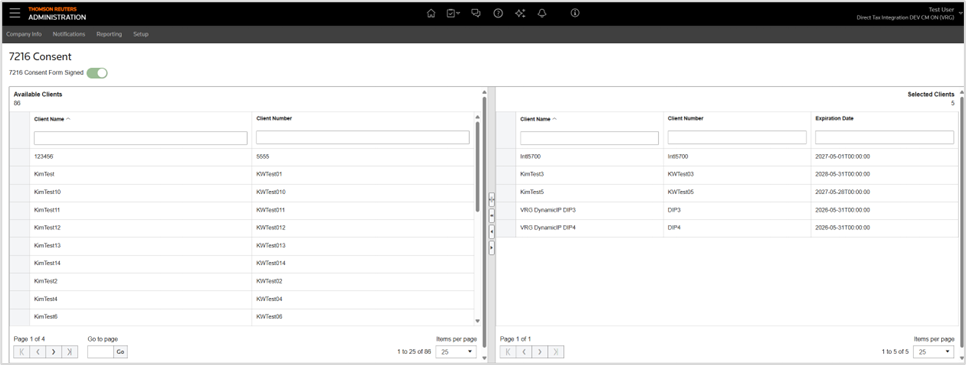
7216 Consent screen
Go to the screen. Administrators with
Full Access
permissions can switch the consent settings ON or OFF. Users with the correct permissions can
View
or Edit
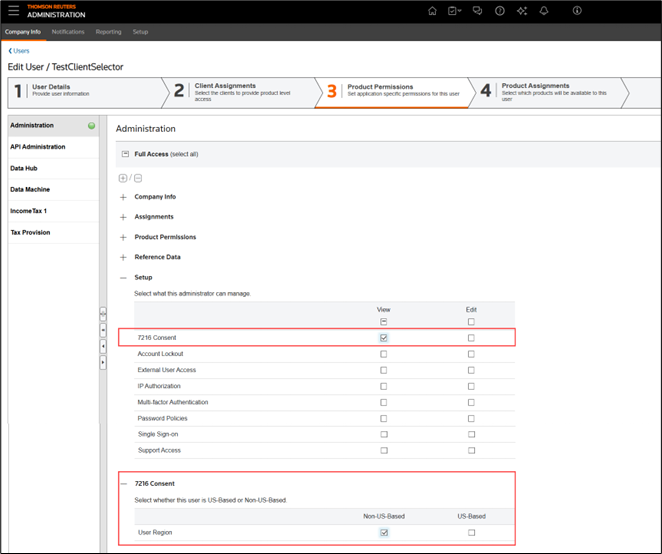
the 7216 Consent settings for clients. You can provide these permissions via the screen.- View- Lets users view client consent status and expiration dates.
- Edit- Lets users move clients between Available to Selected lists and manage consent expiration dates.
Consent tracking
Administrators manage client consent by selecting clients. Then they assign an expiration date for their consent. When needed, administrators can modify or extend the expiration dates. Expiration Date validation makes sure the consent date is within a valid range. The range is a minimum of 1 year and a maximum of 10 years from today.
User region for U.S.-based and non-U.S.-based permissions
We added the new 7216 Consent section on the page. This addition helps to manage the user region. Users without an assigned region are considered non-U.S. based by default.
Permissions and Client Selector logic
The Client Selector honors client consent status and User Region settings. It ensures that only authorized users can access clients. Access is based on their region and consent status. To simplify how permissions and user region settings interact with the Client Selector:
User region | Client content status | Visibility in Client Selector |
|---|---|---|
U.S.-based | Any (Consent or No Consent) | Client Visible |
Non-U.S.-based | Valid Consent (unexpired) | Client Visible |
Non-U.S.-based | No Consent or Expired Consent | Client NOT Visible |
- Non-U.S.-based users can access all clients because there are no restrictions.
- Non-U.S.-based users can only access clients if they have valid, unexpired consent.
Reports and audits
We’ve renamed the
Client Mapping
report to Client Details
report. The Client Details
report now shows the 7216 Consent status and expiration date for each client. These columns only appear if the 7216 Consent switch is ON under the Setup
page. The Audit logs track changes to client consent statuses, expiration dates, and user/group permissions.
A new
Client History
report will capture all the client audit changes.Turn on the 7216 Consent feature
7216 Consent
feature- Contact your Customer Success Manager (CSM) to request activation of your account.
- Go to once enabled.
- Turn the7216 Consentfeature to the ON state.
- Transfer clients from the Available section to the Selected section on the7216 Consentscreen, then enter theExpiration Date.
- Mark users as U.S.-based or Non-U.S.-based in .
- Assign users the permissions toVieworEditthe 7216 Consent page.
- Monitor changes through theClient Detailsreport and the upcomingClient Historyreport for compliance tracking.
Troubleshoot: Clients not visible in client selector
If you're unable to see clients in the Client Selector, follow these steps:
- Verify the user's region settings in .
- Ensure that the client has valid and unexpired 7216-consent.
- Sign out and sign back in to refresh your permissions.
Non-U.S.-based users
If non-U.S.-based users can't see clients, follow these steps:
- Go to .
- Verify that valid consents are set for the specific clients you want to view.