
Build ONESOURCE connectors workflow
- OpenAlteryx Designerfrom your desktop or laptop device.
- Select theConnectorstab on the toolbar.
- Drag theONESOURCE Login Connectorto the workflow area.noteTheONESOURCE Login Connectoris located at the beginning of the entire workflow.
- Drag theONESOURCE Download Connectoror theONESOURCE Upload Connectorto build the workflow.
- Connect the A (Authenticated) port of theONESOURCE Login Connectorto either the A (Authenticated) port of aONESOURCE Upload ConnectororONESOURCE Download Connector.noteYou can also connect theONESOURCE Download Connectorto the I (Input) port of theONESOURCE Upload Connector.
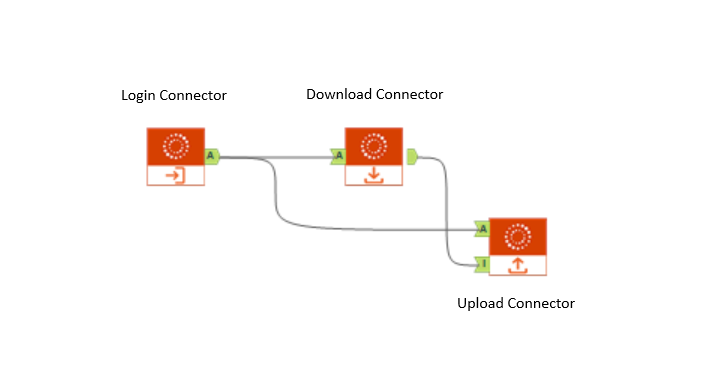 note
note- When you use multiple connectors (for example, a Data Hub Download Connector and Data Hub Upload Connector) in the same workflow, you'll need to drag multiple connectors into the work area.
- EachONESOURCE Download ConnectororONESOURCE Upload Connectorneeds to connect to theONESOURCE Login Connector.
- If you have multiple versions of ONESOURCE Connectors, we recommend that you set up 1 version at a time.
- After you have built the workflow, selectONESOURCE Login Connector.
- Enter all information on theONESOURCE Productswindow.
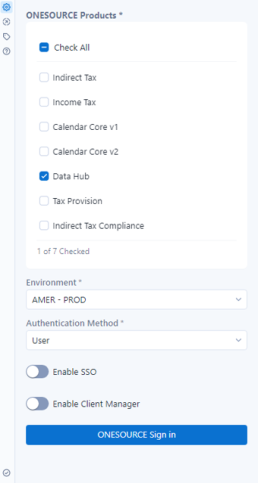 note
note- For theAuthentication Method, you can get your authentication information fromAPI Administration. Clients who run workflows on a server may use both methods of authentication. The Private Key is given to you by your company. Contact your Professional Services contact at Thomson Reuters for more details on this method.
- If you've turned onEnable Client Manager, you'll need to enter yourClient Number. You can find yourClient IDandClient Numberin ONESOURCE.
- Only one client data can be accessed within the Connector. You can change the client number if you need to access other client data.
- SelectONESOURCE Sign inwhen you're done.A prompt will direct you to theONESOURCE Sign Inpage. TheUsernameandPasswordare your usual ONESOURCE sign in credentials. Refer to the Single sign-on authentication for Alteryx article for when you sign in for the first time.
Related Content
-
Alteryx and ONESOURCE connectors overview
Format: Article,
2 min read
Article,
2 min read
-
Single sign-on authentication for Alteryx
Format:
Article,
1 min read