
Upload PDF files to include as attachments to e-filed returns
ONESOURCE Trust Tax users who are granted the
Can file tax returns electronically
user right can upload PDF files at any time throughout the year. The uploaded PDF files are included with the e-file data and transmitted to the taxing authority. The PDFs can be forms or other supporting documentation needed to e-file a complete return. The maximum PDF file size is 50 MB. The jurisdictions that PDF attachments are included in the table at the end of this guide.note
Uploaded PDF files are not included in the tax return documents (print files) generated from a tax return processing request, and they are not included with paper-filed returns. Separately print each uploaded PDF file if you want to include it with a paper return.
Upload PDF Files
You can upload PDF files at any time throughout the year. While you can upload as many PDF files as necessary, each PDF file must be uploaded separately. PDF files must be less than 50 MB to upload successfully. The maximum length for a PDF file name is 53 characters. Valid characters for a file name include:
- Capital letters
- Lowercase letters
- Numbers 0 through 9
Single spacing is allowed between characters. PDF file names with invalid characters or spacing won’t be uploaded and will display an error message.
To upload a PDF file:
- Open the account.
- SelectAccount, thenE-Filing Document Upload.
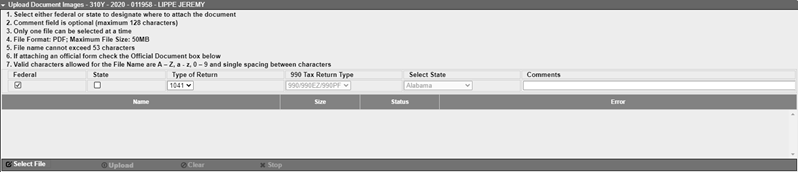 In theUpload Document Imagescollapsible section, theFederalcheckbox is marked and1041shows in theType of Returndropdown list by default. TheFederalcheckbox indicates the PDF file is a federal attachment, and the1041selection indicates that the PDF file is for a 1041 return.
 - Complete one of the following:
- If the PDF file is for a federal 990 return, select990from theType of Returndropdown, then select the return type the PDF is for from the990 Tax Return Typedropdown. Return type selections include990/990EZ/990PF,990Tor4720.
- If the PDF file is for a federal 5227 return, select5227from theType of Returndropdown list.
- If the PDF file is a state 1041 attachment, mark theStatecheckbox, then select the state the PDF file is for from theSelect a Statedropdown.
- If the PDF file is for a Massachusetts Form 2G, New Jersey NJ-1041, or Pennsylvania PA-41 for 5227 return, mark theStatecheckbox, select5227from theType of Returndropdown, then selectMassachusetts,New Jersey, orPennsylvaniafrom theSelect Statedropdown.
- If the PDF file is for a California Form 199 return, mark theStatecheckbox, select990from theType of Returndropdown, then select990/990EZ/990PFfrom the990 Tax Return Typedropdown. TheSelect Statedropdown defaults toCalifornia.
- Enter a description for the PDF file in theCommentsfield. Entering a comment can help to identify the PDF file after it is uploaded. Comments are included with the file when it is e-filed.
- SelectSelect Fileat the end of theUpload Document Imagescollapsible section.
- Go to where the PDF file is located, select the file, then selectOpen. The file is added to the grid in theUpload Document Imagescollapsible section. Notice that theStatuscolumn shows the upload isPending. SelectClearif you want to remove the information in the grid under theUpload Document Imagescollapsible section.
- SelectUploadto upload the PDF file. The file size of the uploaded PDF file is shown in theSizecolumn, and the status of the file changes toCompletewhen it is successfully uploaded. If an error occurs during the upload process, the status of the file isFailedand a message displays in theErrorcolumn. SelectStopif you want to cancel the upload process. When the upload process is stopped, a status ofCanceleddisplays. Going away from the E-Filing Document Upload page or selectingClearremoves the information in the grid.
- If the uploaded PDF file is for a New York return and it is an official New York state form or document, mark theOfficial documentcheckbox in thePreviously Uploaded Documentssection. This identifies the PDF file as an official New York state form or a document.
- SelectSave.
Review uploaded PDF files
You can use the following to review uploaded PDF files that are included as attachments to e-filed returns:
- ThePreviously Uploaded Documentscollapsible section on the E-Filing Document Upload page: SelectFile Namefor the PDF file to open. If you need to remove a PDF file, select Delete
 for the file.
 - TheAccounts with Attached PDF Documentsbase register: Includes 1 row for each PDF file attached to an account. The row displays the account number, account name, e-file status, and the attachment file name. TheFed/Statecolumn indicates whether the PDF file is attached to a federal or state return, and theReturn Typecolumn indicates whether the PDF is for a 1041 return, 5227 return, or a 990 return type.