
Configure SFTP connectivity
From Pagero
First, create an integration user and set a password via the “Company Profile > Users” section.
These user details will be used by your SFTP client when connecting to our server.
When you have created and turned on your integration user, go to the “Connectivity > Start” page where you will see the following:
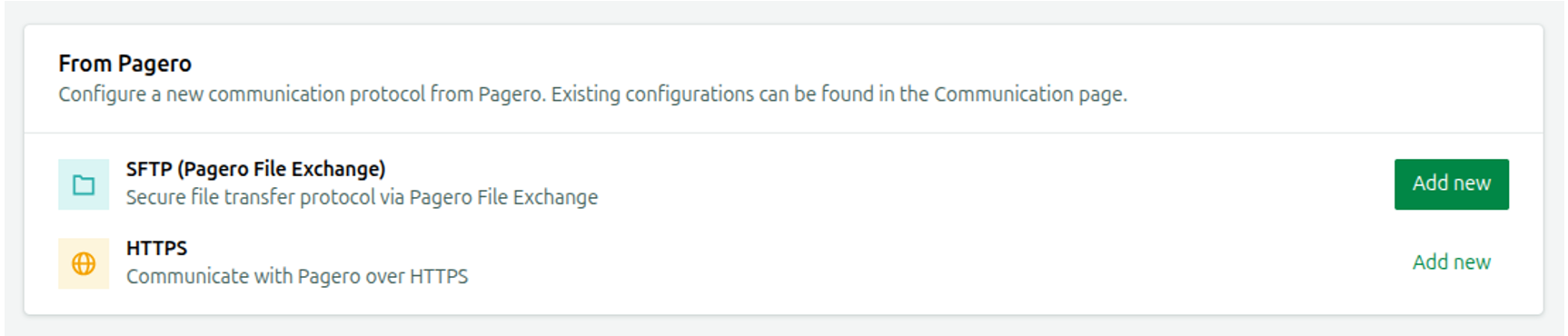
Select
Add new
on the SFTP (Pagero File Exchange) row to initiate the set .This takes you to the
Add
SFTP (Pagero File Exchange) configuration side panel in the “Communication > From Pagero” section.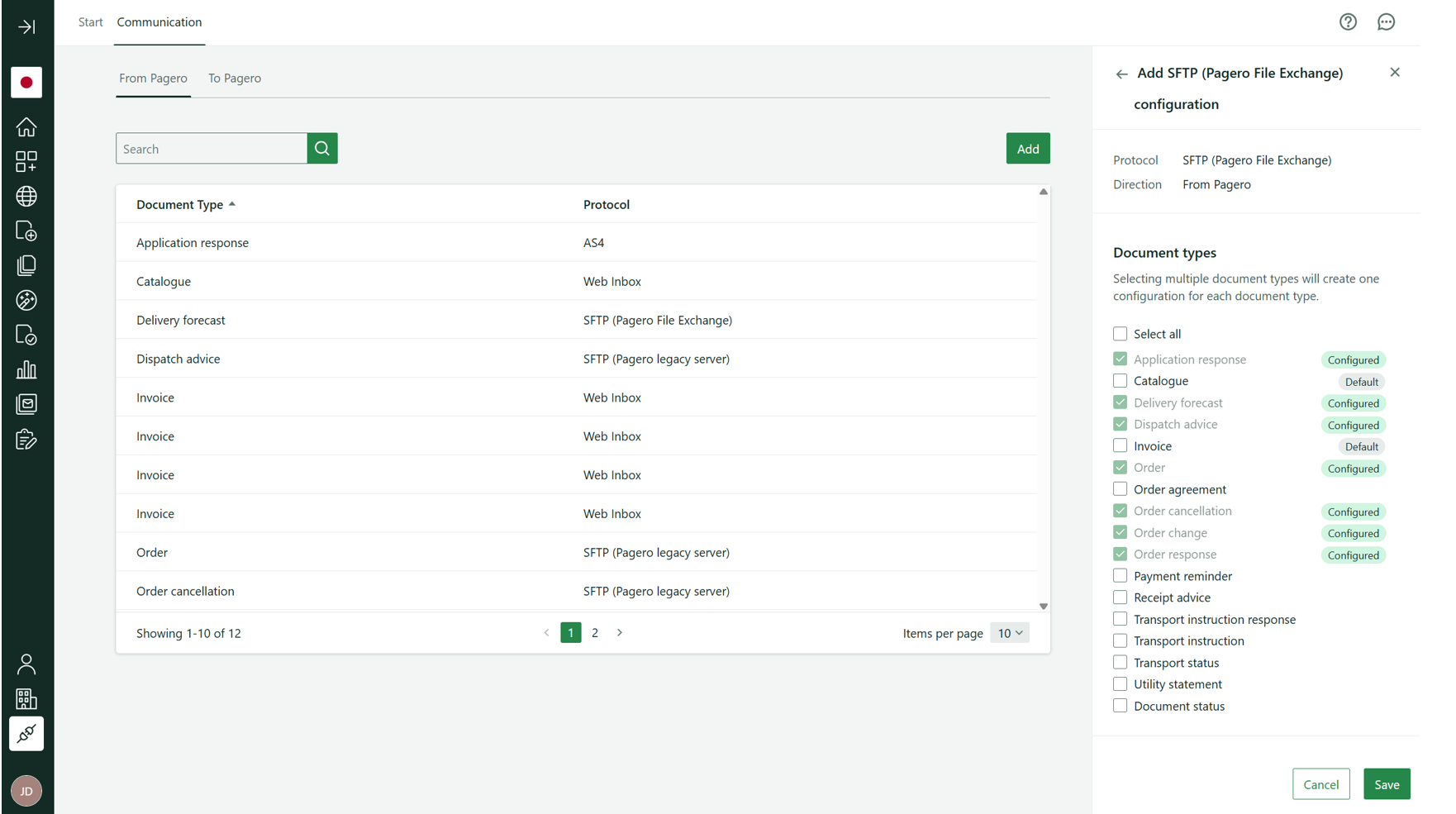
Here you simply select the document types you want to receive from us.
That is all. Any documents you receive after this configuration will be put in the corresponding directory on your SFTP account on our server.
For more detailed technical information, including examples of our default directory structure on the server, visit: https://pagero.github.io/communication/advanced/sftp/.
To Pagero
First, create an integration user and set a password via the “Company Profile > Users” section. These user details will be used by your SFTP client when connecting to our server.
When you have created and turned on your integration user, go to the “Connectivity > Start” page where you will see the following:

Select
Add new
on the “Set up new configuration” row to initiate the set up.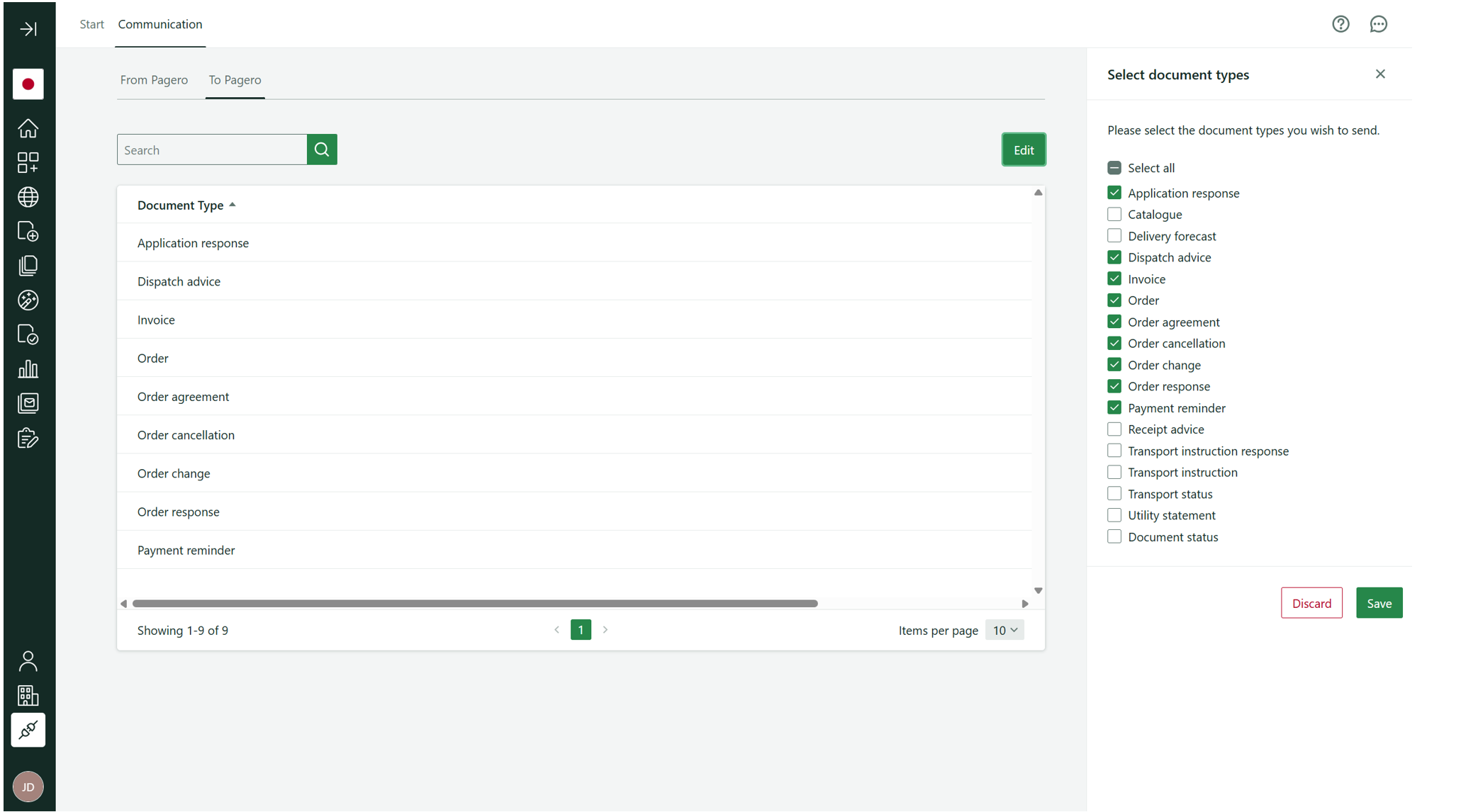
Here you simply select the document types you want to start sending to Pagero Network via SFTP and select “Save”.
That is all! You are now ready to start sending the enabled document types to Pagero Network.
Connecting to our SFTP server
Enter the following details in your system or integration middleware to connect to our server.
- Host:pfex.pageroonline.com
- Port:22
- Username:the username you set you created your integration user.
- Password:the password you set when you activated your integration user.
Related Content
-
Configure HTTPS connectivity
Format: Article,
3 min read
Article,
3 min read