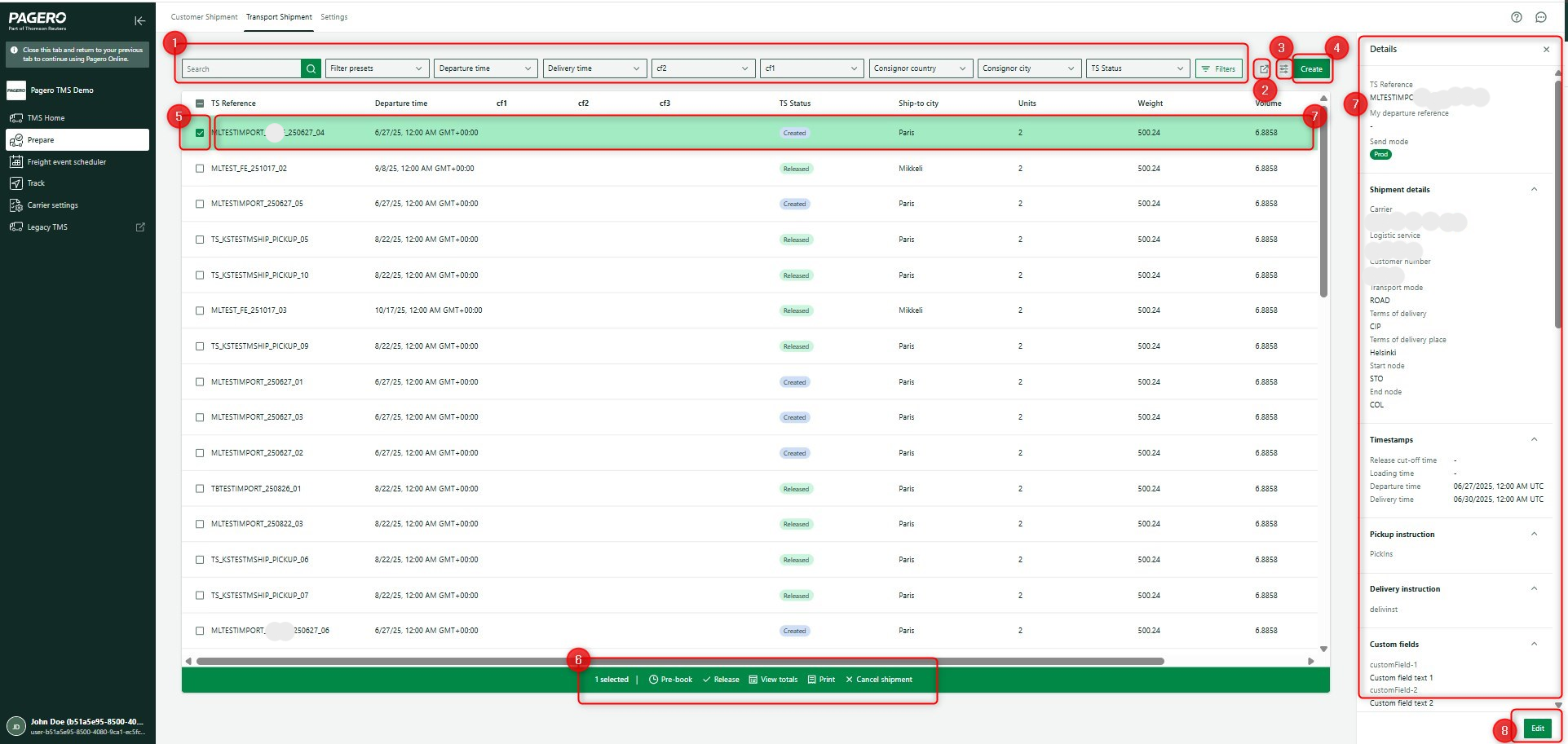
Transport shipment
In the
Transport Shipment
tab in the Prepare
application, you can view all available transport shipments.On the
Transport Shipment
tab, you can perform the following actions:- Use the filter to select preferred transport shipments. You can use free text search and predefined filters. SelectFiltersfor additional filtering options.
- Export selected transport shipments as CSV or Excel.
- Use the column picker to select columns displayed in the transport shipment table.
- SelectCreateto find a page for the shipment where you can create it manually.
- Select 1 or more transport shipments to turn on a multi-action bar in the table footer with options. The multi-action options show the number of selected transport shipments and include
- Pre-book:pre-book transport shipments.
- Release:for final release.noteAfter delivering the booking (transport instruction) to the carrier, you can't send another booking.
- View totals:summarizes values for selected transport shipments.
- Print:prints CMR and labels.
- Cancel shipment:cancels the transport shipments.
- Select anywhere on the line to open the sidebar. The sidebar shows detailed information for that individual transport shipment.
- To modify values for a transport shipment, selectEdit.
Transport shipment status
Each Transport shipment has a TS status:
- Created:Transport shipment is a new one and transport instruction (booking) will be sent to the carrier. This is the initial status when you first create a shipment and indicates that the carrier needs to receive booking details.
- Released:Transport shipment is a copy of an existing shipment and doesn't require sending a transport instruction to the carrier. This status is used when you duplicate shipments that have already been communicated to avoid sending duplicate booking information.
- Pending:The transport instruction has been sent, but the carrier's response hasn't yet been received. The shipment remains in this status until the carrier verifies receipt and provides their acknowledgment or booking confirmation.
- Canceled:(not implemented yet) The TS is canceled and won't be processed further. No additional actions or carrier communications will occur for this shipment.