
Unlock an organizer for a client
The organizer is automatically locked if a client fails to enter the proper access code three times. This is a security feature to prevent unauthorized access.
Client view
After 3 unsuccessful attempts, the taxpayer will get locked out of their account. They'll get an error message even if they close and re-open the link.
The client can:
- Wait 5 minutes and then requesting a new access code via the organizer landing page.
- Contact the firm to unlock the organizer.
Locked account notification
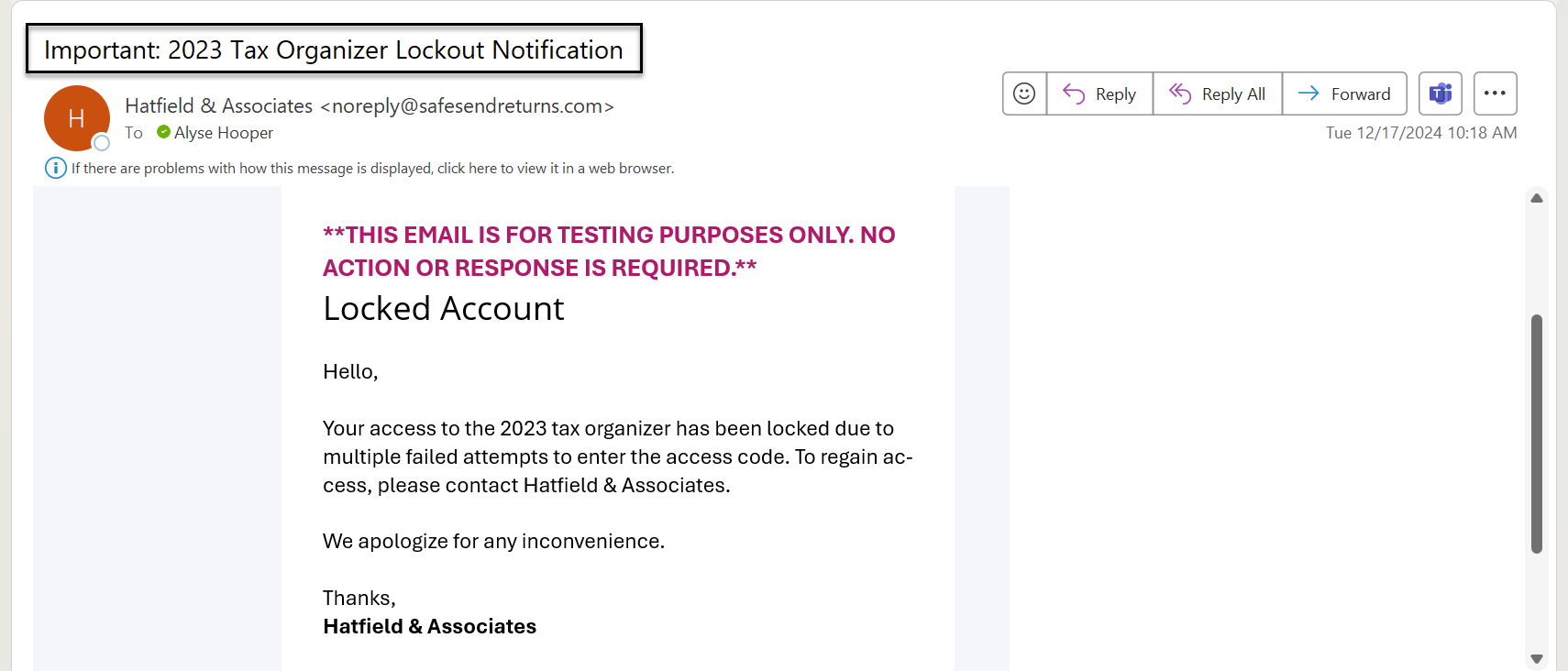
After the organizer has been locked, both the user who delivered the organizer and the recipient will receive a notification.
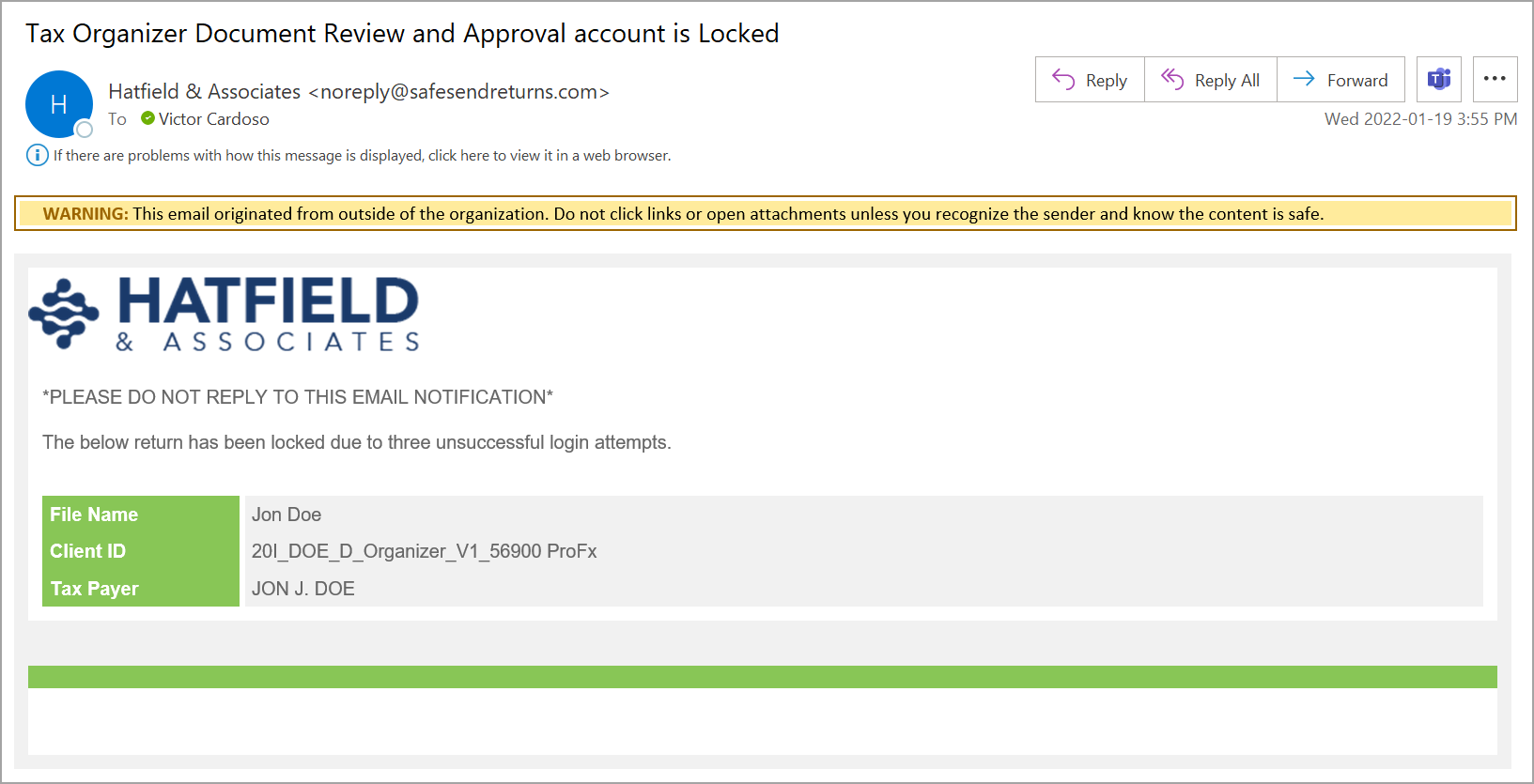
Notification To The Firm
The email to the firm will provide the file name, Client ID, and taxpayer name. Use this information to locate the Organizer from the Delivered reports.
Notification To The Taxpayer
Unlocking the Organizer
The unlock option only appears if the Organizer or Client Portal is locked.
- Go toDeliveredorArchived Organizers.
- Locate the locked organizer and select theMore (...)icon in the Action menu.
- SelectUnlock Organizer.
- This option is only available if the organizer or the Client Portal is locked.
- SelectUnlock Direct DocumentOR
- SelectUnlock Taxpayer Client Portal.
Access code tips for taxpayers
- Select theRequest AccessCodebutton.
- This sends an access code to the taxpayer's email or phone.
- Only select the button once to prevent multiple codes from being generated.
- Codes are no longer valid after they are entered, after 20 minutes, or when a new code is generated.
- Copy/paste the access code to prevent typos.
- SelectContinue.
Refer to Access Codes Explained for additional tips/tricks and troubleshooting information.
Access code tips for staff
The firm can generate an access code and provide it via phone or email to the taxpayer, if necessary. This code expires after 20 minutes, after it is used, or after a new code is generated.
Organizer
- Select theMore Action Items (...)icon.
- SelectView Access Codeto open theAccess Codewindow.
- Select theDirect Documenttab.
- View the most current access code or selectGenerate Access Codeto generate a new code for the taxpayer.
Client Portal
- Select theMore Action Items (...)icon.
- SelectView Access Codeto open theAccess Codewindow.
- Select theClient Portaltab.
- View the most current access code or selectGenerate Access Codeto generate a new code for the taxpayer.