
Firm setup guide
Configure firm, user, security, branding, and return settings in SafeSend before training to support a smooth firm setup.
Show all hidden content.
Introduction
Your account is now active. Before attending your Power User Training class, go through this guide to configure your firm's settings.
test
note
Only members of the System Admin group can make these changes. If you don't have an
Account Management
or Settings
option in the navigation menu, contact your firm's primary system administrator. Product Settings:
The
Product Settings
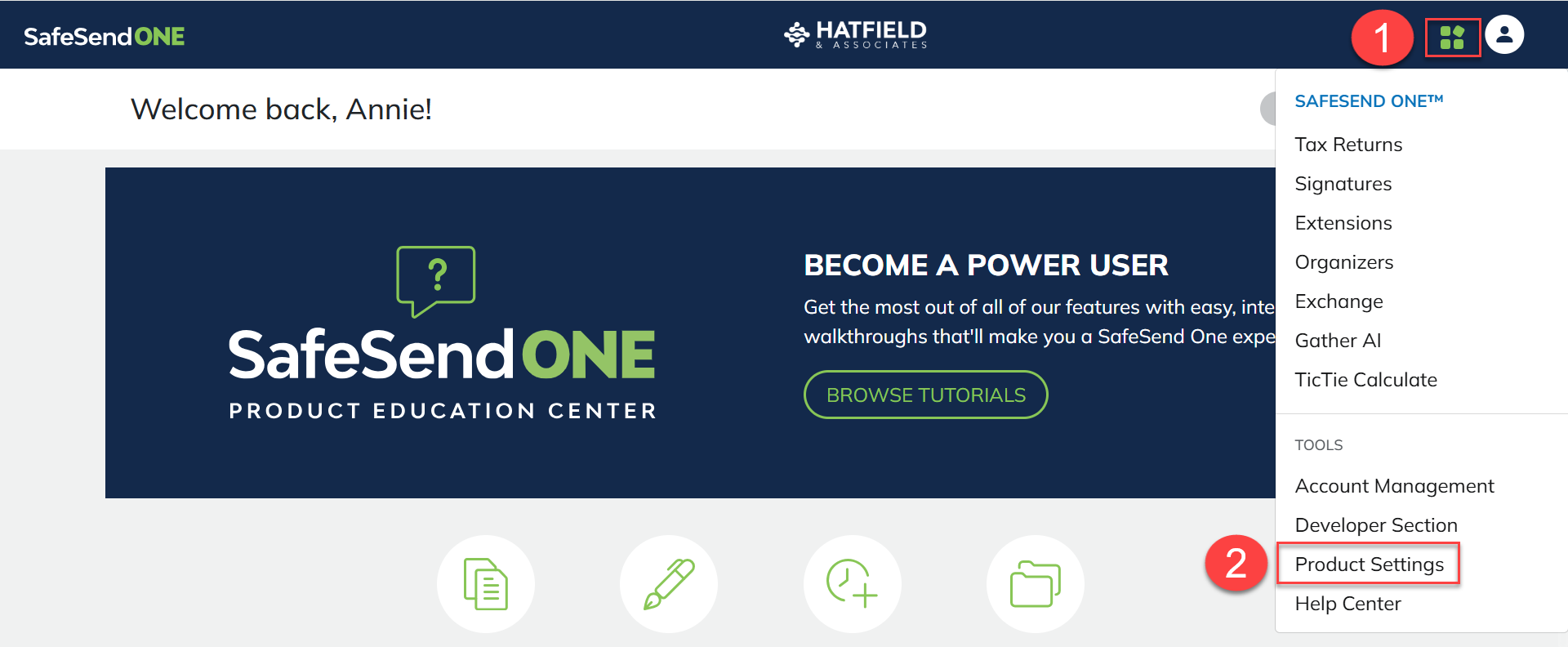
menu lets firm administrators update and save global default settings for SafeSend. - Select theNavigation Widget.
- SelectProduct Settings.
General
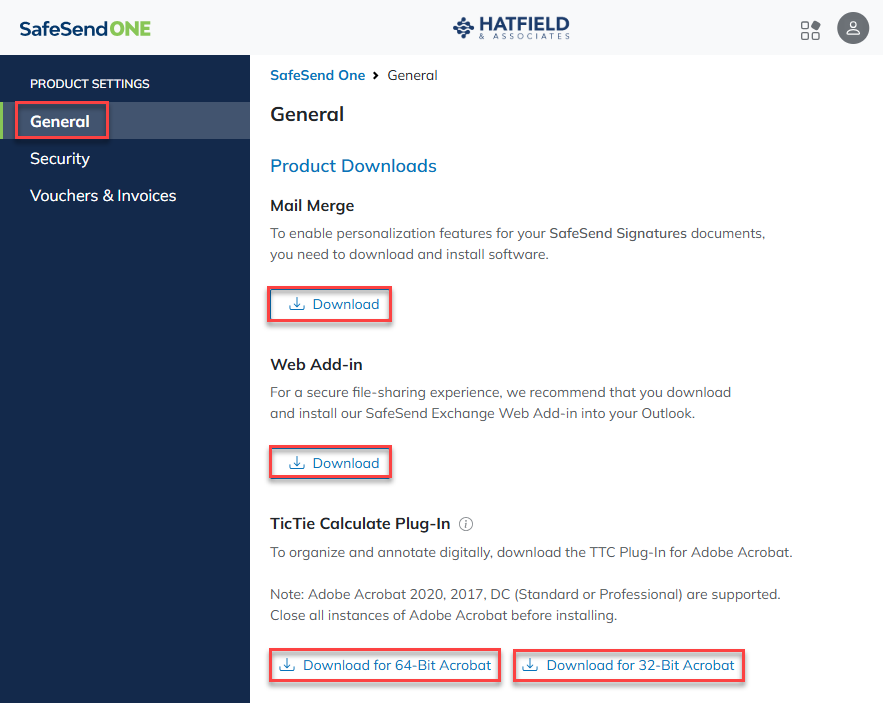
Product Downloads:
Setting | Description |
|---|---|
SS Signatures-Mail Merge | Select the Download icon to download the Mail Merge desktop app and Microsoft Word plugin. |
SS Exchange-Web Add-in | Select the Download icon to download the Exchange Outlook plugin. Refer to ourExchange help center for more information about this feature. |
TicTie Calculate Plug-In | Select the Download icon to download the bit version that matches Adobe®, not your PC. |
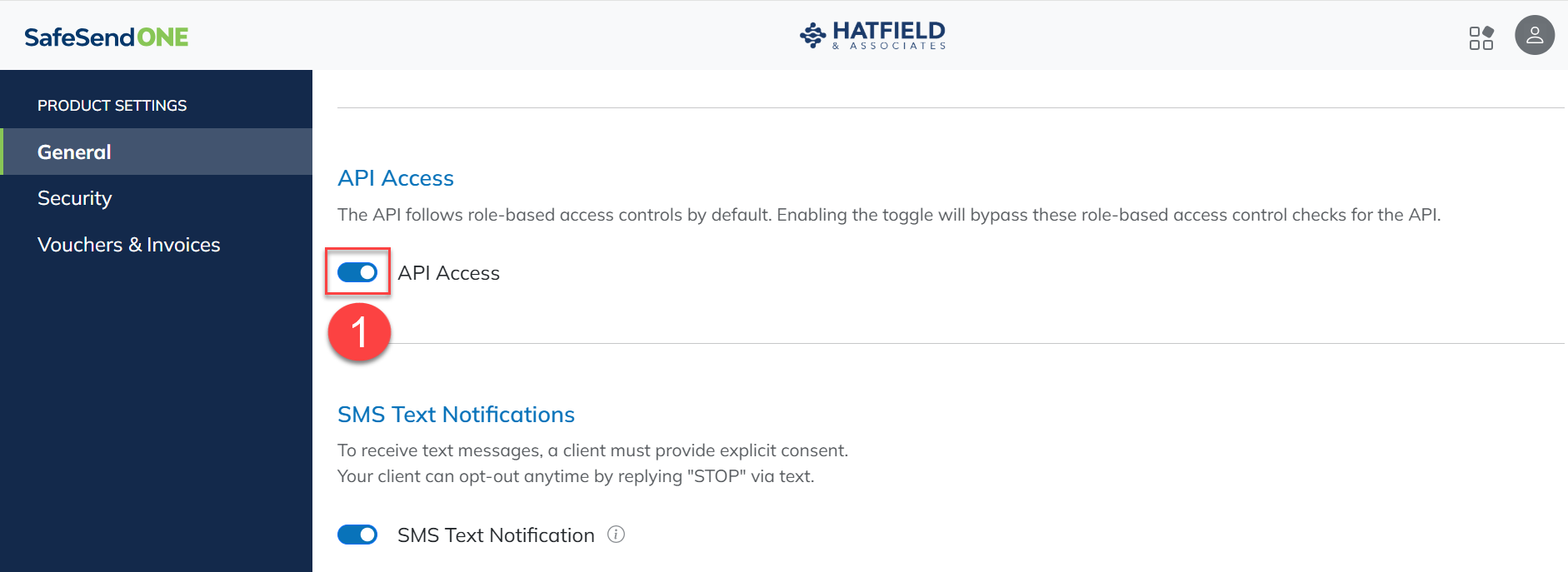
API Access:
- TurnAPI AccessOnto turn on theRoles Based Access Controlpermission check for the SafeSend APIs.
- When enabled, users can access the APIs without needing the API Developer Role assigned to their account. This feature is particularly beneficial for firms with straightforward user groups, enabling API support for application integrations with SafeSend.
SMS Text Notifications:
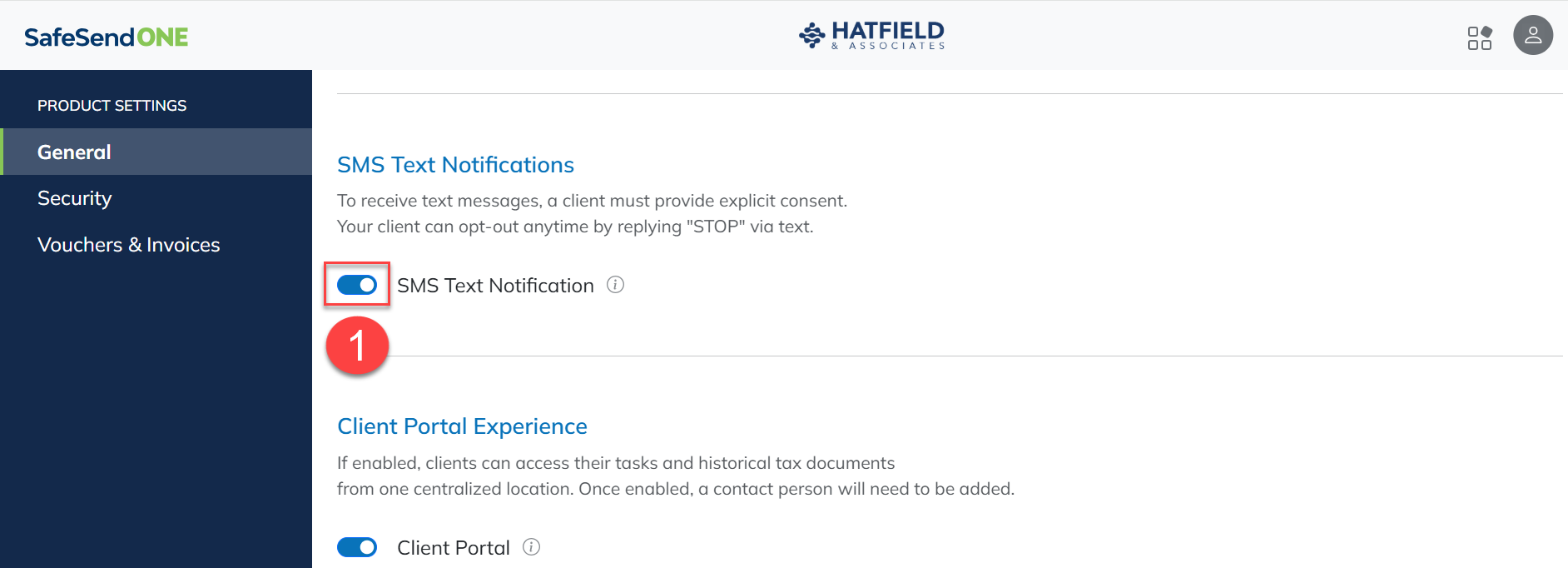
Turn on or turn off SMS Text Notifications for your clients.
- SwitchSMS Text NotificationstoOnto provide the option for clients to receive signer reminders via text message.
Client Portal Experience:
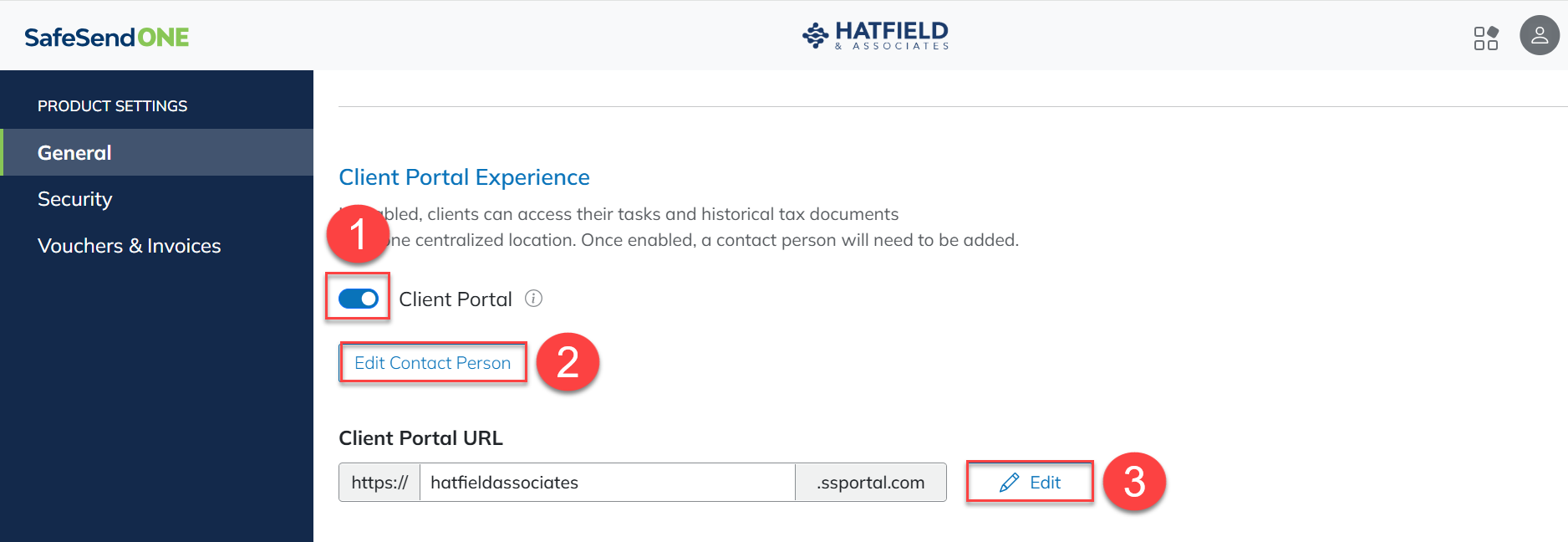
Turn on or turn off the Client Portal experience for your clients, change your Client Portal firm contact, and edit your Client Portal URL.
- SwitchClient Portalon or off.
- SelectEdit Contact Personto choose who appears as a firm contact for clients using the Client Portal.
- SelectEditto change your Client Portal URL (web address for client sign in).
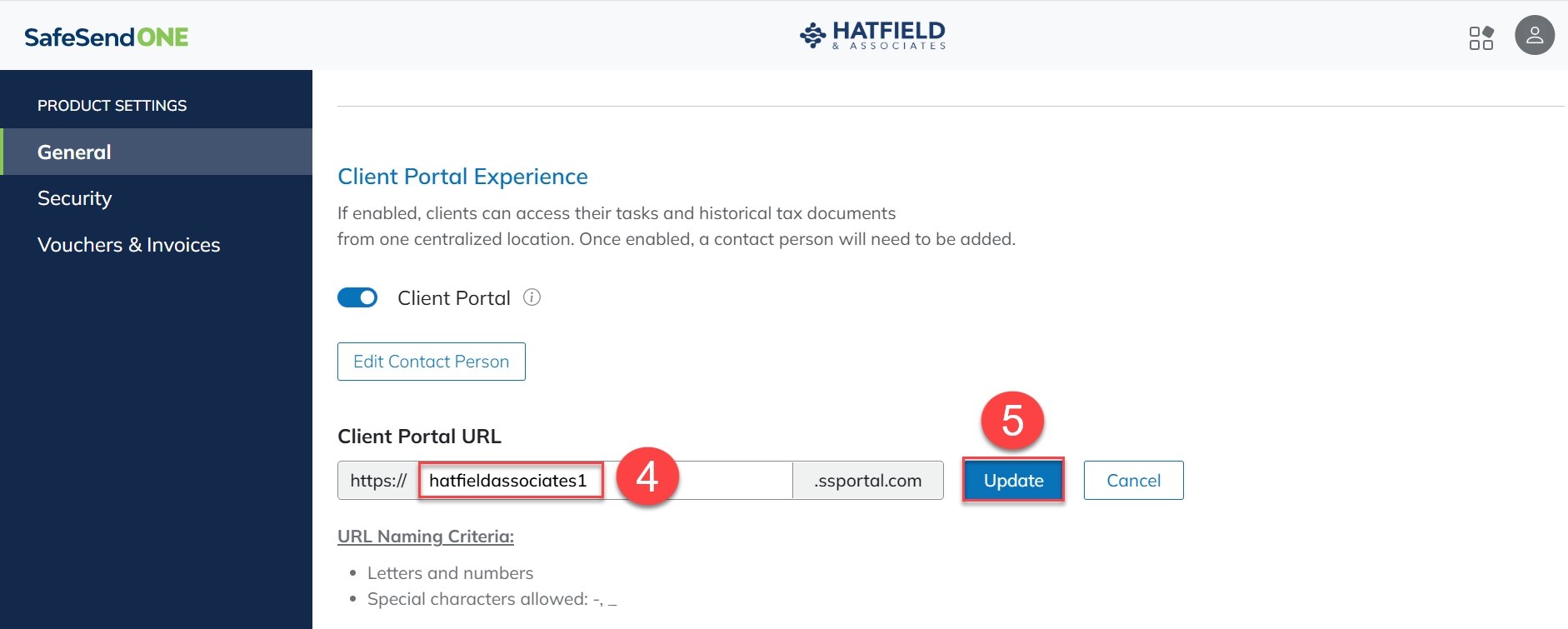
- Enter a newClient Portal URL.
- SelectUpdate.
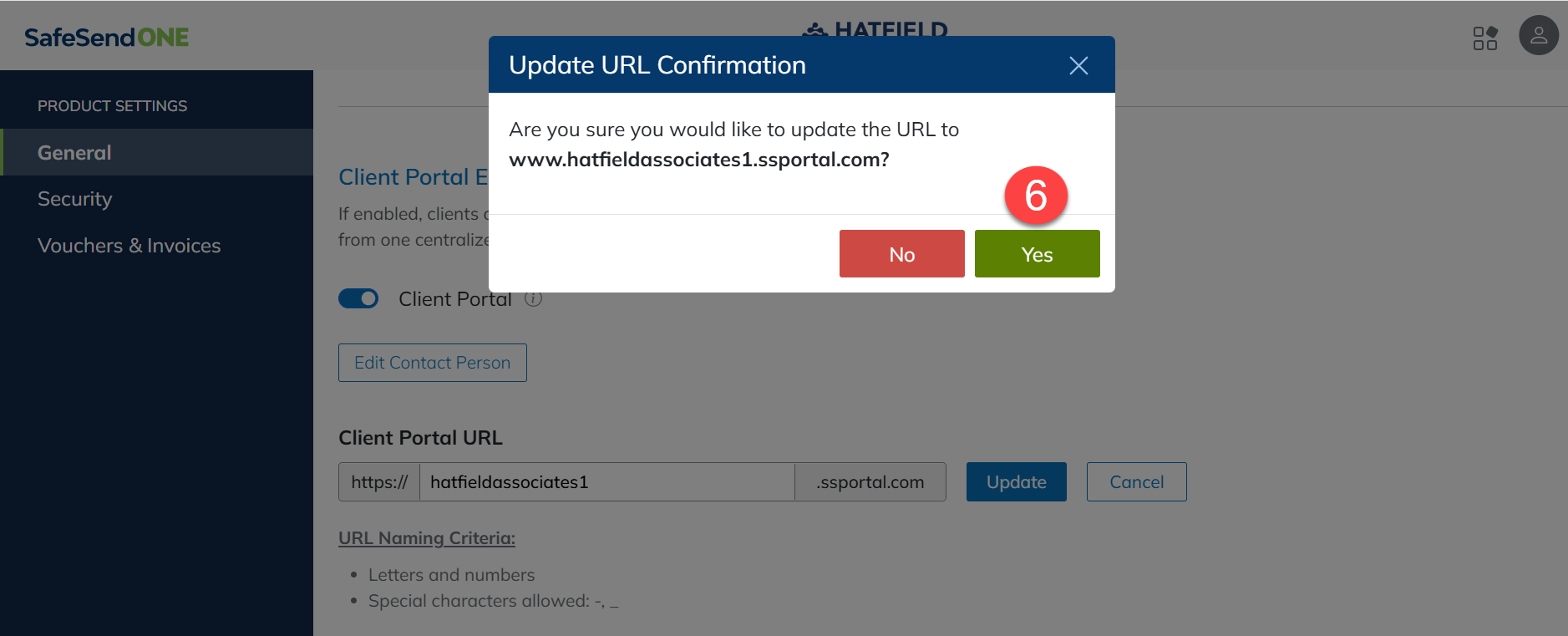
- SelectYesto confirm any changes made.
Client Management
Use the following options to manage how clients are added to
Client Management
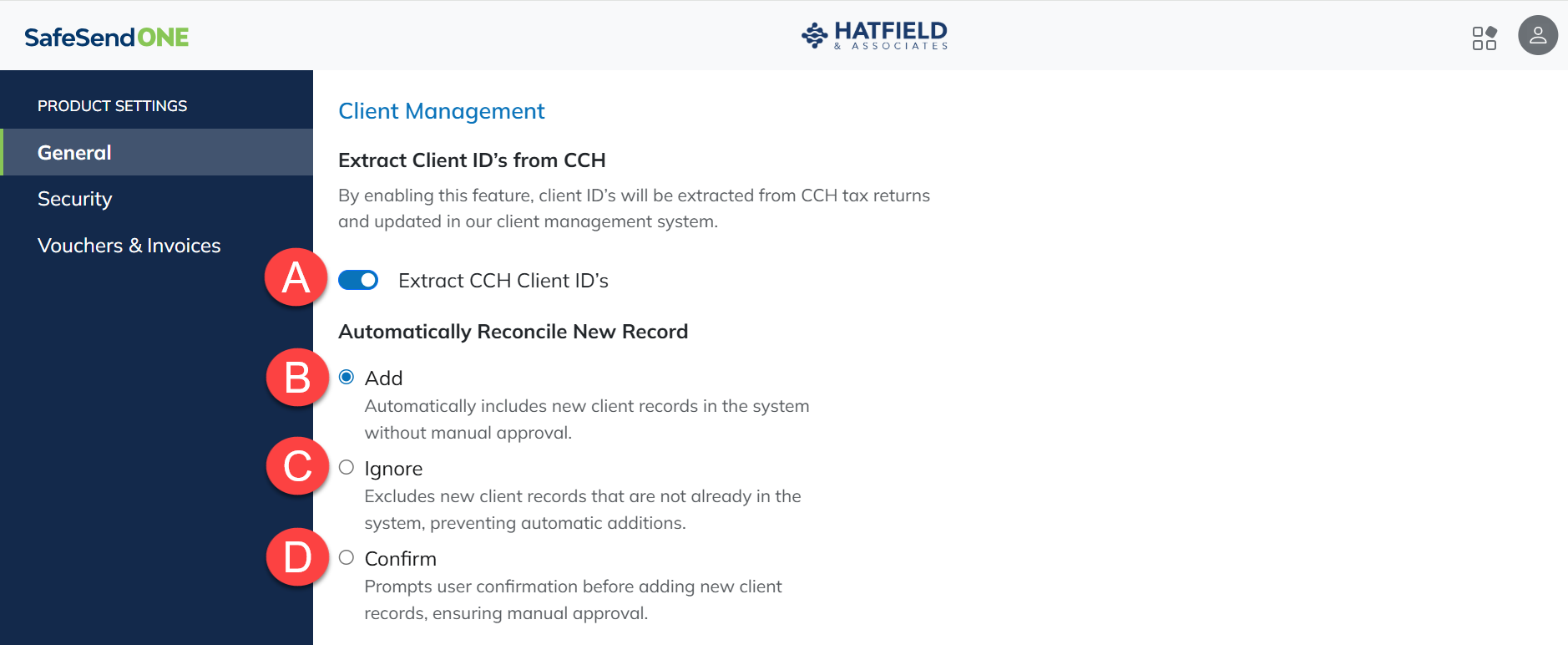
.- Extract Client ID's from CCH
- When enabled, SafeSend extracts the Client ID from the uploaded PDF file name and fills it.
- Reconcile Record settings apply; ifIgnoreis selected, no updates will be made to Client Management Client IDs.
- Add: All new client records will be added without manual approval.noteIf the data conflicts with Client Management, the pop-up will still appear.
- IgnoreNo pop-up will appear for new client records.note
- If the data conflicts with Client Management, the pop-up will still appear.
- If no clients are added to Client Management, this option essentially turns off the feature.
- TheConfirmpop-up will appear for all new client records and any existing records where the data conflicts with Client Management.
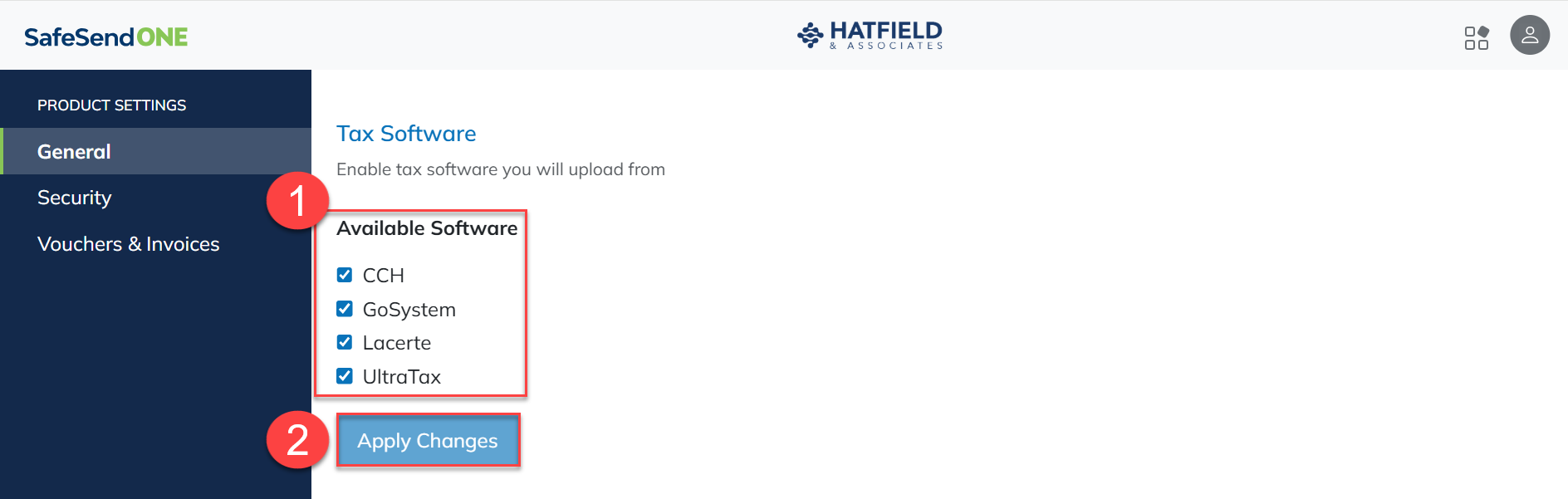
Tax Software
: Select the tax application to let your users upload for that printing program.
- Mark the checkbox for the tax applications used by the firm.
- SelectApply Changesto save any changes made.
Security
IP Filtering Options
The firm can restrict users from accessing their accounts unless they are signing in from a trusted IP.
Multi-factor Authentication
The firm can enable/disable multi-factor authentication for internal users and taxpayers.
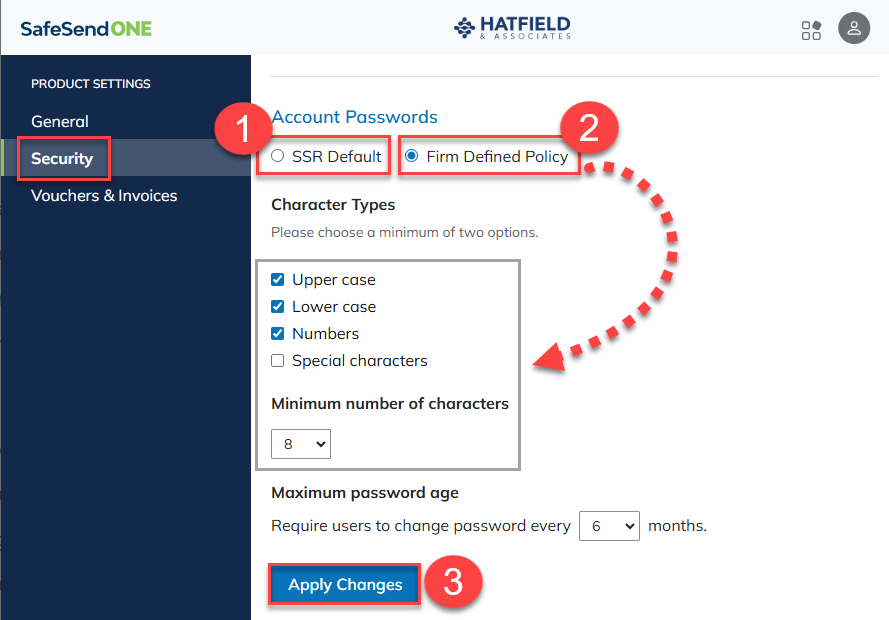
Account Passwords
This section determines the firms' password settings for users. Users will be required to reset their passwords anytime the policy is changed.
- SelectSSR Defaultto use the default password policy provided by SafeSend OR
- SelectFirm Defined Policyto edit theCharacter Typesoptions.
- MarkUpper Caseto force users to include at least 1 capital letter.
- MarkLower Caseto force users to include at least 1 lower case letter.
- MarkNumbersto force users to include at least 1 Number.
- MarkSpecial Charactersto force users to include at least 1 special character.
- Select aMinimum Number of Charactersfor the password from the dropdown.
- Select aMaximum Password Agethat the password can be from the dropdown.
- After the password expires, the user will be prompted to create a new one.
- SelectApply Changesto save any changes made.
Single Sign On
The firm can enable/disable
Single Sign On
for internal users. Vouchers & Invoices
Custom Authorities
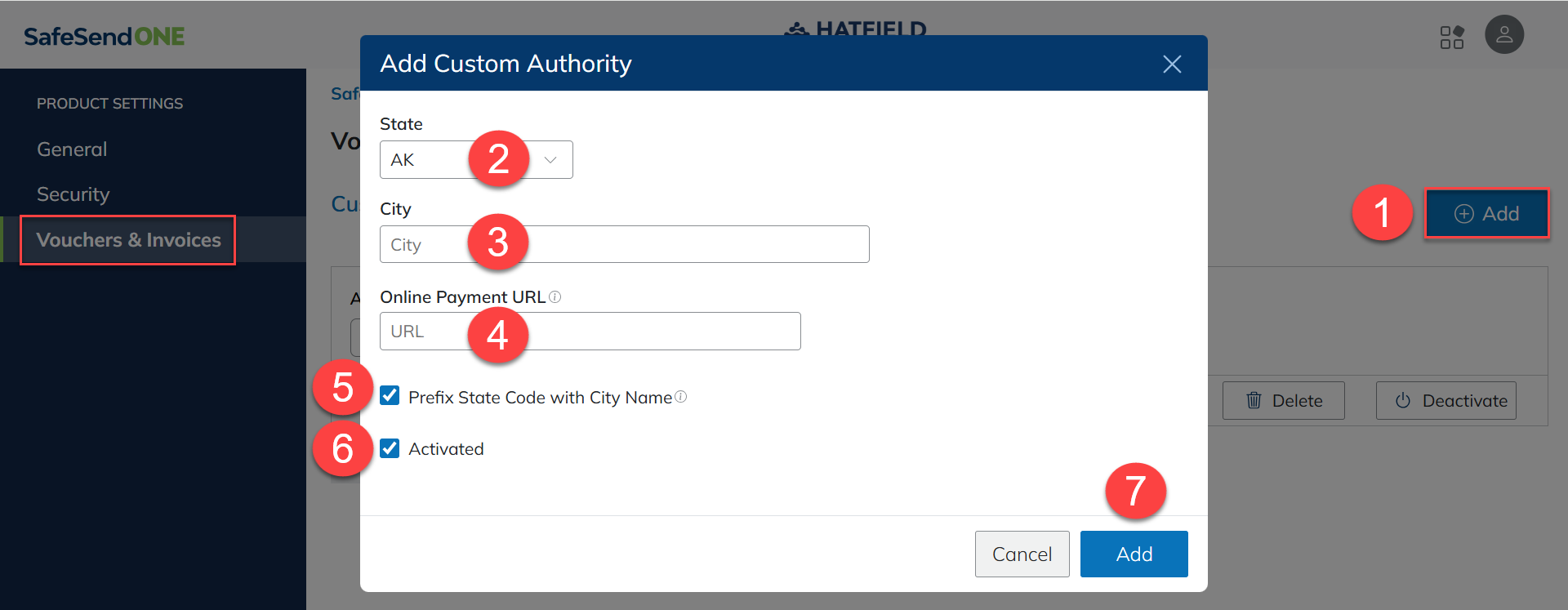
Add a custom authority to apply to e-file forms and vouchers not automatically recognized by Returns. All state and federal e-file forms and vouchers should be automatically recognized. Not all city/county forms are recognized.
- SelectAdd.
- Select theStatedropdown to select the state for the authority.
- Type into theCityfield to enter a city name.
- Type into theOnline Payment URLfield to add a default online payment URL for the authority.
- Select thePrefix State Code with City Namecheckbox to prefix the city name with the state abbreviation (optional).
- Select theActivatedcheckbox to make the authority available to processors.
- SelectAddto save the new authority.
Account Management
Account Management is where you configure basic settings such as your firm's address, branding, and users. You can also review how many returns you've purchased and a usage report of activity on your account.
My Company
My Company
contains settings about your firm's primary address, main system administrator, and what products will be available to users in the firm. Refer to our Account Management article for more information. Company Account Details
- Enter your company information such as name, phone, website, and the address for yourprimaryoffice location. Other locations can be added later.
Primary Admin
- The primary admin will be set to the 1st user added when your account was created. Any user in the System Admin group can change this at any time. Users can be selected from those entered in User Management.
Company Account Details
- Company Account Detailsshows the subscription tier your firm has purchased along with a list of available products in SafeSend. System administrators can turn on or turn off any products as needed.
note
- Returns are a required product and can't be turned off.
- When enabling or disabling SafeSend products, the change is effective immediately.
- Contact your customer success representative if you need to change your subscription tier.
Branding
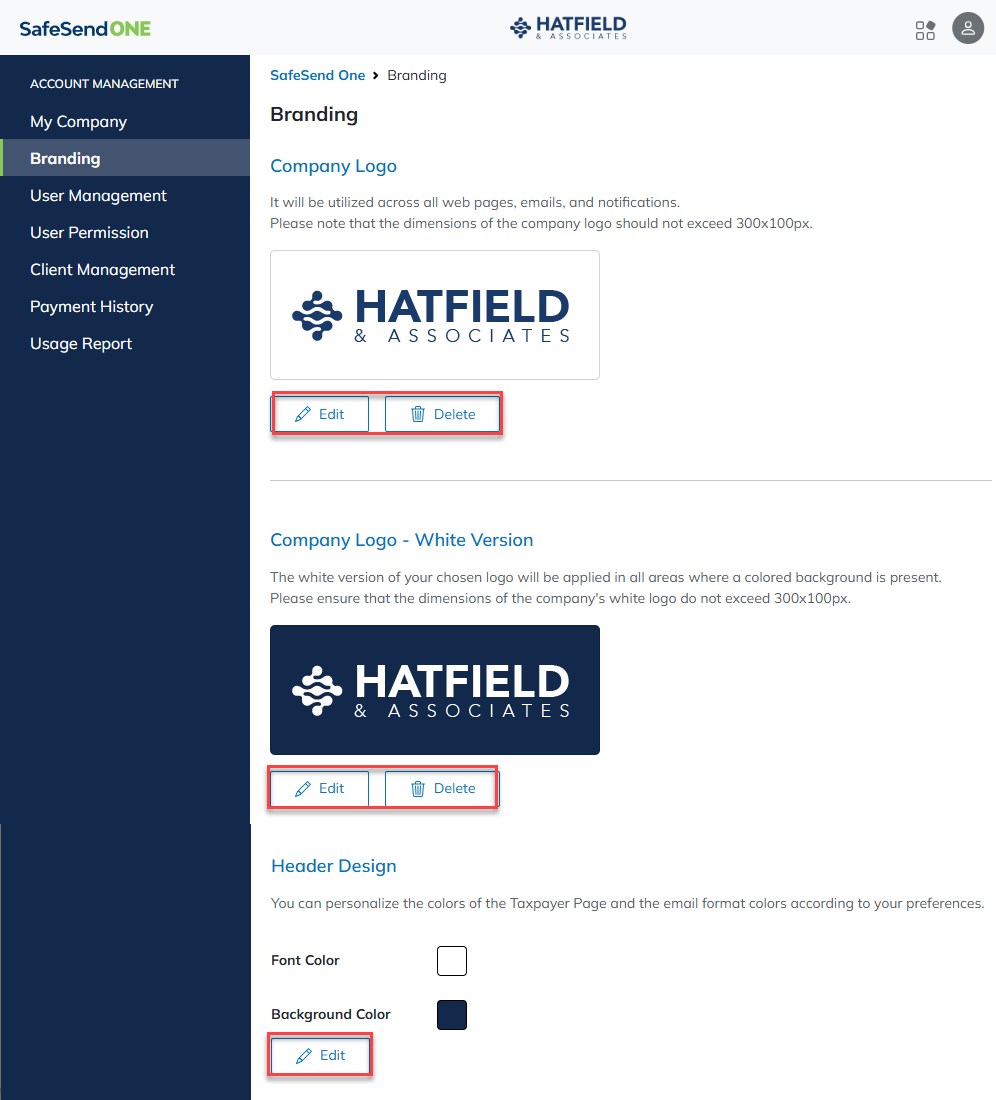
The branding section lets you specify logos and colors to use in product pages and email notifications.
- Logos can be in PNG or JPEG format.
- Logos can't be larger than 300 pixels in width x 100 pixels in height.
- Delete any existing logos by selecting theDeletebutton.
Company Logo
- This logo will be displayed on all SafeSend application pages, taxpayer-facing pages, emails, and notifications.
Company White Logo
- This logo will be displayed on all SafeSend application pages where there is a colored background.
Color Palette
- These colors will be used on all taxpayer-facing pages and email notifications.
User Management
User Management is where you can add users, delete users, and configure settings for users who will access products in SafeSend. The Groups control the activities that a user can perform.
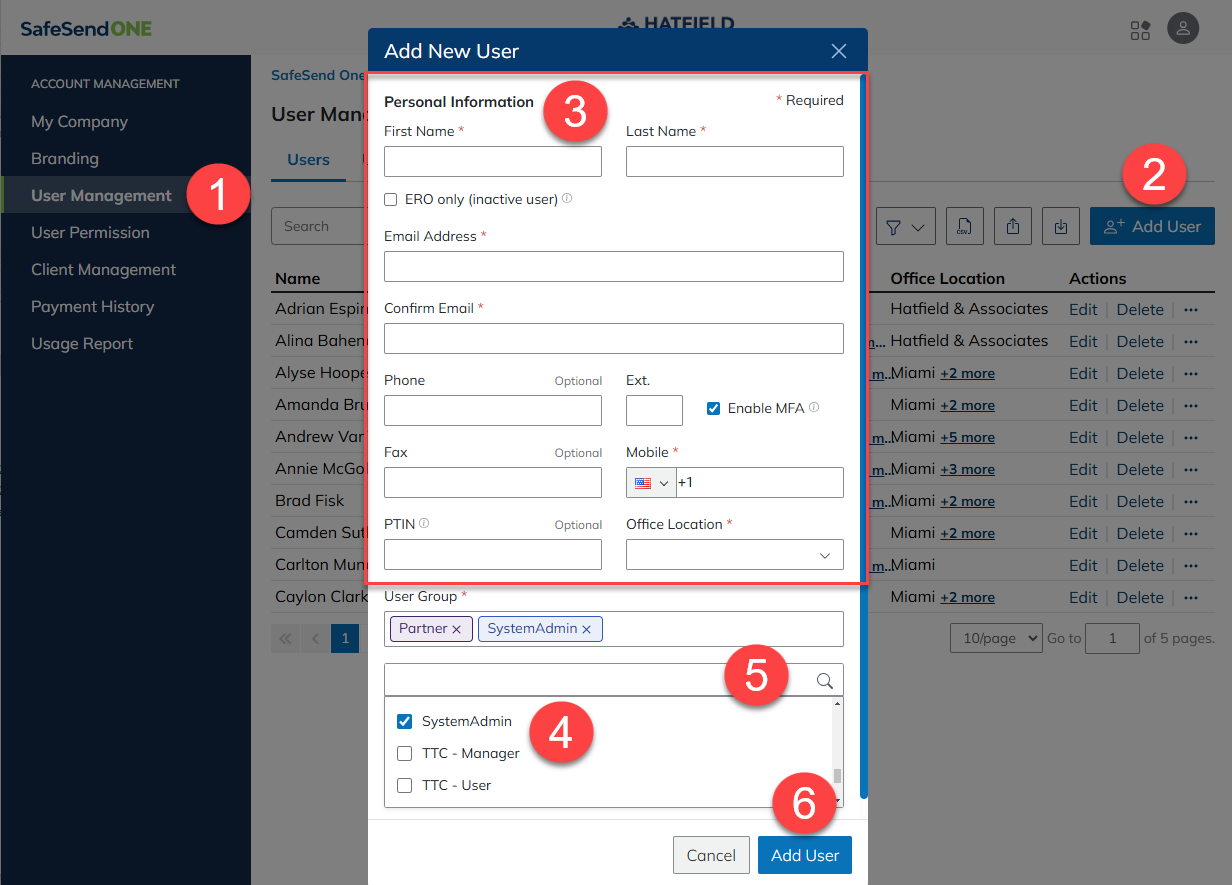
Add User
- SelectUser Management.
- SelectAdd User.
- Enter the new user's information.
- Each field with a*is required.
- If multi-factor authentication (MFA) is active, a mobile number is required.
- SelectUser Group(s); move them fromAvailable GroupstoCurrentGroups.
- You can also use theSearchbar to locate existing groups.
- SelectAdd Userto save.
Edit/Delete User Details
When a user is deleted, none of their associated documents are deleted. Their name will still appear in the reporting sections. Any documents in process will be unassigned from the deleted user.
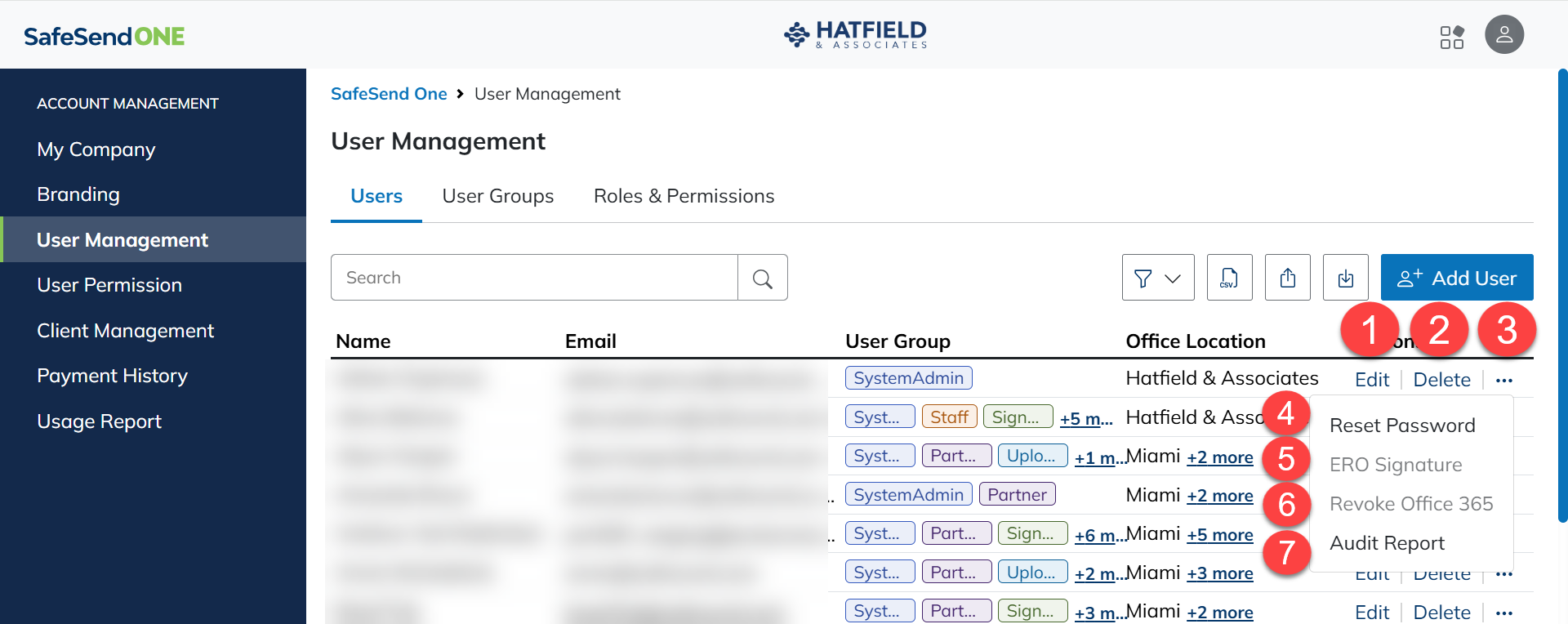
- SelectEditto update user details.
- SelectDeleteto remove the user.
- Select the ellipses (...) underActionsadditional options.
- SelectReset Passwordto send a password reset email to the user.
- SelectERO Signatureto adjust the signature settings for Partners.
- SelectRevoke Office 365to remove single sign-on permissions for the user.
- SelectAudit Reportfor a report of permission changes for that user.
Add User Group
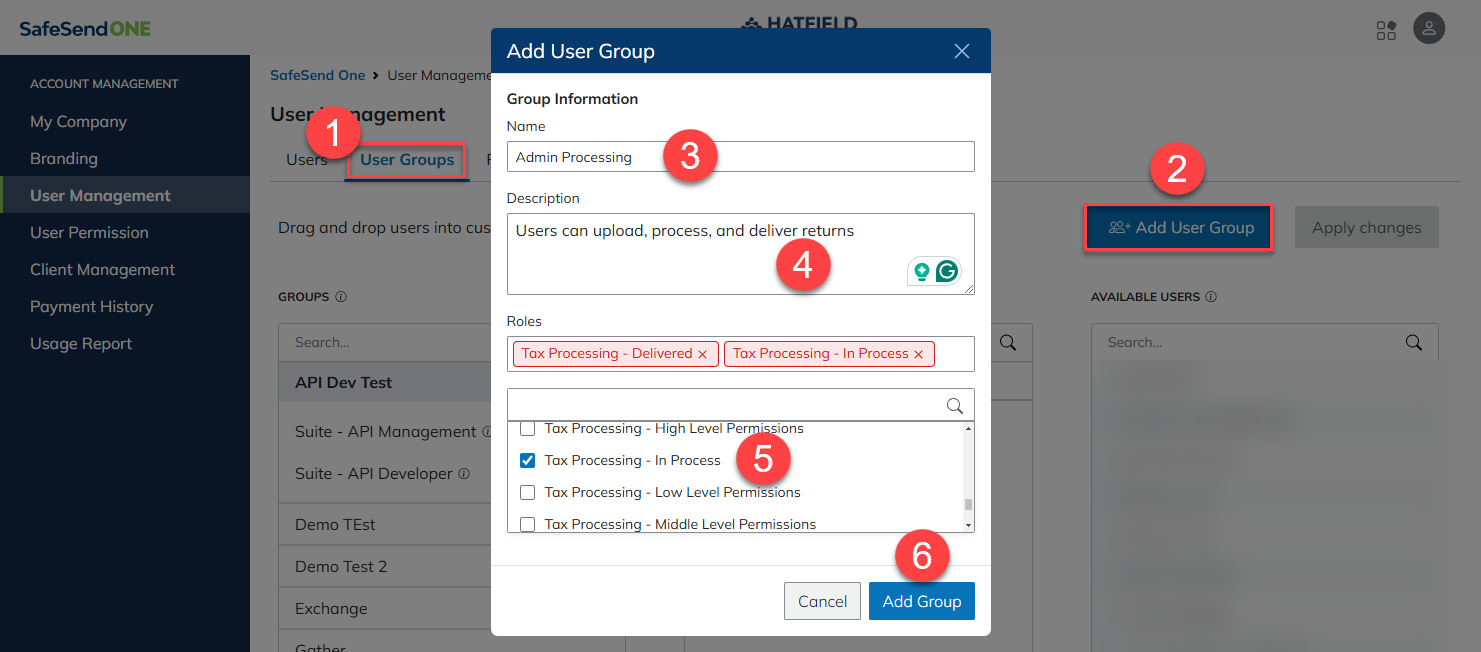
- Go toUser Groupsin theUser Managementsection.
- SelectAdd User Group.
- Add theNameof the group.
- AddDescription.
- This can be a general description of what roles this group has.
- Select theRolesto be applied to the group
- SelectAdd Group.
ERO Signature
note
ERO signature stamps must be enabled in your
Returns Settings
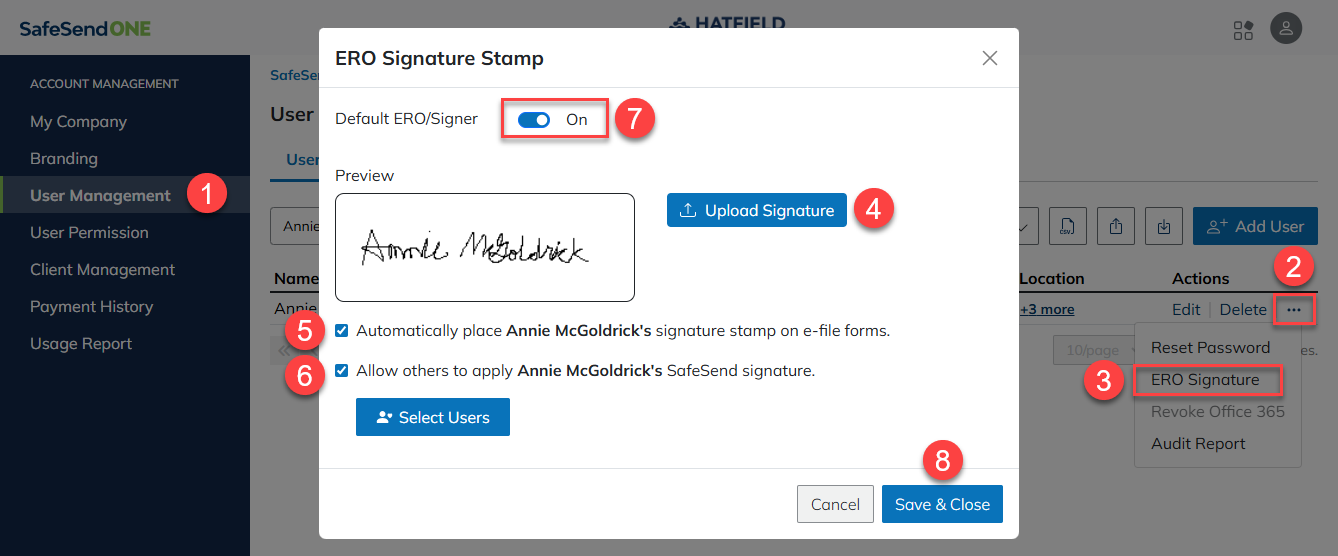
for this option to be available. The user must also have the Partner user group permission. - SelectUser Management.
- Locate the partner and select theellipses(...)from the action menu.
- SelectERO Signature.
- SelectUpload Signatureand select a file from your computer.
- Signature stamps must be 300 x 100 pixels or smaller.
- Supported file types include JPG, BMP, or PNG.
- A white background is recommended.
- MarkAutomatically place __ signature stamp on e-file formsto have Returns automatically place signature stamps in e-file forms for this ERO (optional).
- SelectAllow other users to apply __ signatureif ERO Stamp Delegation is enabled.
- SelectSelect Usersto choose the users who can apply this ERO's signature stamp (optional).
- Turn theDefault ERO/Signerswitch toONto change this user's default ERO/Signer when they upload returns.
- SelectSave & Close.
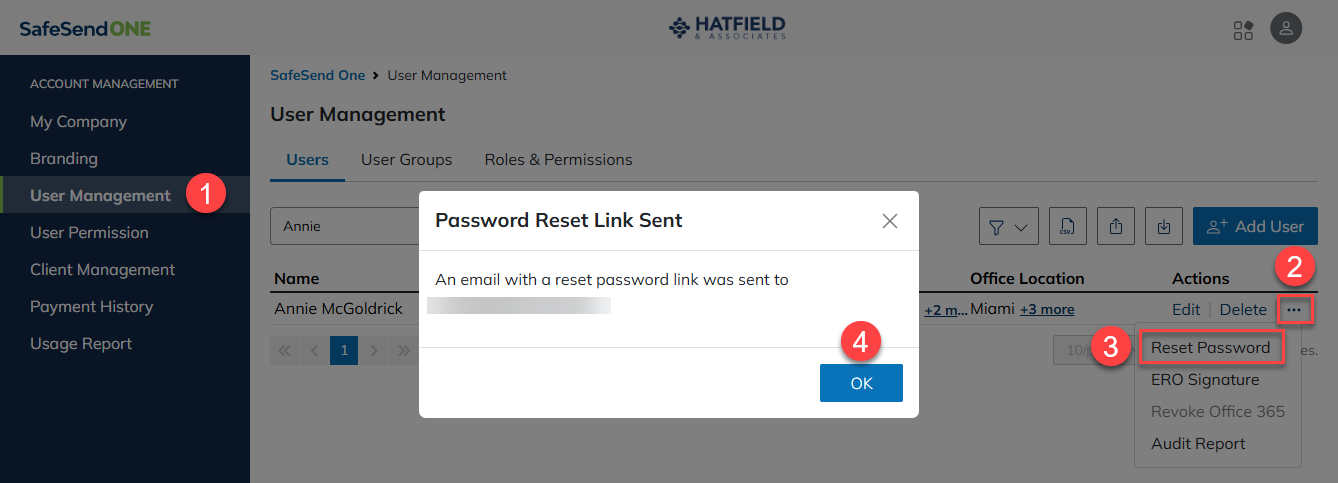
Reset Password
- SelectUser Management.
- Select theellipses (...)under theActionscolumn.
- SelectReset Password.
- SelectOk.
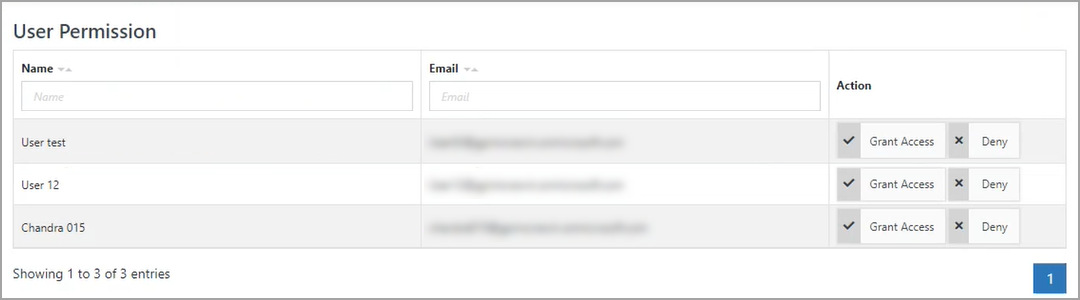
User Permission
User Permission shows any users that have requested to use the Office 365 Single Sign-On feature. System administrators can choose to grant or deny access to these users.
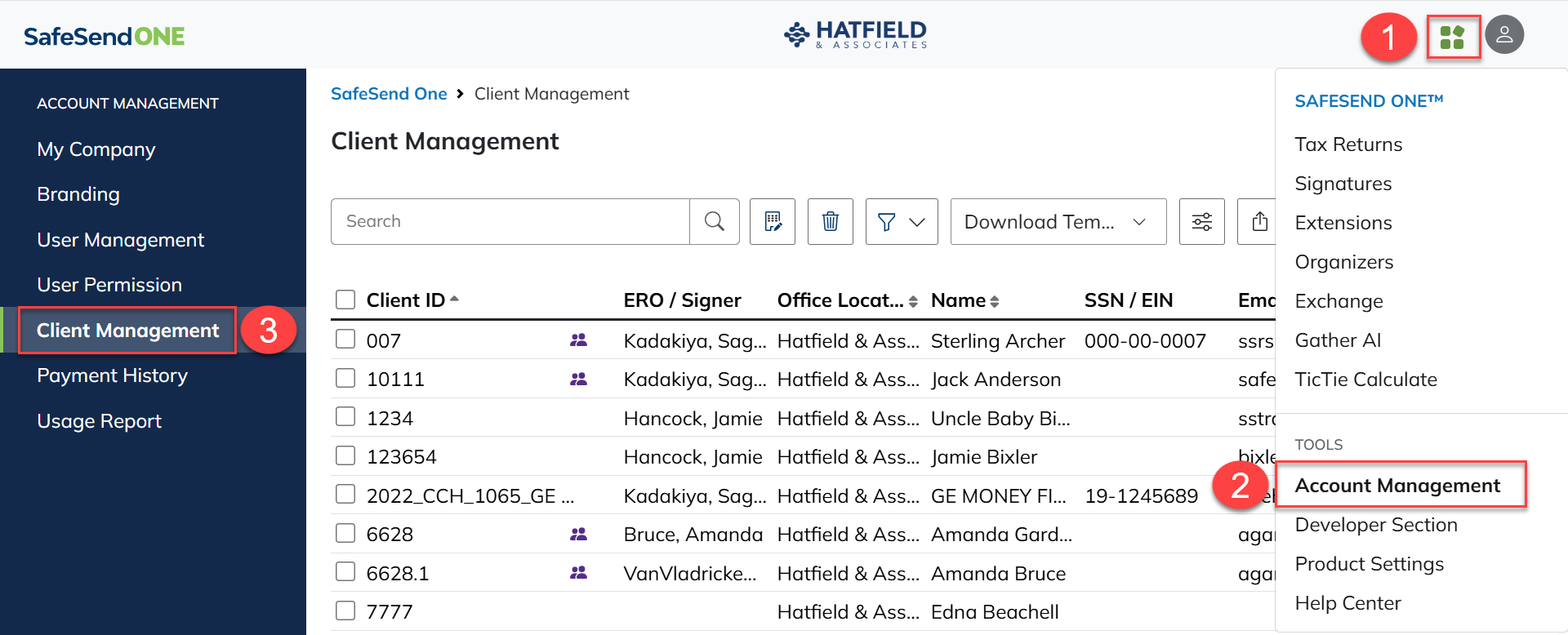
Client Management
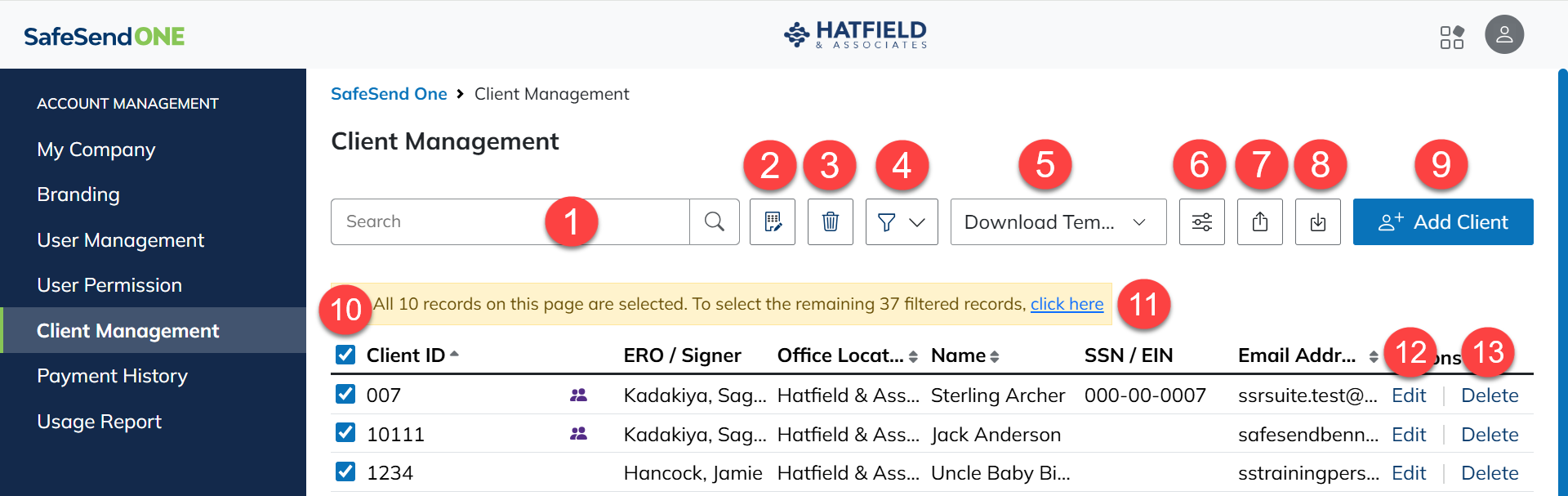
This section can be used to manage and view client information across the Returns and Organizers modules.
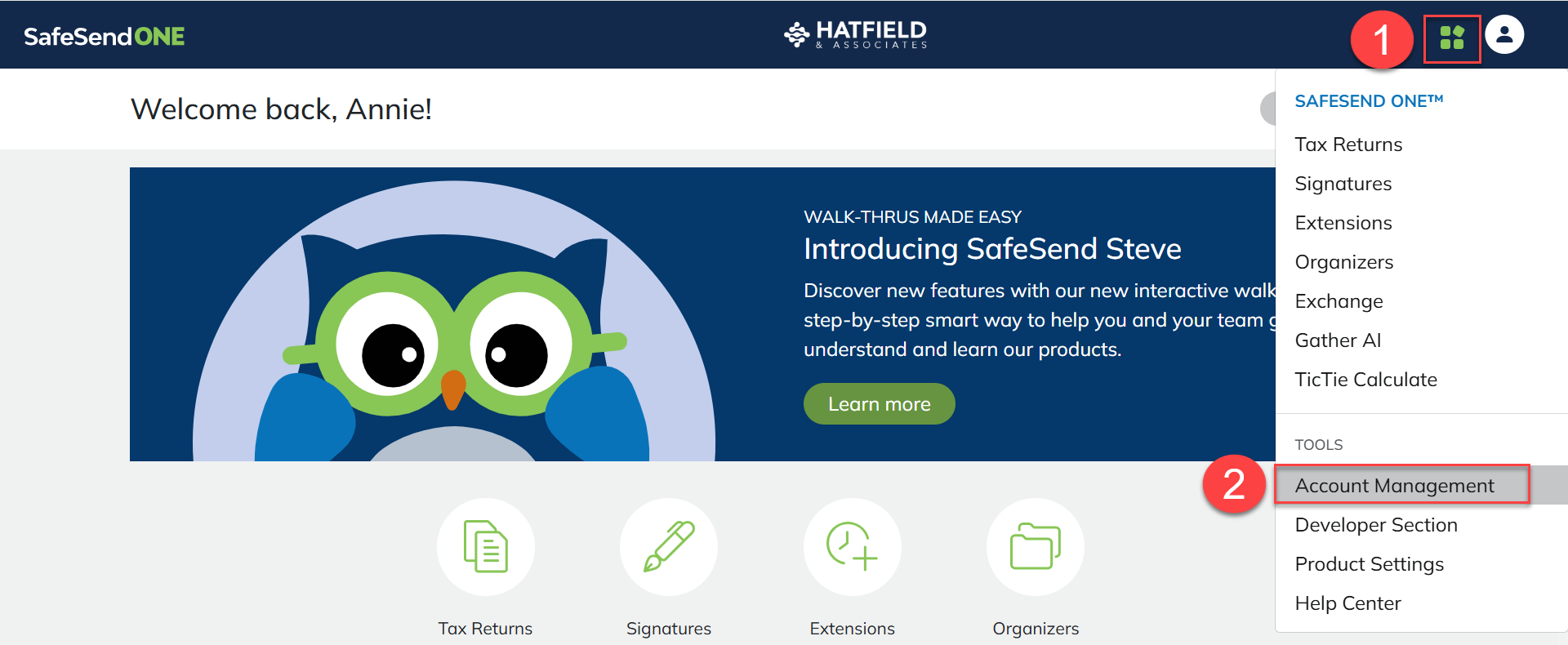
- Select theNavigation Widget.
- SelectAccount Management. A new tab opens.
- SelectClient Management.
Dashboard
- Search Bar: Search for clients by Client ID, ERO, Name, SSN/EIN, or email address.
- Edit Office Location(Bulk Editing Option): Edit the assigned office location for the selected client.
- Delete(Bulk Editing Option): Delete the selected client fromClient Management.
- Office Location Filter: Choose which office location clients to display.
- Download Template: Choose which template to download when using option G to import client information.
- Customize Columns: Mark or clear the checkbox for each column name to add or remove it from the report.
- Import CSV: Upload the completed template.
- Export to Excel: Export the client information to Excel.
- Add Client: Add client information manually.
- Select: Select one or more clients to use the Bulk Editing Options.
- Click Here: Select all client records to use the Bulk Editing Options.
- Edit: Edit client information.
- Delete: Delete client fromClient Management.
note
The delete option deletes the client completely from our database. No client information will populate automatically for newly uploaded items.
Payment History
In
Payment History
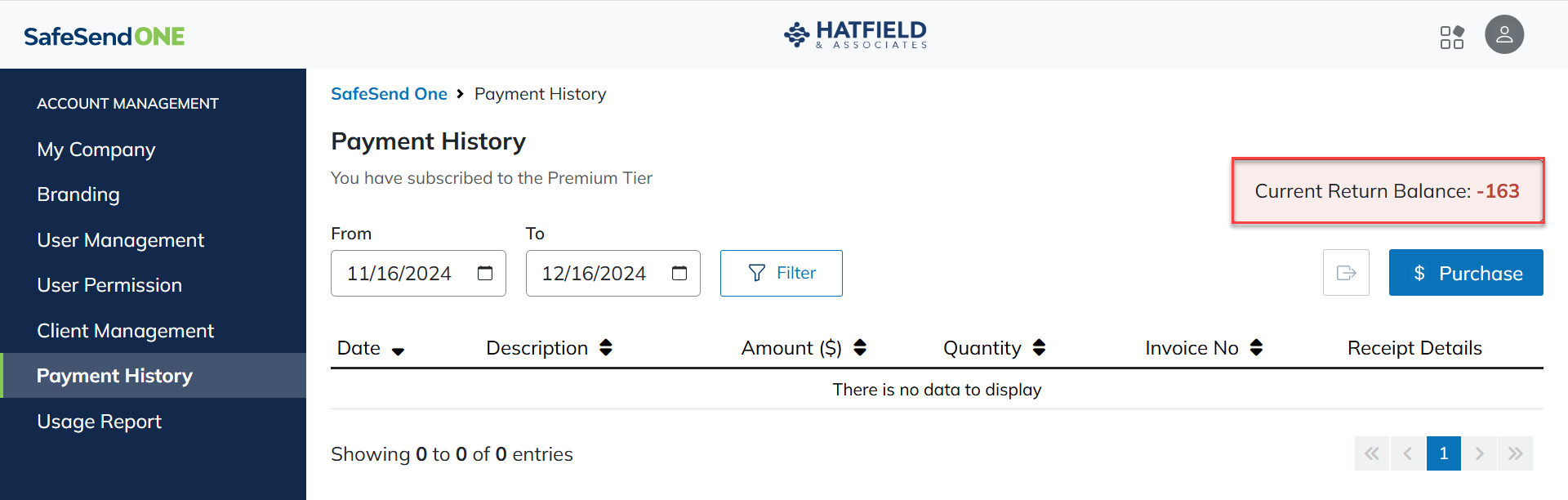
, system administrators can review the firm's subscription tier, all in-product purchases, invoice records, and purchase additional returns. You can filter records by date range and export them to an Excel spreadsheet.note
- The Current Returns Balance displays a real time count of returns that can be delivered.
- Accounts are never turned off for going negative. Should you account go negative, contact your customer success representative as soon as possible.
Purchasing additional credits
- SelectPurchase.
- In the pop-up, enter the quantity of returns to add to your account.
- SelectAdd.
- SelectProceed.
- View the order summary.
- SelectProceed to Payment.
- Follow the instructions on the screen to complete your purchase.
Usage Report
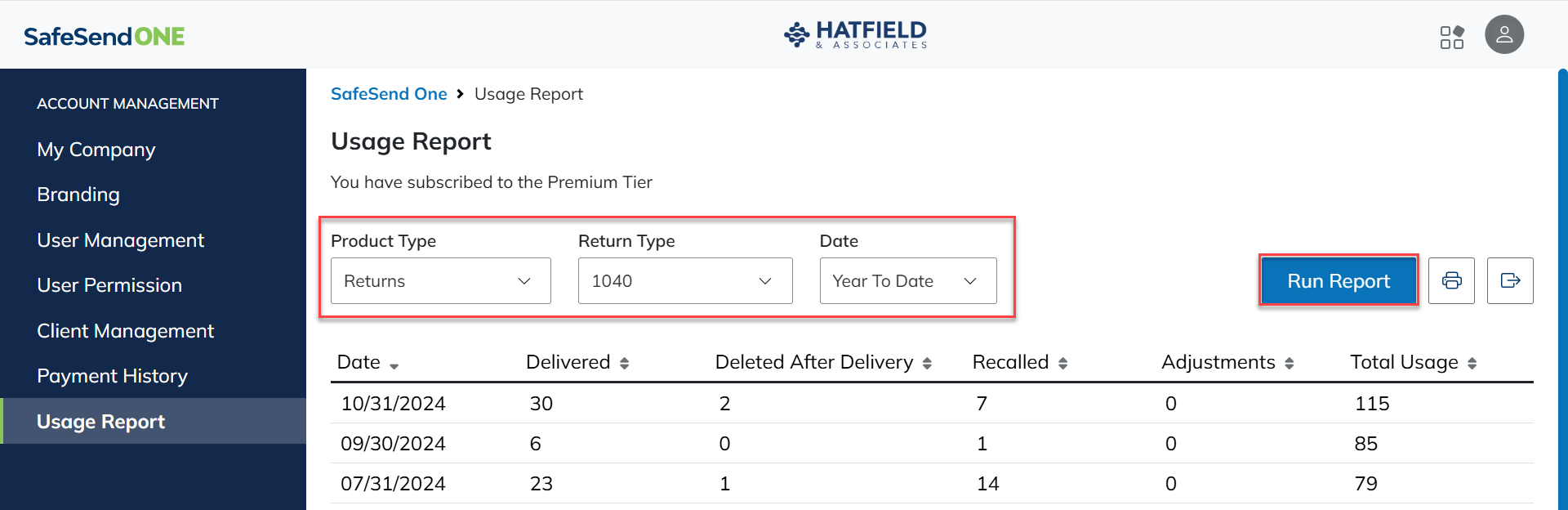
The usage report shows how many returns, organizers, extensions, and signature documents your firm has delivered. You can filter reports by return type (for returns and extensions), date range, and print or export them to an Excel spreadsheet.
Running a usage report
- Use theProduct Typedropdown to select a product.
- (Optional) Use theReturn Typedropdown to select a return type.
- Use the date range dropdown to select a date range.
- SelectRun Report.
Return Settings
The Return Settings menu lets firm administrators update and save global default settings for Returns.
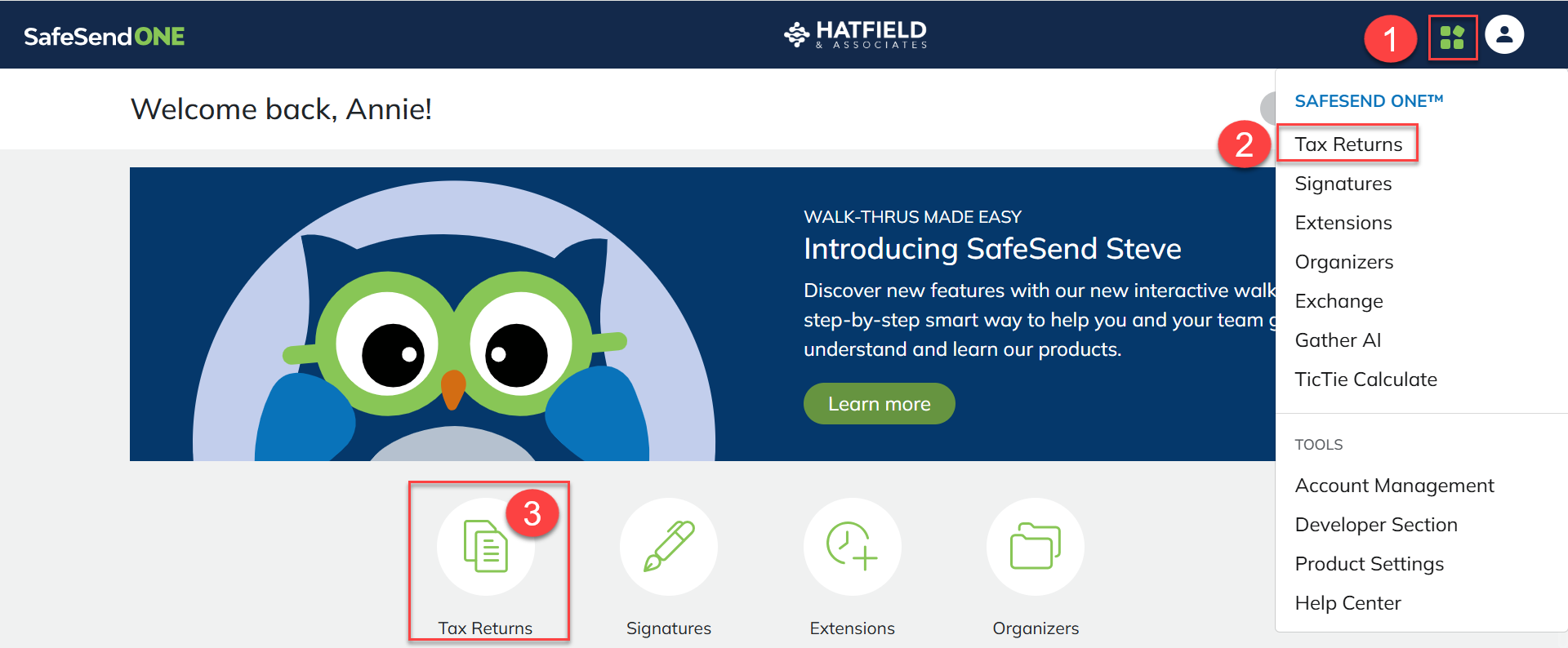
- Select theNavigation Widget.
- SelectTax Returns.
- SelectSettingsin the left panel.
- Select the section you want to go to.
Saved Messages
Here you can add, preview, and change
Saved Message
templates that you can apply while processing a return. Saved message sections: - Saved Messages: The message appears after the taxpayer authenticates and selects to begin.
- Attachment Instructions:This message appears in theReview > Attachmentssection on the taxpayer side (if attachments are included with the return).
- Paper File Instructions:This message appears before the taxpayer views their paper file return (if paper file returns are included and enabled).
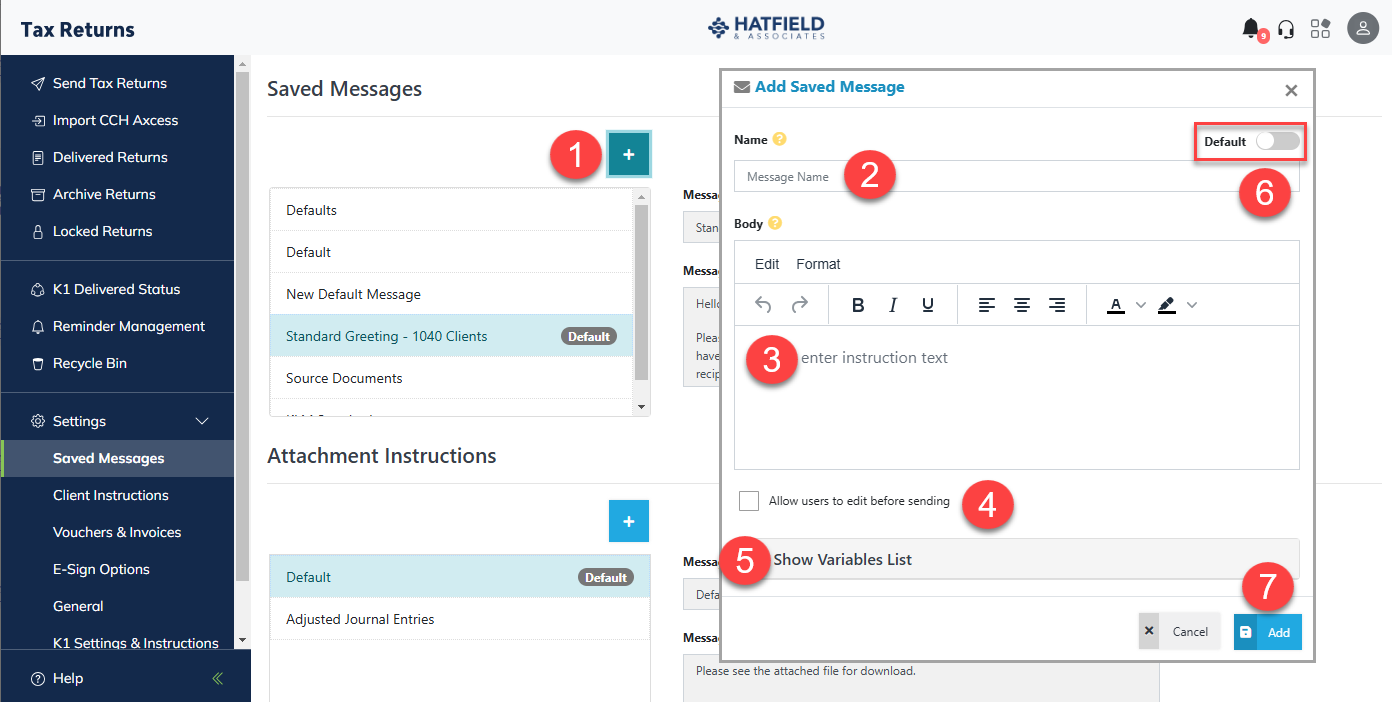
Add a New Message
- Select the blue plus button next toSaved Messages.
- In the window that appears, enter theNameof the message that will display in the list.
- Enter the text that will display. HTML format options are available.
- CheckAllow users to edit before sendingto let users edit the message in theDelivery Optionssection.
- Select to expand theShow Variables Listto include fields in the message that will automatically fill with relevant taxpayer data.
- Turn theDefaultswitch toOnto make this message the default for all returns during processing.
- SelectAddto finish the message and return to theSaved Messagesscreen.
note
To insert images, copy and paste them from another program.
Edit a Saved Message
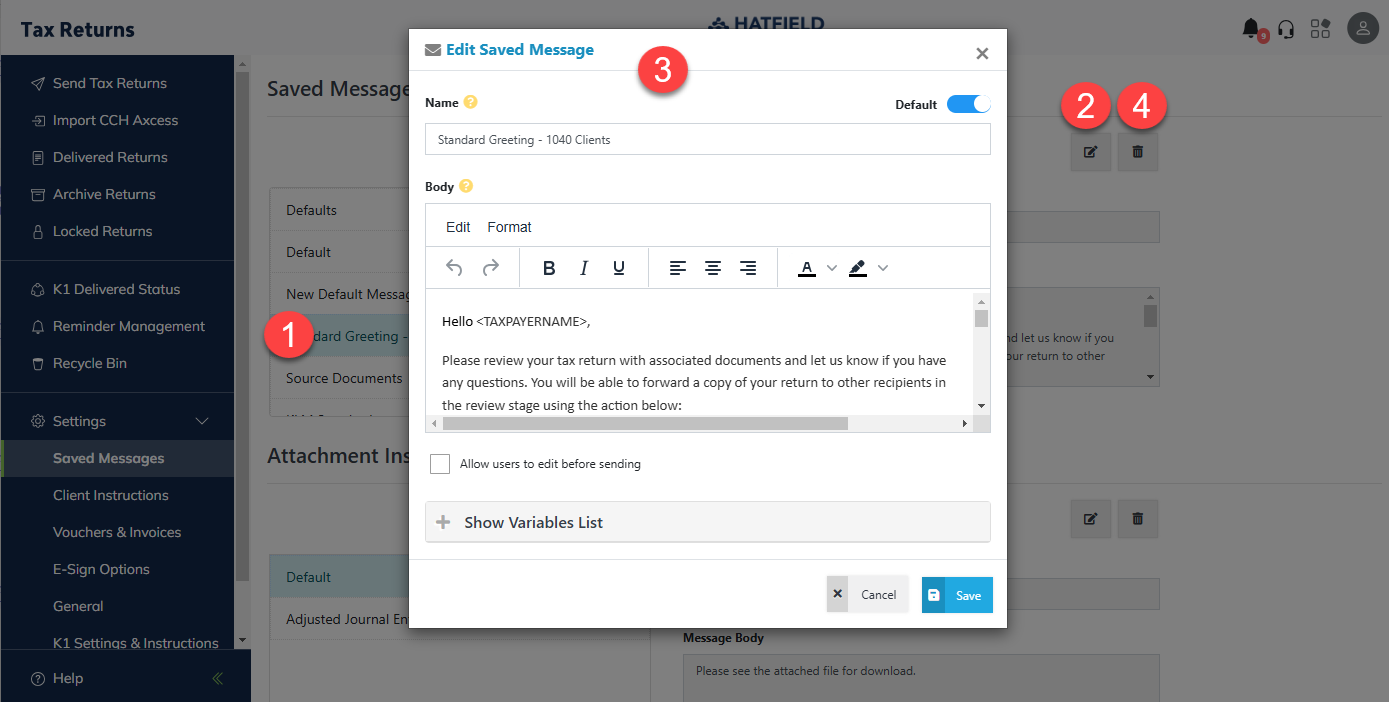
- Select on a saved message from the message list. A preview of the message appears.
- Select on theEditbutton to bring up the editing window.
- You can do the following:
- Change the name of the message.
- Set the message as the default message to use when processing extensions.
- Edit the body of the message in rich text format. This lets you change the font size, style, alignment, and color.
- Let firm users edit the message before sending the extension.
- SelectSavewhen you are done making changes.
Client Instructions
Throughout the return process, clients receive email messages that contain instructions for filling out, reviewing, signing, and downloading their returns. They also receive reminders if they haven't reviewed or signed their returns, or if they have a payment due. The following is a list of the email messages and their purpose.
Messages can be added, deleted, or edited by using the controls on the screen. The editing options are the same as those for the
Saved Message
section. note
Whichever message is marked as the
Default
is sent to all return recipients. These templates can't be selected on a return-by-return basis.Message | Description |
|---|---|
Initial Email | This is the 1st message sent to the client when the return is delivered. |
Review and Sign Extension Reminder | This is a reminder email sent to the client per the options set during delivery. |
Voucher Reminders | This reminder email is sent prior to the voucher due date to clients. |
Download E-Signed Forms | This message is sent to clients once all required parties have completed e-signing the forms in the return. |
Payment Instruction | This email is sent when the client requires a payment. |
Invoice Payment Success Mail Notification | The client receives an email message when their invoice is successfully paid (only applies when Stripe is used). |
Voucher Revision Mail Notification | This notification is sent to the client when the firm uploads new estimated vouchers to the return. |
Vouchers & Invoices
Payment Vouchers
Setting | Description |
|---|---|
Enable payment voucher reminders | When enabled, our system sends out automated reminders [ X ] days before the vouchers are due. |
Set default reminder to | Select the default reminder period via the dropdown to determine how many days before the due date our system will send those reminders out. |
Receive an email notification when your client adds payment information | When enabled, users receive email notifications when clients enter their payment information into our system.
note
We don’t track the payments from the actual authority, only if the client adds the details to our system. |
Default Voucher Due Date
Select the preferred policy for voucher due dates when not printed on the page.
Setting | Description |
|---|---|
SSR Default Due date | The default voucher due date is automatically applied to all vouchers. |
Voucher Form | The voucher date is pulled from the page when possible, otherwise, it will use our defined Voucher Due Date Policy . |
Invoices
Setting | Description |
|---|---|
Enable Invoices | Turn on to let invoices be sent with returns. |
Allow user to send without invoice | Mark the checkbox to let users send returns without an invoice. |
Allow user to replace invoice | Mark the checkbox to let users replace the printed invoice in the uploaded return. |
Invoice Payment Processing Options
Setting | Description |
|---|---|
Stripe | Select the radio button to turn on Stripe integration. |
Third Party URL | Select the radio button to turn on payment through a Third Party URL . Select this option to enter a URL that our system will redirect to for invoice payments. |
Make Payment outside of SSR System | Select the radio button to Make Payment outside of SSR System . This will turn off all payment methods when selected. Payments will be processed outside of our program. |
eSign Options
1040 Forms
Setting | Description |
|---|---|
E-Sign all returns | Select the radio button to turn on electronic signature on all return types. |
Manually sign all returns | Select the radio button to turn off the eSignature process on all 1040s. |
1040 Knowledge-Based Authentication
Setting | Description |
|---|---|
Use Knowledge-Based Authentication to initiate the Signing Process (Required by IRS) | Mark the checkbox to turn on the KBA process for clients before e-signing. |
Use Knowledge-Based Authentication to initiate the Signing Process for delegated signers (Required by IRS) | Mark the checkbox to turn on the KBA process for delegated signers |
Allow ERO Signature Stamps
Setting | Description |
|---|---|
Use ERO Signature Stamps | Mark the checkbox to let a Partner/ERO user upload a digital copy of their signature into the program to place onto returns. |
Enabled ERO Stamp Delegation | Mark the checkbox to let the Partner/ERO stamp be applied automatically as users go through the preparation process. |
Additional Document for E-Sign
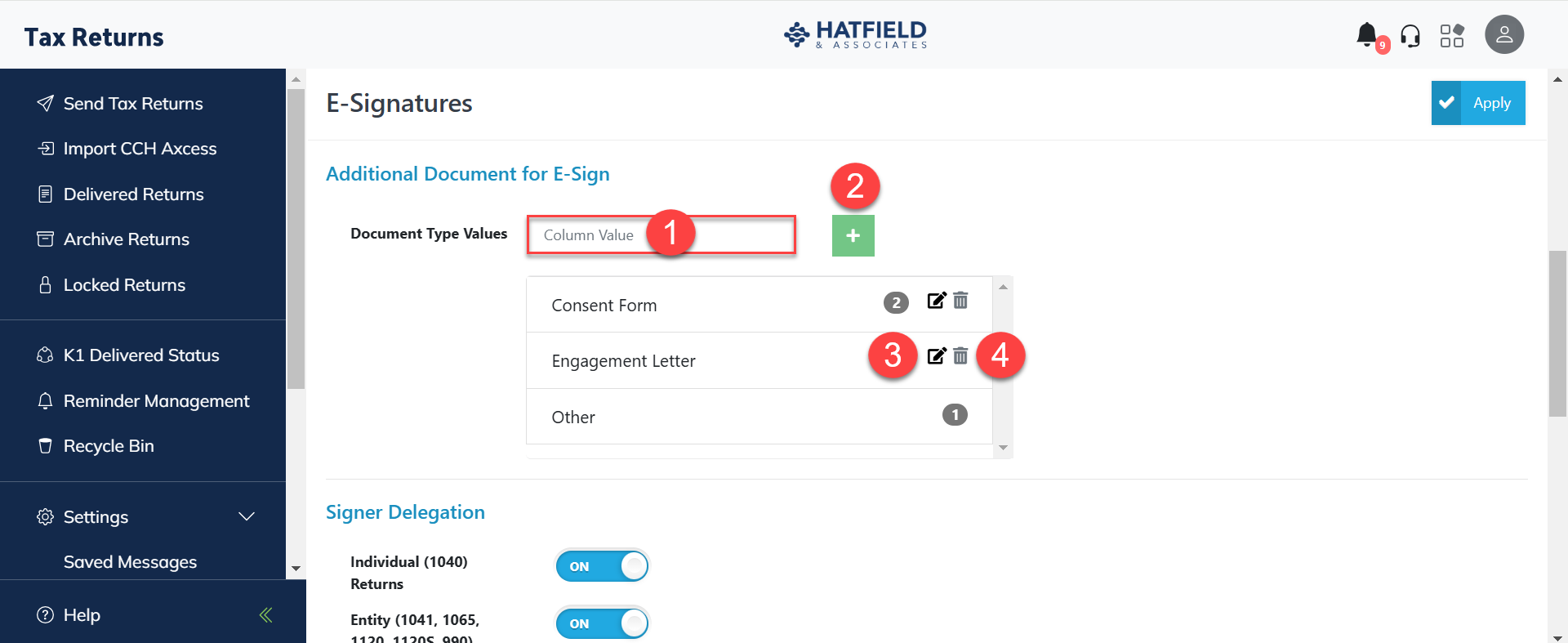
This setting lets you create specific document types that a user in the firm can select when uploading additional documents for e-signing. By default, Engagement Letter, Consent Form, and Others are available options. To add or edit document types:
- Enter a new name for a document type in theColumn Valuefield.
- Select the green [ + ] button to add the new document type to the list.
- Select theEditpencil to change the name of the document type.
- SelectDeleteto remove the document type from the list.
Signer Delegation
Setting | Description |
|---|---|
Individual (1040) Returns | Turn on signer delegation for 1040 returns. |
Entity (1041, 1065, 1120, 1120S) Returns | Turn on signer delegation for entity returns. |
Business & Trust Returns
Setting | Description |
|---|---|
Enable E-Signatures for Business & Trust Returns | Mark the checkbox to turn on eSignature for non-1040 returns. |
Automatic Signing Reminders
Setting | Description |
|---|---|
Enable Automatic Signing Reminders | When enabled, our system sends out routine signature reminders. |
Set default reminder to | Select the default reminder period for signature requests. |
Send default SMS Text Reminder before ___ from due date. | Turn On to send a text notificationX number of days before the due date. |
E-File Forms Settings
If a date and/or title is already printed on the return from your tax application, you can prevent Returns from also placing that information on the form.
Setting | Description |
|---|---|
Do not insert dates on the E-File forms | Mark the checkbox to remove automatic date fields from e-file forms during processing. |
Do not insert Name and Title on the Entity E-File Forms | Mark the checkbox to remove title boxes from e-file forms during processing. |
General
Delivery Options
Setting | Description |
|---|---|
Allow the Staff user group to deliver Tax Returns | Mark the checkbox to give users in the Staff group the ability to deliver returns. |
Allow any internal user to Distribute K1's | Mark the checkbox to let users enter the return and send K-1 schedules on the client's behalf. |
Download Options
Setting | Description |
|---|---|
Transmittals | Select how transmittals are downloaded, either Include in the Tax Return PDF orCreate a Separate PDF for the tax return and transmittals. |
Payment Vouchers | Select how payment vouchers are downloaded, either Separate by Quarterly Due Dates orGroup in Single PDF. |
Filing Option
Setting | Description |
|---|---|
Paper File Returns | Switch on to turn on thePaper File tab during processing. |
Customize Delivered Report
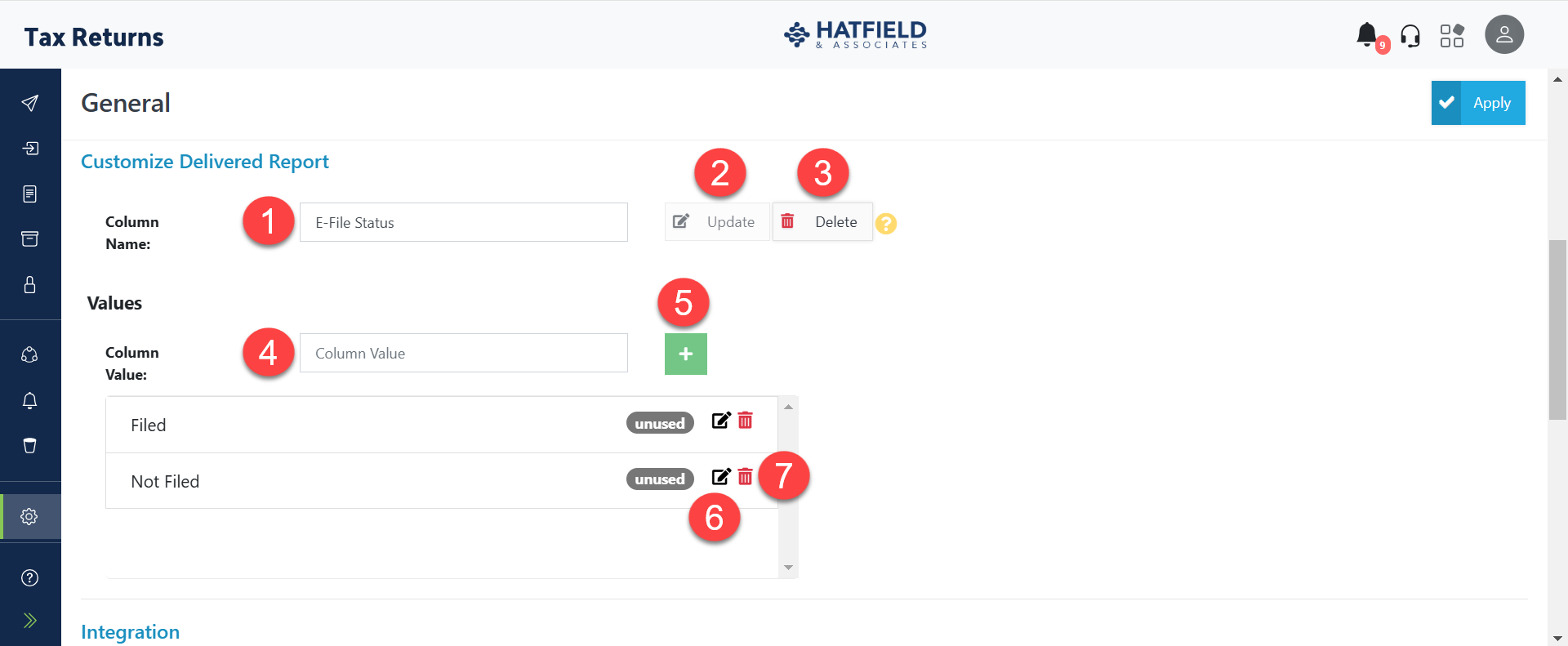
A custom column can be added to the Delivered Returns and Archive Returns sections for reporting.
To add or edit a custom column:
- Enter the name of the custom column into theColumn Namefield.
- SelectUpdateto save any changes to theColumn Name.
- SelectDeleteto remove theCustom Column.
- Enter a newColumn Valuein the available text field.
- SelectAddto add the column as a new selection in theCustom Column.
- SelectEditto adjust the name of aColumn Value.
- SelectDeleteto remove theColumn Valuefrom available selections.
Integration
Setting | Description |
|---|---|
TaxCaddy™ | Switch on to turn on the integration with TaxCaddy™ and enter your TaxCaddy™ key. |
Download PDF
Setting | Description |
|---|---|
Enable | Switch on to let users add theDownload PDF option to theFinish step during processing instead of sending it via email to the client. |
Footer
Setting | Description |
|---|---|
E-File Form | Switch on to add a Powered by SafeSend Returns logo on the footer of e-file forms. |
Watermarks
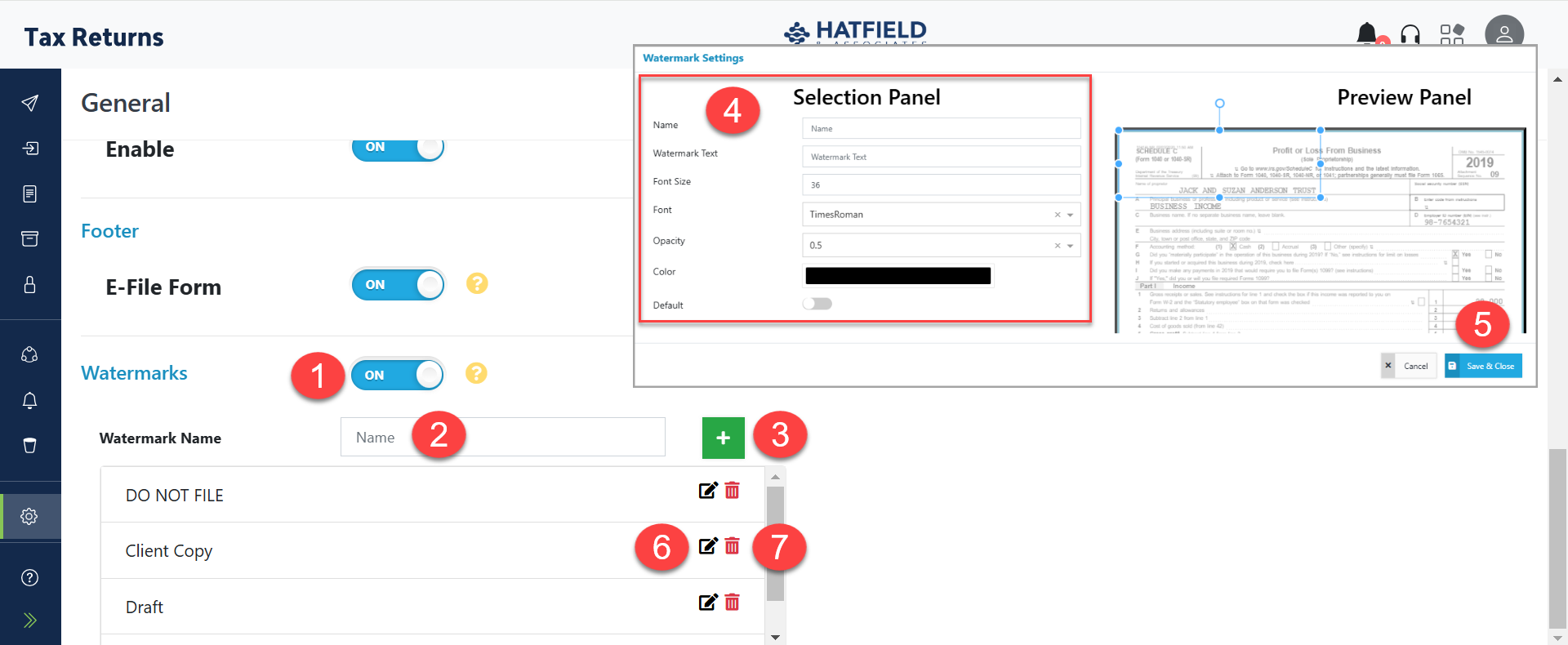
Watermark templates can be created in the
Settings
menu and applied during processing. - SwitchWatermarksfeature on.
- Enter a name into theNamefield.
- Select theAddicon to open theWatermark Settingswindow.
- Edit the watermark using theSelection Panel.
- Add or edit theNameof the watermark.
- Enter theWatermark Textto be displayed on the pages.
- Select the Watermark'sFont Size.
- Select theFontstyle of the watermark.
- Select theOpacityof the watermark.
- Select theColorof the watermark.
- Select theDefaultswitch to apply the watermark to all returns automatically.
- Move the watermark to a location on the page. Use theResizehandles to grow and shrink the font area, and theRotatehandle to angle the text.
- SelectSave & Close.
- SelectEditto open theWatermark Settingswindow for the selected watermark.
- SelectDeleteto remove the watermark from the list.
K1 Settings & Instructions
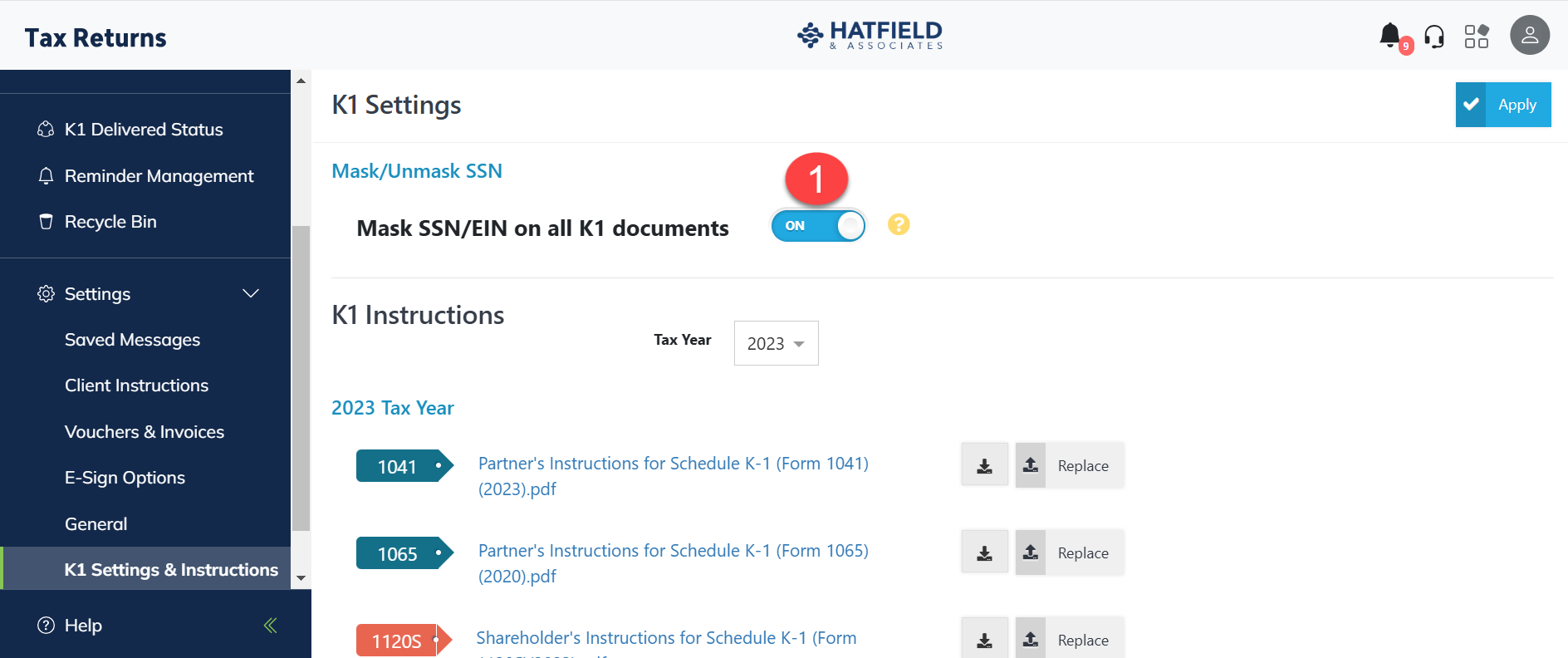
Mask/Unmask SSN
- SwitchMask SSN/EIN on all K1 documentson to SSN/EINs on shareholder documents.
K1 Instructions
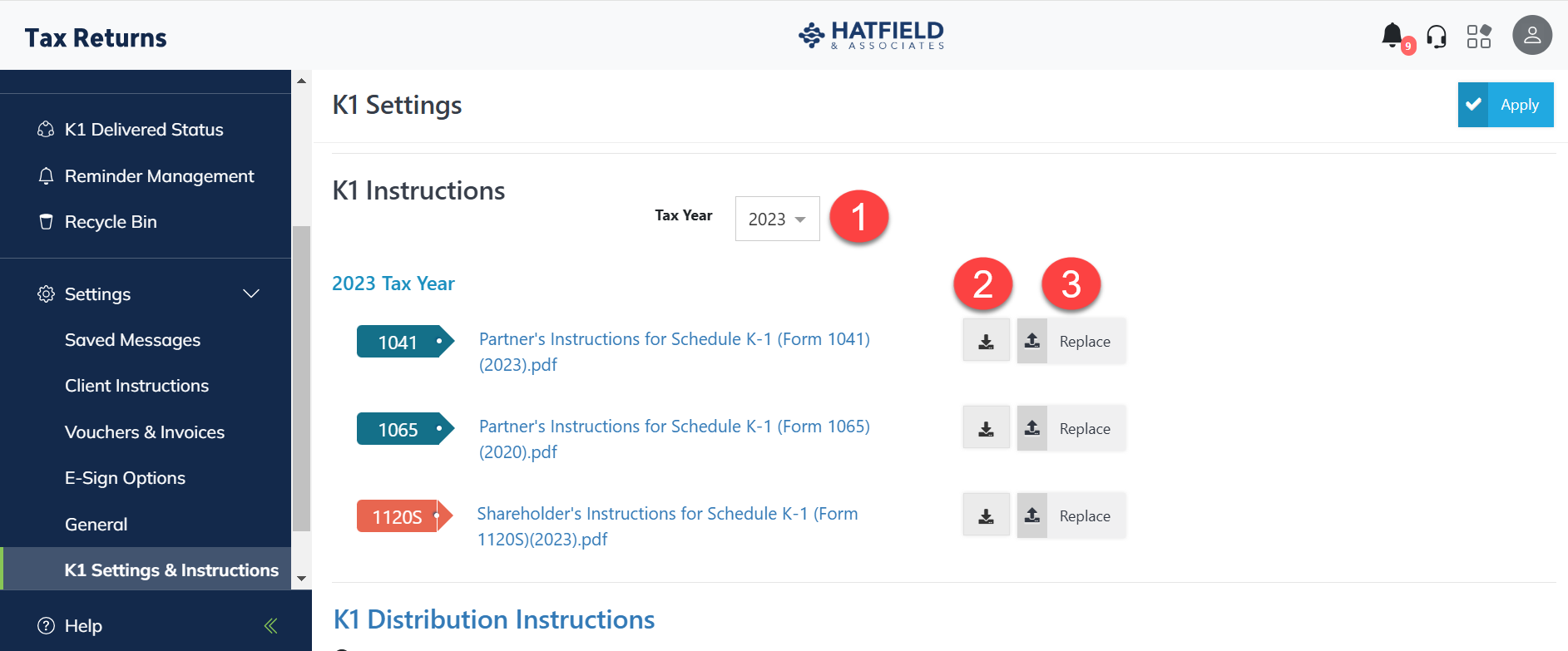
Returns provide IRS-generated instructional PDFs that are delivered to the K-1 recipient.
- Select theTax Yeardropdown to view/download/replace K-1 instructional documents for different tax years.
- SelectDownloadto download the instructional document.
- SelectReplaceto replace the provided instructional document with your own.
K1 Email Templates
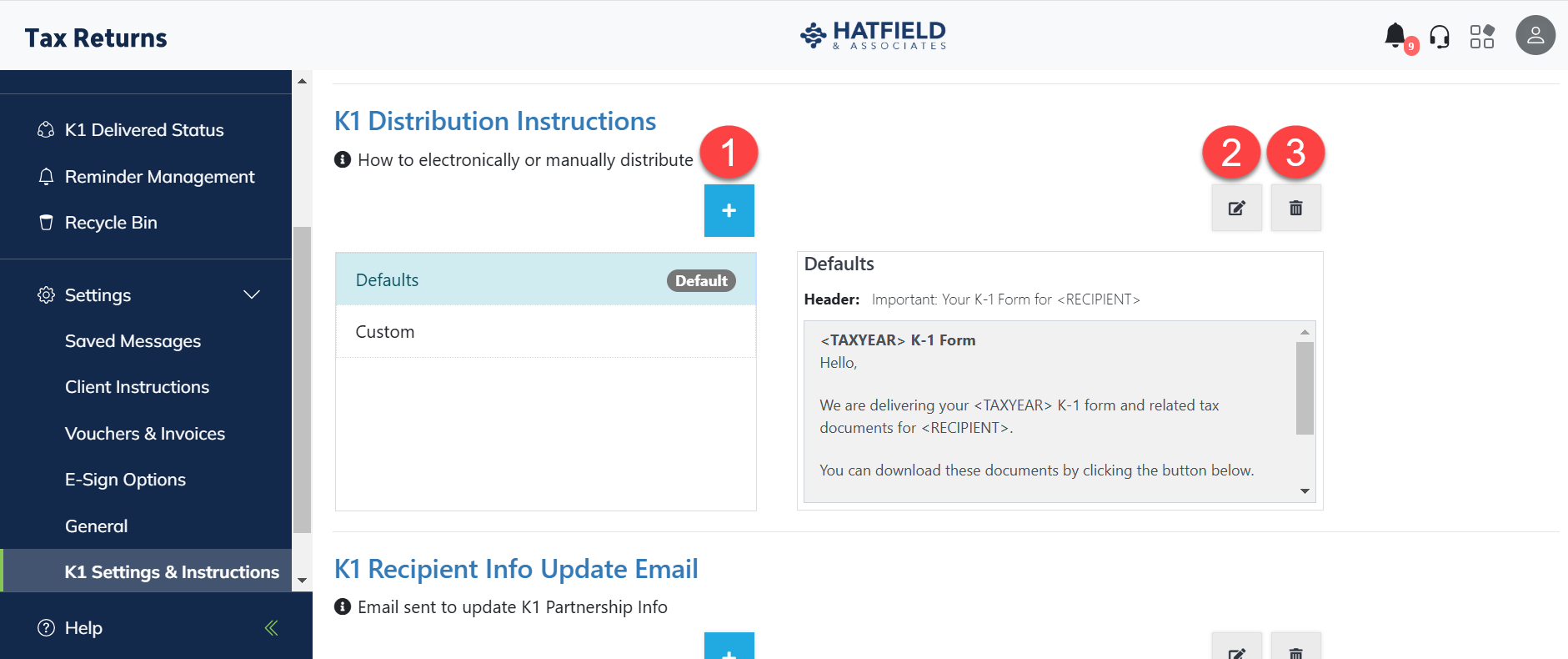
The firm can edit the email notifications that are delivered to K-1 recipients. The message marked as
Default
will be sent to all K-1 recipients. Refer to the previous Saved Messages
section for additional information about editing options. - Select the blue and whiteAdd Messageto add a new message template.
- SelectEditto edit the selected template.
- SelectDeleteto delete the selected template.
Security
SS Return Access Options
Set Access settings determine the default for who can and can't review returns after upload. Administrators can review all returns, regardless of settings.
Setting | Description |
|---|---|
Default Access set to Everyone | Select the radio button to let all users review all returns after upload. |
Default Access set to Individual User | Select the radio button to let only the user who uploaded the return view it.
Let user set additional access to other users before delivery Mark the checkbox to let the uploader adjust access settings. |
Default Access set to Uploaders User Group | Select the radio button to give users in the groups assigned to the uploading user in User Management access. |
Screen Share
For security purposes, some firms want to control whether users can share screen with clients. This option can be turned on or turned off firm-wide.
Setting | Description |
|---|---|
Enable Screen Share | Turn on-screen sharing for all users in the firm. |
Taxpayer Authentication
For 1040 returns, the taxpayer is required to enter part of their Social Security number (SSN). The firm can choose if you would like them to enter the last 4 or first 4 digits of their SSN.
Setting | Description |
|---|---|
Last 4 of SSN | Select the radio button to have the taxpayer enter the last 4 digits of their SSN to authenticate. |
First 4 of SSN | Select the radio button to have the taxpayer enter the 1st 4 digits of their SSN to authenticate. |
Retention Policy
The firm can choose how long to retain standard returns and attest client returns. Returns will automatically be deleted after this retention period. The firm can also decide if it would like to let users override this default setting before the return is delivered.
Setting | Description |
|---|---|
Default | Select a Default retention period from the dropdown. |
Attest Clients | Select a Default retention period from the dropdown. |
Allow any user to override before delivery | Mark the checkbox to let users override the retention period before delivery. |
Developer Section
Developer Section
The
Developer Section
contains advanced settings for firms that want to integrate their existing systems with the SafeSend. It requires firms to have dedicated programming resources and advanced knowledge of application programming interfaces. The API Developer Portal
is available for firm programmers. The username/password for the site is the same as their SafeSend username/password. Wrap-up
This completes your firm account setup. Should you have any questions about the settings listed, contact your customer success representative during the Power User Training class.