
User management: Bulk import or edit users
Import or update multiple users at once using the User Management CSV template.
Show all hidden content.
The
User Management
section lets System Admins add and remove users, as well as give them unique permissions to access the system.note
Access to Account Management is only available to System Admins or users with predefined permissions enabled in User Management.
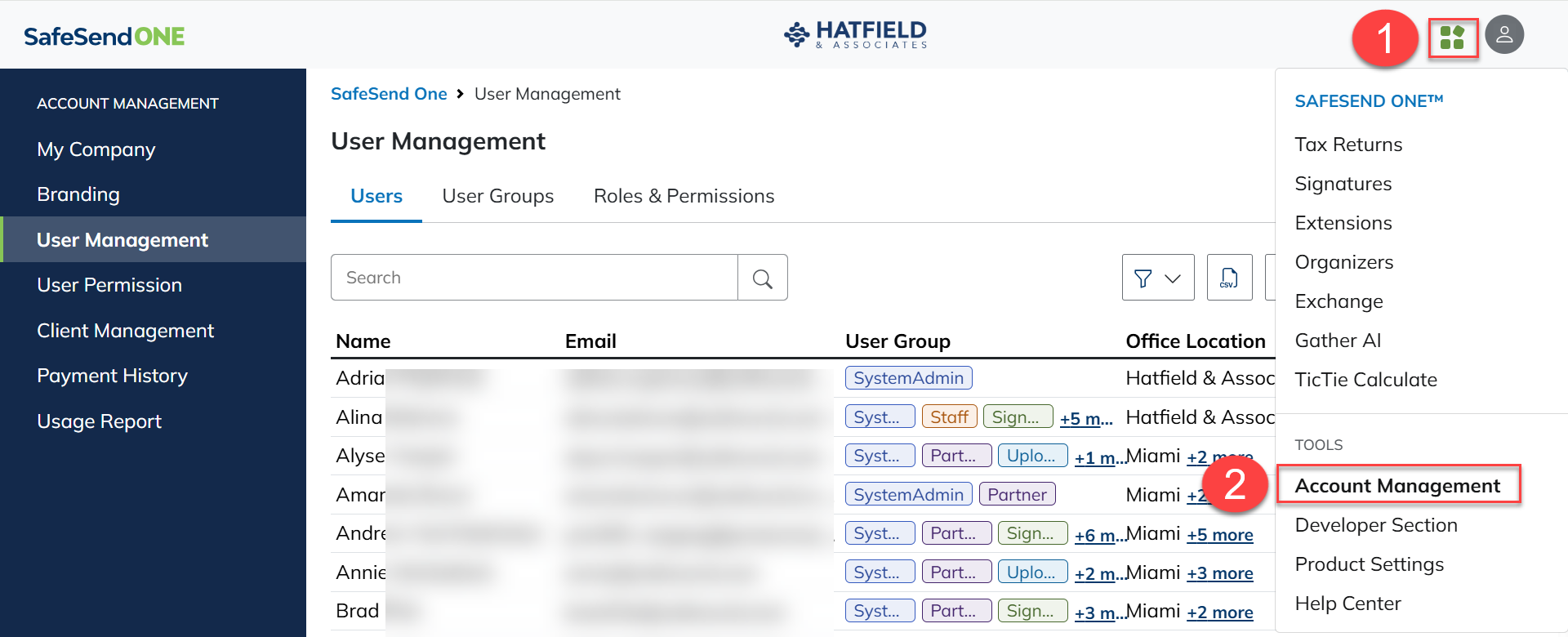
Go to the
Account Management
section to locate User Management
.- Select theNavigation Widget.
- SelectAccount Management.noteA new tab opens.
Bulk Import Users
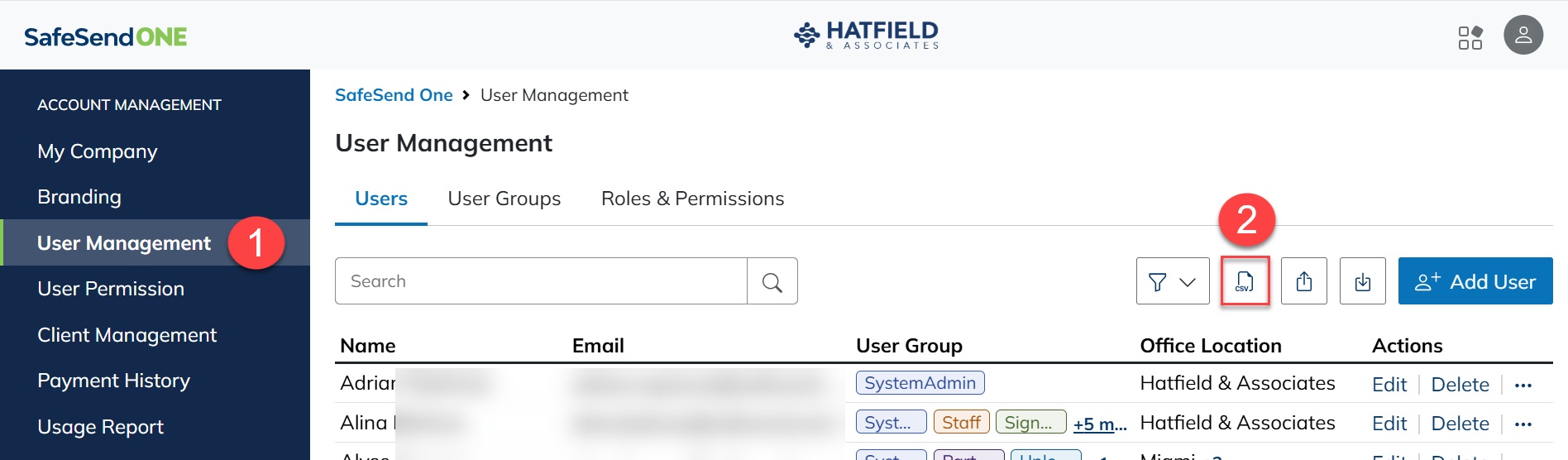
Download template
: - SelectUser Management.
- SelectDownload Template.
Complete Template
: Open and fill in the CSV template. Ensure the following conditions are met. A CSV with a sample entry is attached at the bottom of this article.
Make sure that data is placed in the proper column.
- Make sure that cells with numbers are formatted as text before you enter data. This prevents Excel from inadvertently truncating numbers.
- Don’t add or delete any columns in the provided CSV template (even if a column is empty).
- Don’t have text in any cells other than the columns provided.
- Don’t change the names of any headers in the CSV template.
- TheOffice Locationfield should only contain a single number as shown in yourMy Companysettings.
- TheUser Groupfield should contain theUser Groupname as it appears in theUser Groupssection.
- When adding multiple permissions, separate entries with a vertical bar (|).
- Ext,Fax,Country Code, andMobile Numberfields should contain numbers only, with no additional symbols or formatting.
- The PTIN field should be formatted as follows:P12345678
- TheInactive EROfield should contain yes or no.
- Required fields:
- First Name
- Last Name
- Email
- Office Location
- User Group
- After saving the CSV file, don’t reopen it before uploading it to SafeSend.
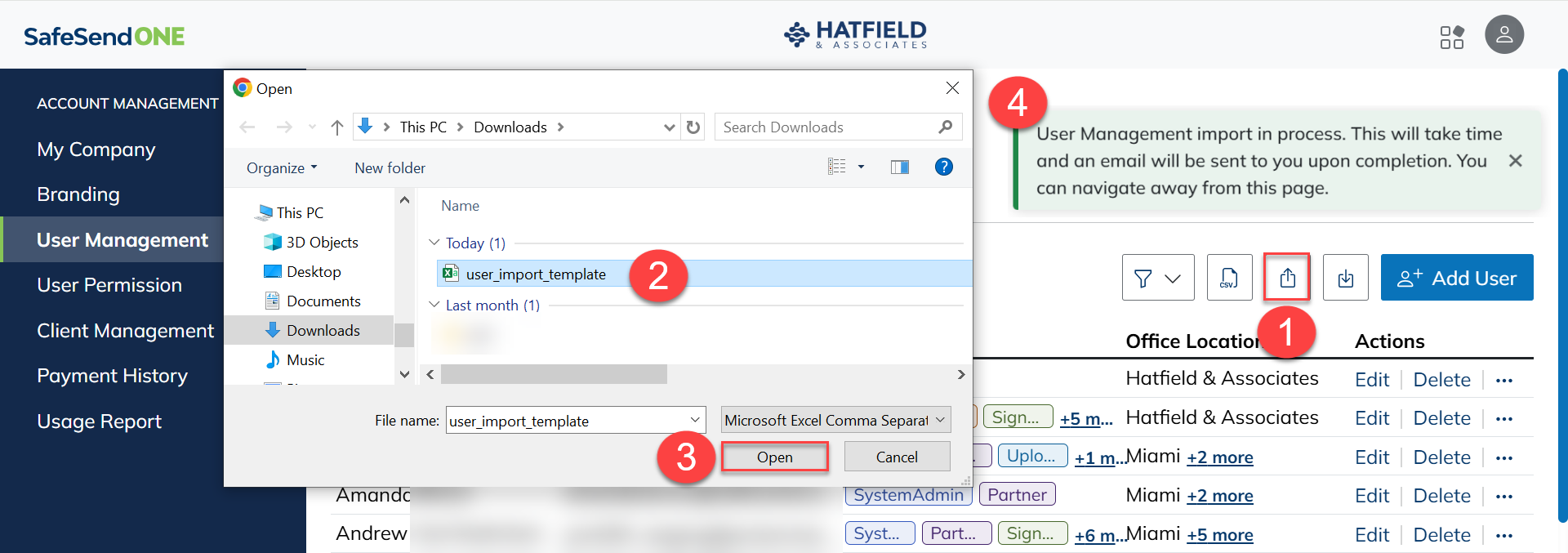
Upload Template
: - Select theImport CSVbutton.
- Select a file to upload from your file browser.
- SelectOpen.
- Review the pop-up notification. An email is delivered to you once the upload is complete.
If the upload was successful, the email shows “Successful Updates to User Management”. If the upload was not successful, the email shows “Failed to Update User Management” with a CSV file attached. That CSV file outlines what errors occurred.
Bulk edit users
Users can be edited in bulk by importing an updated CSV template. If an existing user is found with the same email address, the new information replaces their existing data.
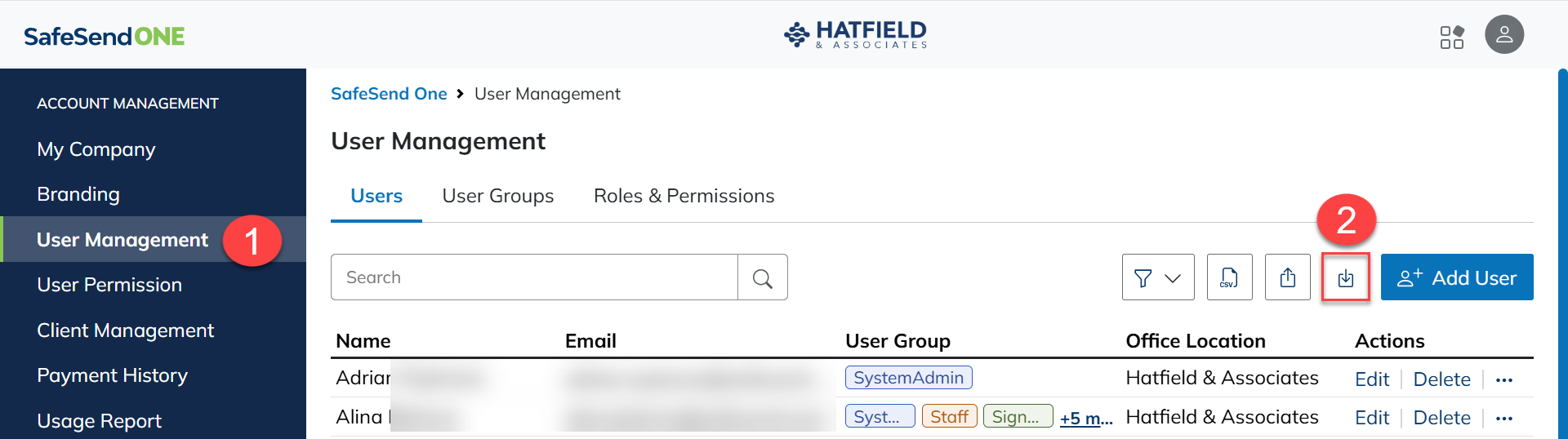
Export User List
: You can use your current user list as a reference when filling out the import CSV template. This exported list should not be edited and uploaded. Any relevant information can be copied and pasted into the import CSV template.
This report also shows the Last Login data for each user.
- SelectUser Management.
- Select theExport to Excelbutton.
Complete CSV Template
: Open and fill in the CSV template. Ensure the following conditions are met. A CSV with a sample entry is attached at the bottom of this article. You can copy/paste user names and email addresses from your exported user list into the template.
- Make sure that data is placed in the proper column.
- Make sure that cells with numbers are formatted as text before you enter data. This prevents Excel from inadvertently truncating numbers.
- Don’t add or delete any columns in the provided CSV template (even if a column is empty).
- Don’t have text in any cells other than the columns provided.
- Don’t change the names of any headers in the CSV template.
- TheOffice Locationfield should only contain numbers as shown in yourMy Companysettings.tipUse the variable “all” to assign a user to all office locations.
- TheUser Groupfield should contain theUser Groupname as it appears in theUser Groupssection.
- When adding multiple permissions, separate entries with a vertical bar (|).
- Ext,Fax,Country Code, andMobile Numberfields should contain numbers only, with no additional symbols or formatting.
- ThePTINfield should be formatted as follows:P12345678.
- TheInactive EROfield should contain yes or no.
- Required fields:
- First Name
- Last Name
- Email
- Office Location
- User Group
- After saving the CSV file, don’t reopen it before uploading it to SafeSend.
Upload Template
- Select theImport CSVbutton.
- Select a file to upload from your file browser.
- SelectOpen.
- Review the pop-up notification. An email is delivered to you once the upload is complete.
If the upload was successful, the email shows “Successful Updates to User Management”. If the upload was not successful, the email shows “Failed to Update User Management” with a CSV file attached. That CSV file outlines what errors occurred.