Add voucher payments manually
Manually add a voucher to a return when tax payment information is missing.
Some tax software doesn’t include a voucher in the return when payments are scheduled for automatic withdrawal or when online payment is required. Adding a voucher ensures the taxpayer receives the correct payment instructions.
note
Returns automatically recognizes federal, state, and some city vouchers. If a city or county voucher is not recognized, you can move it from the Tax Returns section to the Vouchers section manually.
- Select theVoucherssection duringprocessing.
- Select+to add a payment.
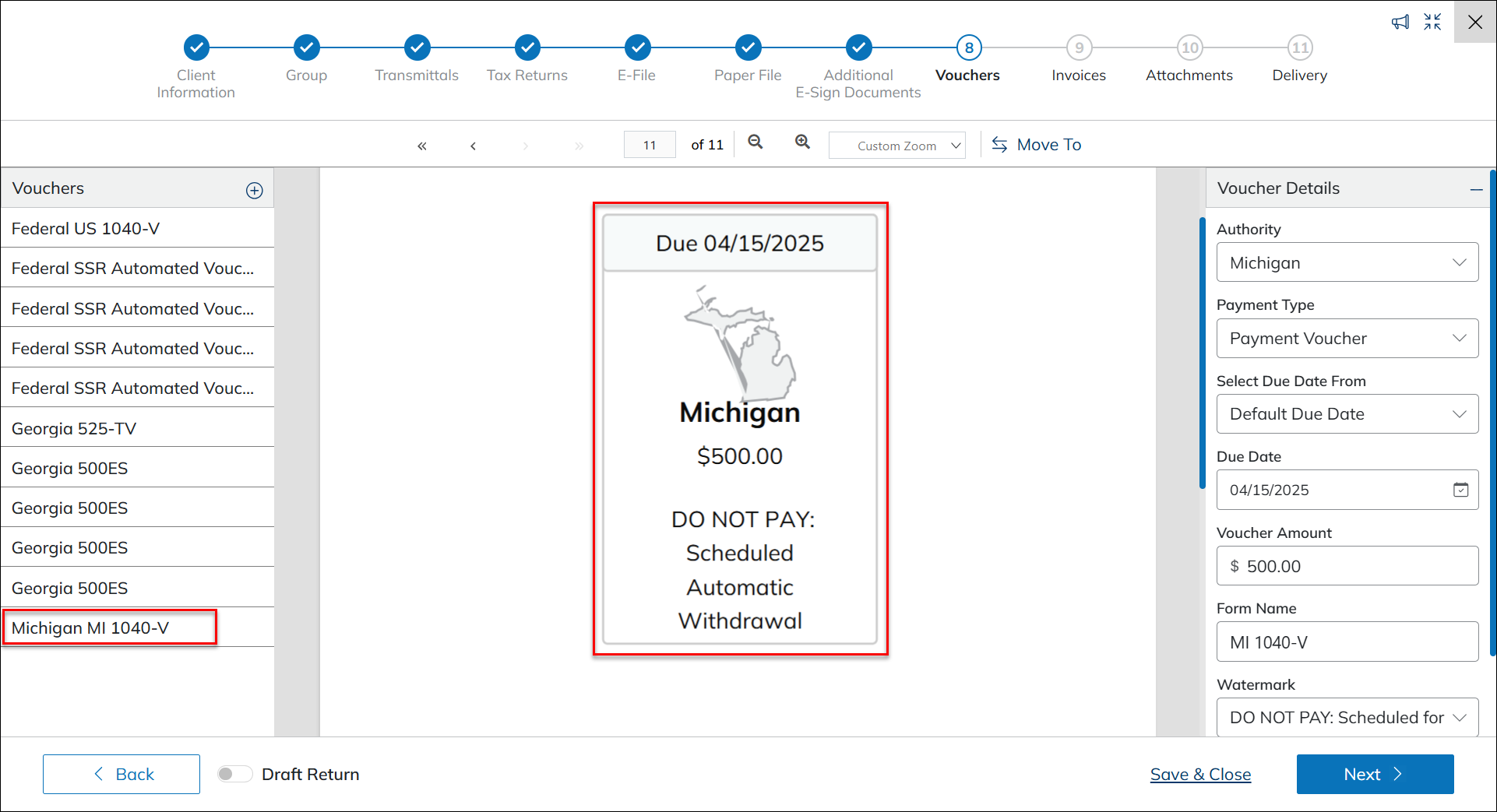
- Enter the following information for each voucher:
- Authority
- Form Name(this will display for the client)
- Due Date
- Voucher Amount
- Watermark— Select 1 of the following:
- DO NOT PAY: Scheduled for automatic withdrawal: The taxpayer has no payment option.
- Online Payment Required: The taxpayer can pay online but doesn't have a manual payment option.
- Add Custom: The taxpayer has no payment option. Use this option to add custom instructions or notes to the voucher.
- SelectAddto save the voucher.
After adding a voucher:
- If you selectedOnline Payment Required, the URL for the selected taxing authority automatically populates. Verify the URL is correct and edit or add a URL if needed.
- The voucher appears with the form name you entered. An image of the voucher is generated, showing how it will appear on the client side.