
Process a return with TaxCaddy™
Upload, verify, and deliver a tax return using the TaxCaddy™ integration in SafeSend Returns to match clients across both systems.
When you use TaxCaddy™ with SafeSend Returns, the 2 systems use client information to identify and match taxpayers.
Follow these steps to upload a return in SafeSend Returns and deliver it through TaxCaddy™.
Upload a return
- In TaxCaddy™, go to .
- Search for the client.
- Copy the client'sTax Client ID.
- In SafeSend Returns, go toSend Tax Returns.
- SelectUploadand select your tax application.
- Complete the steps to submit a return.
- Enter the TaxCaddy™ Tax Client ID in theClient IDfield.
- SelectSubmit.
Verify information
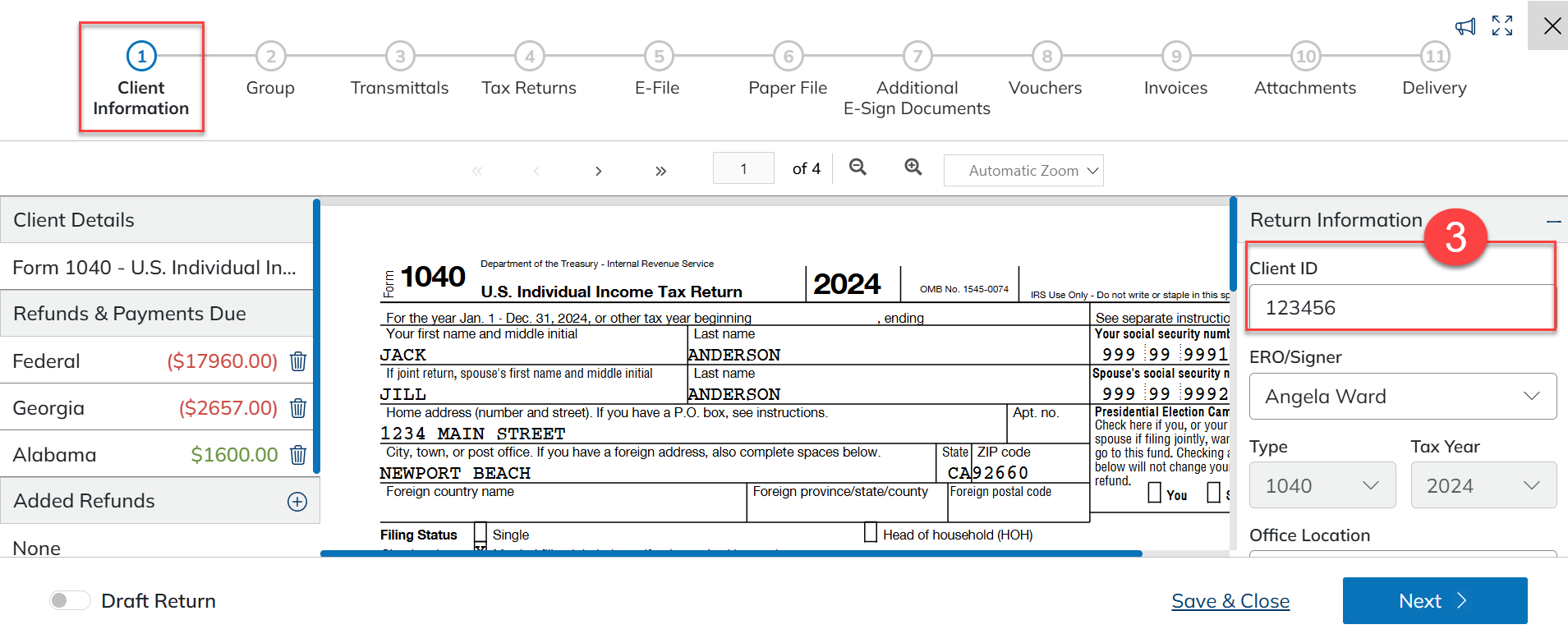
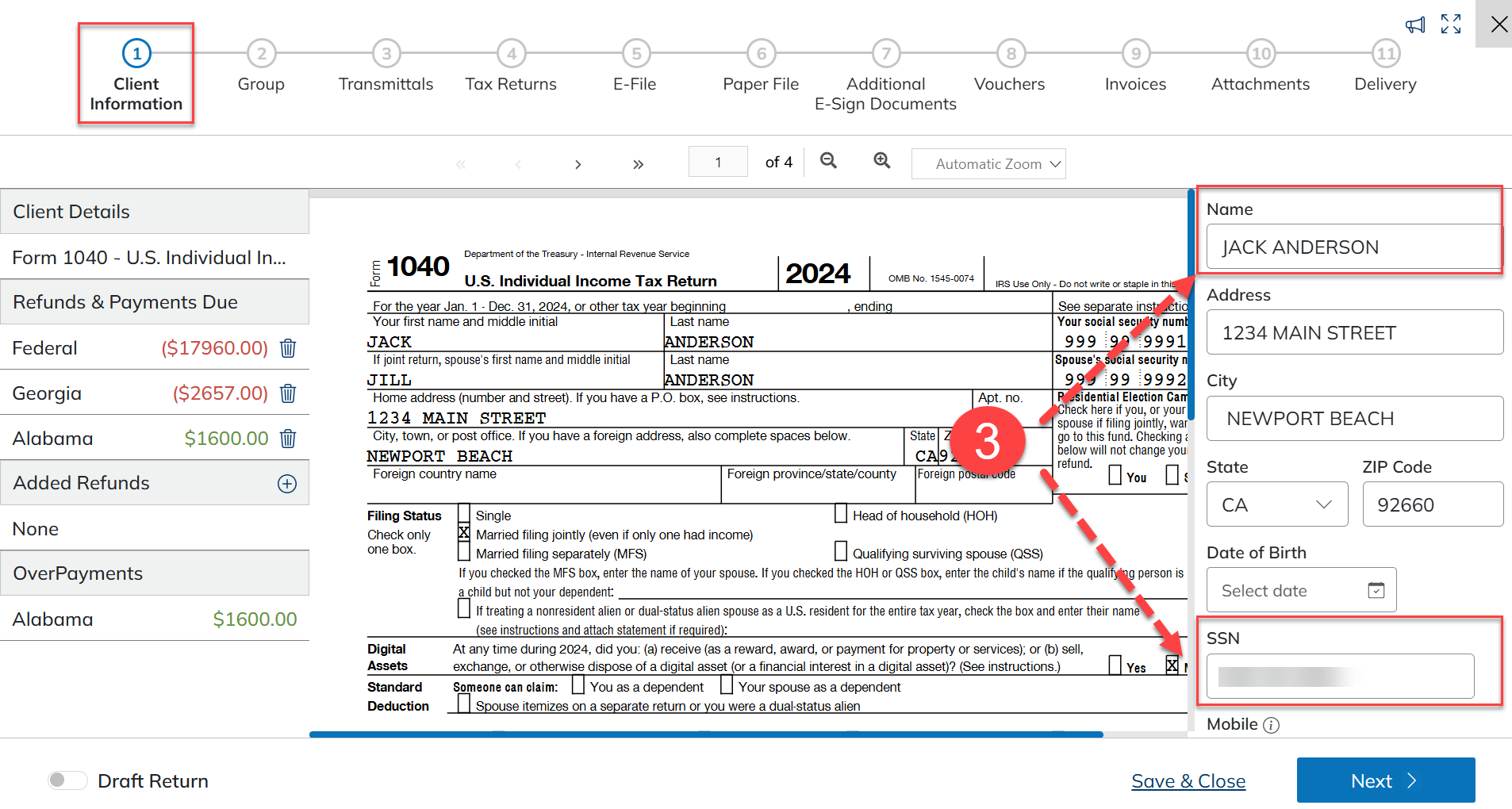
SafeSend Returns matches clients in TaxCaddy™ using the following fields. Verify these fields in the Return Information and Taxpayer/Spouse sections of the Client Info tab before delivering.
- Locate the return and select theProcessicon in theActionmenu to open it
- Verify the following fields:
- SSN/EIN: The primary method used to identify a client. The SSN/EIN is available on the client's record after the Document Request List (DRL) is created in TaxCaddy™.noteA TaxCaddy™ client's SSN/EIN won’t be available for matching if the DRL hasn’t been created.
- Client ID:Used to identify a client if the SSN/EIN doesn’t match.
- Name and Email:Used to identify a client if SSN/EIN and Client ID don’t match.noteEmail addresses containing a+are not supported.
Deliver the return
- Go to theDelivery Optionstab.
- Go to theSignature Optionssection.
- SelectE-Sign.
- SelectFinish.
- SelectDeliver with TaxCaddy™.
- (Optional) If SafeSend Returns finds a possible match in TaxCaddy™, a side-by-side comparison appears.
- SelectSendif a match is found.
- SelectCancelif no match is found.
noteThe verification window doesn’t appear if theBypass manual verificationoption is enabled in the TaxCaddy™ setup in SafeSend Returns.
Additional information
- The taxpayer must be connected to a firm in TaxCaddy™ for a match to occur.
- If a match is not found, completed returns are not uploaded back into TaxCaddy™.
- The Request E-Signatures in TaxCaddy™ option, configured in the TaxCaddy™ settings in SafeSend Returns, controls how returns are delivered to clients:
- If the setting is off: SafeSend Returns sends the return to the taxpayer for e-signing. After signing is complete, the completed return uploads to TaxCaddy™.
- If the setting is on: SafeSend Returns delivers the return to the client's profile in TaxCaddy™ for e-signing. The return status in SafeSend Returns changes toDELIVERED TO TAXCADDY™and no further updates are recorded in Client Tracking.