
UltraTax CS® recognition issues
If SafeSend is not recognizing all of the form information correctly for a return, extension, or organizer, there may be an issue with the print settings. This can also cause an Error or Non-Supported status. You may need to adjust settings and reprint the document.
To identify the issue, you can open the PDF and check the page size. It should be 8.5 x 11, not 9.00 x 11.47. Also, if the page appears shrunken or not centered, that indicates an issue with the way the form was printed.
Adjust Print Settings
UltraTax CS® mimics the driver settings of the selected printer without actually using the printer itself. If you have
Adobe PDF
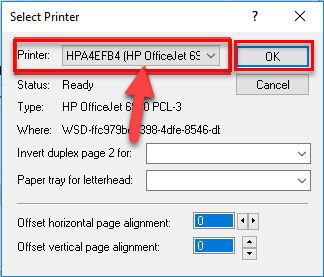
selected, the PDF will come out with the incorrect dimensions. To resolve this, change the printer to the physical printer you have in the office.- SelectPrint Return.
- Select a physical officePrinterunderPrint Destinations.
- SelectOK.
Adjust Print Driver
- Ensure your print drivers are up to date.
- Select a different printer.
- Install the drivers for a different printer.
- Select OneNote instead of a physical printer.
- Reboot your PC.
Adjust DPI Settings
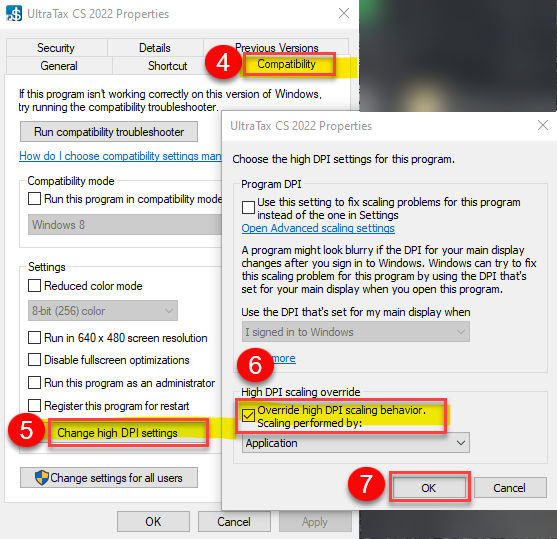
- Close UltraTax®.
- Right-Select the UltraTax icon.
- SelectProperties.
- Select theCompatibilitytab.
- SelectChange high DPI settings.
- Check theOverride high DPI scaling behaviorbox.
- SelectOK.
Adjust Zoom Settings
Ensure monitor resolution is set to 100%, which is the recommended display setting in UltraTax CS®.