How to Insert or Modify Procedure
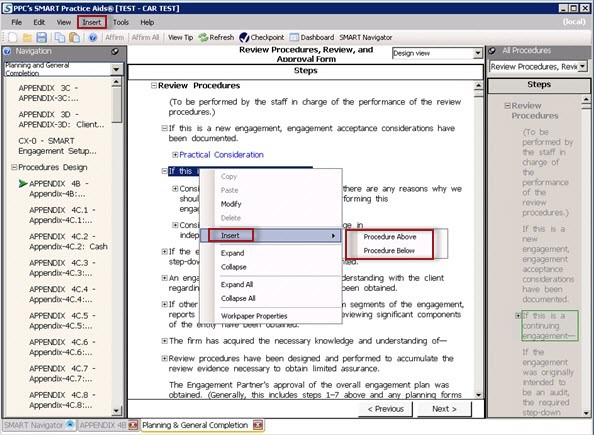
Go to the
Insert
menu or right click and select Insert Procedure
. You can insert a Procedure Above
or Below
.
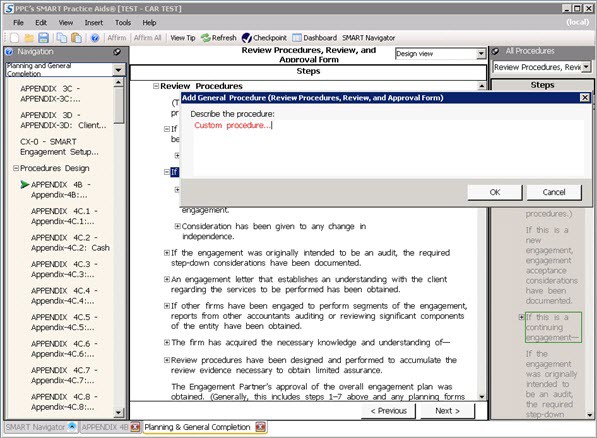
Describe the procedure and click
OK
.
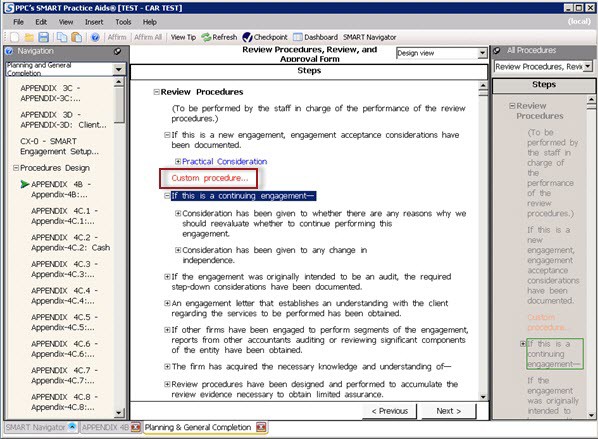
The changes you make will show up in red.
You can also insert a pre-defined procedure to your audit program by dragging the selected procedure from the right-hand pane to the center pane. To do so perform the following steps:
- In the center pane, scroll to the location where you want to insert the procedure.
- From theAll Proceduresdropdown menu at the top of the right-hand pane, select the audit area from where you want to insert the procedure. All procedures in that audit area are displayed in the right-hand pane.
- Navigate within the right-hand pane and click to select the procedure that you want to add to the audit program displayed in the center pane.
- Drag and drop the selected procedure at the desired location.
note
The copied procedures will be treated as custom procedures.
To Modify a procedure
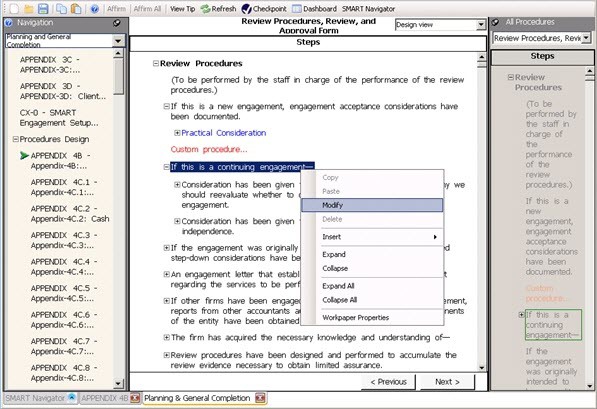
Right click and select
Modify
. .
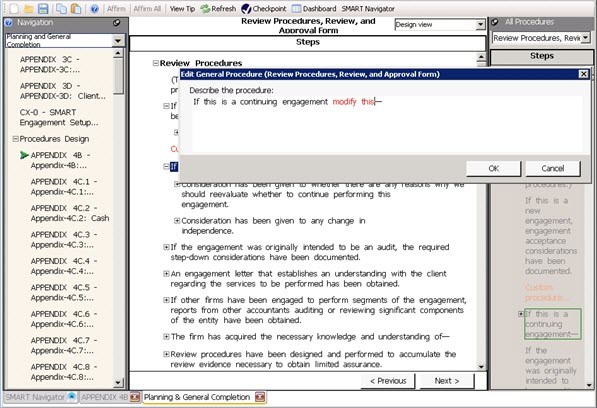
Type/Modify the text and click
OK
.
A flag icon appears next to the modified text, hovering over it tells you that the step has been modified.
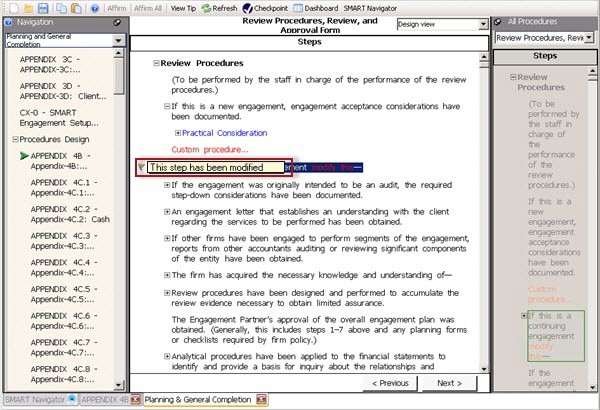
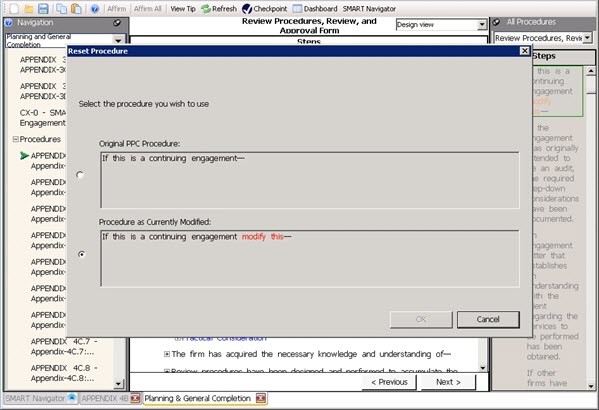
Click the flag and the
Reset Procedure
window opens. You have the option of selecting the previous option or the modified version as needed.