
Add a New Disclosure Note
While viewing the Disclosure checklist requirements in the main content pane, you can add a disclosure note by selecting
Engagement Library
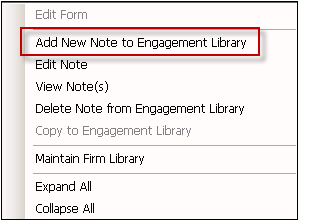
from the drop-down menu in the right-hand pane to view the disclosure note library for the engagement. Then right-click in the right-hand pane to open the Disclosure Note action menu and select Add New Note to Engagement Library
.
To copy a disclosure note from another library to the engagement library:
- Open the disclosure note library you want to copy from in the right-hand pane by selecting it from the drop-down menu.
- Expand the topic sections to locate the note you want to copy.
- Select and right-click on the note. From the pop-up menu selectCopy to Engagement Library.
- On the Copy to Library pop-up window, select the topics to which the disclosure note most relates by selecting the check boxes next to the topic names.
- Return to the engagement disclosure note library in the right-hand pane to see the copied note under the topics you selected in step 4.noteYou can perform a keyword search here, and also edit or delete a disclosure note.
Preview a List of Disclosure Notes
- Locate the disclosure note library you want to review in the right-hand pane by selecting it from the drop-down menu.
- Right-click a note or topic in the right-hand pane.
- SelectView Note(s)from the pop-up menu.
- TheView Notewindow displays the selected note.
- Use thePreviousandNextbuttons to navigate through the disclosure notes.
- ClickClosewhen finished to close the View Note window.
Select Multiple Disclosure Notes
You can select multiple disclosure notes in the right-pane by holding the CTRL key and left clicking the disclosure note titles. You can then access the selected notes by using the
View Note(s)
action (or toolbar icon). Only the selected notes will be visible when you use the Previous and Next buttons on the View Note window. Then you can review a specific set of notes within a larger note library without having to navigate through the entire collection of notes.