
Select Checklist Topics
The first step in creating a disclosure checklist is selecting topics to add to the checklist.
Select Topics
- SelectDisclosurefrom theNavigationdrop-down menu in the left-hand pane.
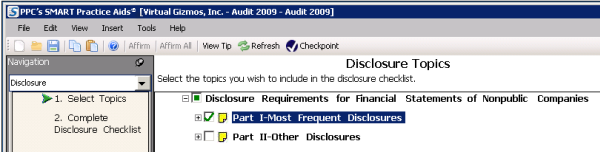
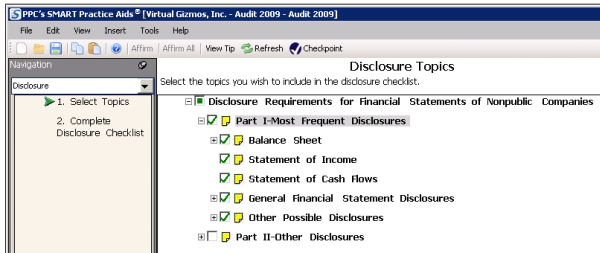
- Select option 1,Select Topicsin the left-hand pane.The hierarchical list of available disclosure topics will display in the right-hand pane
- To select a topic to be included in the checklist, simply select the check box next to the topic name. You can expand and collapse the topic list by clicking the "+" and "-" icons next to each category.noteYou can select an entire section of topics by clicking the check box for the parent category name.
Add Custom Topics
- Select the topic in the checklist at the point you want to insert the new topic.
- Open theAdd Topicwindow by selectingTopic AboveorTopic Belowfrom theInsertmenu.
- Enter the topic title and clickOK.The new topic is visible in the checklist at the point you selected to add it.noteThe Insert Topic menu actions are also available by right-clicking a topic in the checklist. You can also edit and delete custom topics.
Delete Custom Topics
- Select and right-click the custom topic in the checklist.
- SelectDelete Topicfrom the pop-up menu.
- ClickOKin the confirmation window to remove the topic from the checklist.
Edit Custom Topics
Select the topic you want to edit by clicking it in the checklist. (The title will be highlighted in the checklist when it is selected).
Click the selected topic and the title text will become an edit field.
Enter the new topic text. When you have finished the edit, click another topic in the checklist to save the changes.
If you modify a default PPC checklist topic, the modified text will display in red and an orange flag will display in the left margin of the checklist pane to indicate the topic has been changed from it's original value. Click the orange flag to see a comparison of the original topic and new topic. You can also revert back to the original value.

Move Topics
To move topics within a checklist, simply select the topic and drag it to the new location in the checklist.
Add, Edit, and Delete Topic Comments

To add a topic comment
:
- Click the yellow page icon next to the topic title.The Comment window opens.
- Type the comment text in the provided field.
- ClickOK.The yellow page icon next to the topic will change to indicate that there is a comment for that topic.
To edit a topic comment
:
- Click the yellow page icon next to the topic title.The Comment window opens.
- Edit the existing comment text.
- ClickOK.The new comment is now saved for the topic.
To delete a topic comment
:
- Click the yellow page icon next to the topic title.The Comment window opens.
- Delete the comment from the text field.
- ClickOK.The comment is deleted and the yellow page icon is blank.