
Create a Client Engagement
PPC’s SMART Practice Aids
®
is an innovative tool that brings advanced functionality to your licensed PPC’s Practice Aids products to optimize the overall engagement process.note
This topic covers the steps for creating regular client engagements. To create a SMART Start engagement, see the Create a SMART Start Client Engagement topic.
You can create a client engagement from a
PPC Title
or from a Master Engagement.
- Creating an engagement from a PPC Title creates a blank engagement based on the PPC title you select.
- Creating an engagement from a Master Engagement imports any information from the previously generated master engagement into the new client engagement.
Refer to the Engagement Setup Questions topics for helpful information about the engagement setup options.
Create a new client engagement from a PPC Title
- On theFilemenu, clickNew.
- ClickClient Engagement (from PPC Title).The Create Client Engagement window appears:
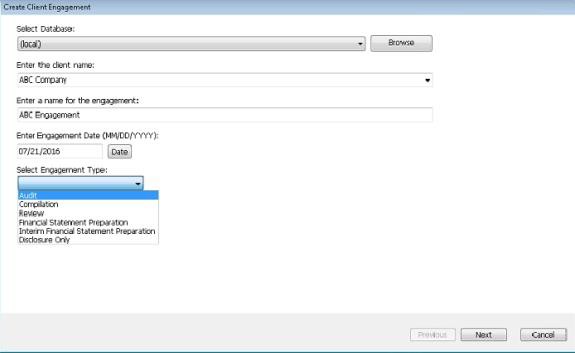
- Enter the appropriate information for the engagement:
- Select the database. (Use theBrowsebutton to locate a remote machine/database.)
- Enter the client name (or select the client from the drop-down list).
- Enter a name for the engagement.
- Enter the engagement date, or clickDateto select from a calendar.
- Select an engagement type from the drop down. Depending on your selection of the engagement type, another drop down may appear.
 noteThe Select Review Type drop-down comes with aHelp me decidelink to help you decide what review type to choose. Similar to theSelect Review Typedrop-down, aSelect Compilation Typedrop-down appears if you select the Compilation engagement type.
 - In case of the Review engagement type or Compilation engagement type, select a review type or compilation type as appropriate.
- ClickNext.
- On the next window, select a practice aid title for this engagement. (Only licensed and installed practice aid titles are listed.)
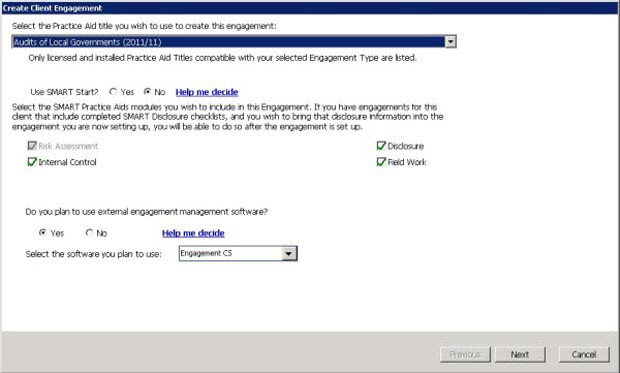 If you select a practice aids title with SMART Start data, you may see an option ‘Use SMART Start?’ which you can answer with ‘Yes’ or ‘No’. (The default is set to ‘No’.)noteClick theHelp me decidelink for a summary of benefits, cautions, and other considerations when using SMART Start.
 - Select the SMART Practice Aidmodulesto include in the engagement. (A module must be installed before it can be included in an engagement.)noteRisk Assessmentmust be selected along withInternal ControlorField Work, butDisclosurecan be selected on its own if needed.The modules available to include in the engagement depend on the engagement type you choose (in Step 3), and the system automatically selects modules, disables modules or provides the ability to enable modules based on the practice aid title you choose (in Step 5) for the engagement. For example, in a Review or Compilation engagement type, onlyCompilation and ReviewandDisclosuremodules are available.

- Answer the question for Engagement Management Software. You can click on the 'Help me decide' link for more information. (See Engagement Setup Fieldwork.)
- ClickNext.
- On the next window, select the areas to include in the engagement by selecting the appropriate check boxes in theIncludecolumn.noteYou can add a new area by entering the name in the field at the bottom of the window and then clicking theAdd Areabutton. To delete an area, right-click the area name and then clickDelete Area.
- ClickNext.
- Answer the setup questions displayed by selecting ‘Yes’ or ‘No’ as appropriate. You may click on the ‘Explain’ link to help you answer the question or click on the
 icon to add a comment. (See SMART Engagement Setup Questions.)
 - ClickFinish.During the setup, if you selected to manage your engagement using external engagement management software, you will see a window that presents information about workpapers and SMART docs. To close the window, you must select to eitherCreate SMART Docs LaterorCreate SMART Docs Now.When the engagement opens, you should see all three panes, including theNavigationpane. However, if you indicated during engagement setup that you plan to use external engagement management software to manage your engagement, SMART Practice Aids assumes that you will access SMART Practice Aids documents through your engagement management software. Thus, theNavigationpane is disabled. To enable theNavigationpane functionality at any time, clickEnable Full Navigationon theViewmenu.
Create a new client engagement from a Master Engagement
note
SMART Audit Essential does not provide the option to create a client engagement from a master engagement.
- On theFilemenu, clickNew.
- ClickClient Engagement (from Master).The Create Client Engagement from Master window appears.
- Enter the appropriate information for the engagement:
- Select the database. (Use theBrowsebutton to locate a remote machine/database.)
- Enter the client name (or select the client from the drop-down list).
- Enter a name for the engagement.
- Enter the engagement date, or clickDateto select from a calendar.
- Select the master engagement you want to use to create this engagement from the drop-down list.
- Click theMaster Engagement Setup Assumptionslink in the lower right corner to view the master engagement's setup features.
- ClickOKto generate the new client engagement.