Enable SMART Practice Aids – Internal Controls
If
Internal Control
is installed, you can enable it for any engagement for which you intend to use the tool. You can enable Internal Control when you create a new engagement, and you can enable it for an existing engagement. note
Once you enable Internal Control for an engagement, you cannot disable it.
To enable Internal Control for a new engagement:
- ClickNewon theFilemenu (or click theNewbutton on the tool bar).
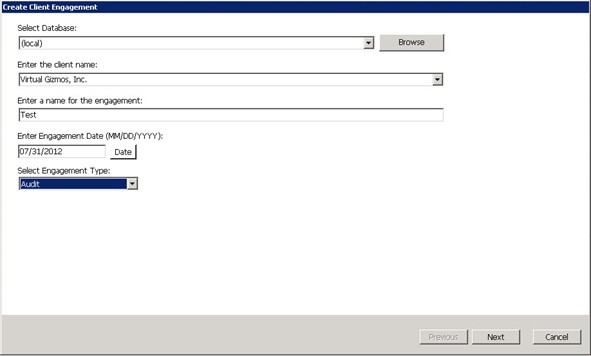
- Select the type of client engagement, eitherfrom PPC Titleorfrom Master.The Create Client Engagement window appears.
- Complete the fields on theCreate Client Engagementwindow.
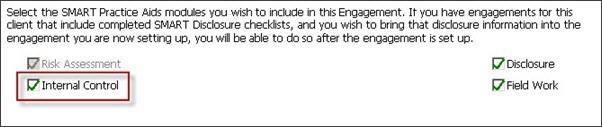
- On the next window, select theInternal Controlcheck box (if it is not already checked by default) and complete all pertinent fields.
To enable Internal Control for an existing engagement:
- With the engagement open, clickFileon the menu bar.
- SelectEnable Internal Control.
note
If the Enable Internal Control menu option is not active, then SMART Practice Aids – Internal Control either has already been enabled for the engagement or is not available for the selected title.
Rollforward:
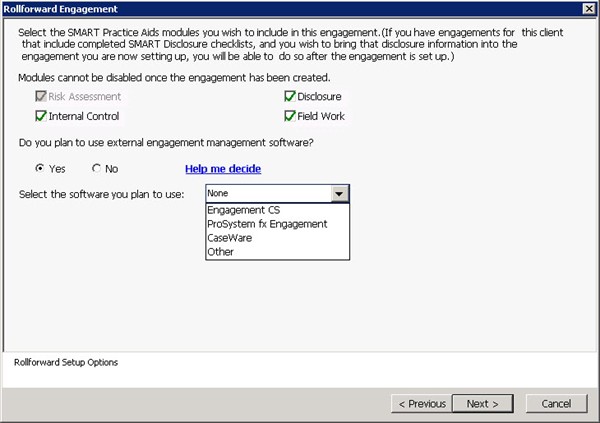
When using the Rollforward feature to create an engagement based on a prior period engagement, you have the option to use
SMART Practice Aids – Internal Control
with the new engagement.