
Add a Federal Award using Excel
To add a Federal Award using Excel, you need to download the import template, enter your data, then import the file.
- Download the Import Data Template
- Open theHelpmenu and selectDownload Import Template.
- SelectBrowseto choose where to save the Import Data Template file.
- SelectOK.
- Complete and import the Import Data Template
- Open the downloaded Import Data Template file.
- Enter your information to the file. Use theProgramsandGrantstabs if you need them.
- SelectSave.
- Open the engagement.
- From the Federal Awards Summary screen, open theToolsmenu and selectImport Data....
- SelectBrowseto find and import the Import Data Template file.Mark theOverride Existing Awardsoption to override dollar amounts for existing awards.
- SelectImport. This will add the data from the template to the engagement.
- A message will display if the import was successful. SelectClose.
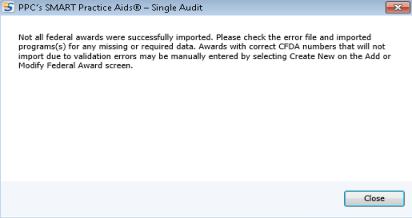
If the import fails, the following will happen:
- An error message will appear: "Not all federal awards were successfully imported. Please check the error file and imported program(s) for any missing or required data. Awards with correct CFDA numbers will not import due to validation errors may be manually entered by selecting Create New anon the Add or Modify Federal Award screen."
- A .txt file is generated to list all errors in the program information.