
Version 9 - May 2025 (template release)
Template release pack
This release focuses on features and corrections updates for the period ending December 2024. The template is available on platform 6.28.9259, 6.29.9459, 6.30.9574, 6.31.9627, and 6.32.9713.
Release notes
- Period end: December 2024
- Update type: Minor features and corrections
Overview
There are no content updates in this release.
Corrections
Item ID | Title | Details and limitations |
|---|---|---|
2876259 | Note numbers display only in the note column throughout the report | For the consistency, note numbers which are beside the descriptions have been to the note column. The entire report has been checked to ensure that there is no note numbers displayed in the line-item description. The note numbers should be displayed only in the note column. |
Features
Item ID | Title | Details and limitations |
|---|---|---|
2453788 | The increase of the number of Notes in [FY] Non-Import Custom ([FY] ไม่ได้-นำเข้า [กำหนดเอง]) tab from Note 6 to Note 10 | The increase of the number of Notes in [FY] Non-Import Custom ([FY] ไม่ได้-นำเข้า [กำหนดเอง]) tab from Note 6 to Note 10 to accommodate the increase in need for custom Data Grids in template. |
2576284 | Adjustment of the NCI Category Back into the Equity Category | BS.EQ.NCI category has been broken down further into BS.EQ.NCI.OPENBAL and BS.EQ.NCI.MOVEMENTS. Also BS.EQ.NCI.MOVEMENTS further creates a sub-category called BS.EQ.NCI.MOVEMENTS.PROFIT. The PL category and NCI category will also be moved under a new category bracket called PL.ATT. |
2576285 | Standardised Display settings before publishing the template | The top level of annual report’s folder elements should be displayed as ‘Always’. Additionally, the report elements under ‘Cover page’, ‘Contents’, ‘Primary financial statements’ and ‘Headers and Footers of each folder’ are now displayed as ‘Always’. Each folder elements have a ‘Usage Guide Paragraph’ report element added that acts as an instruction reminder to tick only the report element that is the most relevant to users’ scenario as well. This element only displays in design mode and disappears in preview mode. |
Additional information
Additional folders have been created to store dated content at the bottom of each folder level of the annual report, as well as within the category structure. Please review these elements and create duplicates to retain them if needed.
XBRL changes
There's no XBRL changes.
Impact on existing clients
See previous sections for content-related changes.
Deviations from standard configuration
There's no deviations.
Appendix
There's no appendix.
Known issues
Item ID | Details and limitations |
|---|---|
1. | The import of Trial Balance does not bring forward any data when the Culture Format is set as ‘Thai (Thailand)’. As a result, Culture Format needs to be changed from ‘Thai (Thailand)’ to ‘English’ before importing Trial Balance. After importing Trial Balance, users can change the Culture Format back to ‘Thai (Thailand).  |
2. | The Region Format in Windows setting needs to be set as ‘English’ before checking in and out OAP file. If Windows setting is set as ‘Thai (Thailand)’ when users check out OAP file, then users will not be able to check that OAP file back in again, the following error will be shown up. The Buddhist year is believed to be the cause of this issue.  |
3. | Current error in the platform causes report (in Thai language) that is exported to PDF to not display Bold and Italic styles correctly. This issue occurs on Window 10 and 11. However, users may be experiencing other possible issues regarding to exporting to PDF such as font style is not recognised, alignment of the report is off, font size is too big. To overcome these issues, users can export the report to Word document and save it as PDF. |
4. | Thai dictionary has affected underline display in paragraph. With Thai dictionary, adding underline in paragraph will cause characters’ misalignment. To avoid this issue, Thai dictionary is not included in the release pack.  |
5. | Users are not able to click into the description in the table, if users have network issue on their end. The following error message might be shown up.   |
6. | According to platform limitation, spacing the words manually by using the space bar needs to be performed to get line break, otherwise the words or sentences might go beyond page margin. Additionally, this limitation minimises the customisation of the report when Font style, Font size and Page setup need to be specified to avoid this issue. Font style needs to be set as ‘Angsana New’, Font size needs to be set as ‘12’, and Page setup needs to be set as ‘Custom 8.5 * 11 inch’. OAP will pick up the page margin automatically through PDF printer settings which is set as Default. |
7. | This is a known issue regarding to ‘Text column’ display setting. ‘Text column’ can be set as ‘Never’ or ‘Always’. However, if users make any changes through ‘Edit column’, the display setting will change to ‘AsRequired’ by default. |
8. | There is a character limitation in grid column headers and rows, headers and rows can take up to 60 characters only. |
9. | The total rows, which have only one row in ‘Included in Total’, are greyed out in Smart table, and not showing in the report in both Preview and Design mode. Please change the display setting to ‘Always’ if the total rows are required to be displayed. For the tables with text columns, Display setting is set to 'Always' for the sections and subsections, so line items can be shown. |
10. | For users who would like to work on 6.29.9459 platform, please note there is Display setting issue because of the platform error. Report elements set to Never are not working, they are still showing up in both Preview and Design modes when viewing the notes individually. However, Report elements set to Never are working correctly as usual when viewing in the full report. When viewing in the full report,  When viewing the note individually,  |
11. | If removing expressions does not get updated, please select ‘Revert to template’ if it is available. However, if ‘Revert to template’ is not available then please select ‘Restore Default’. If either ‘Revert to template’ or ‘Restore Default’ still does not work, then please select ‘Remove Expression’. 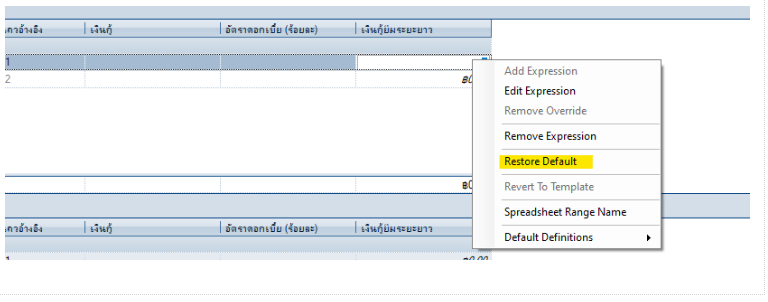 |
Related Content
-
Thailand
Format: Article