
Activate Review Wizard on Web
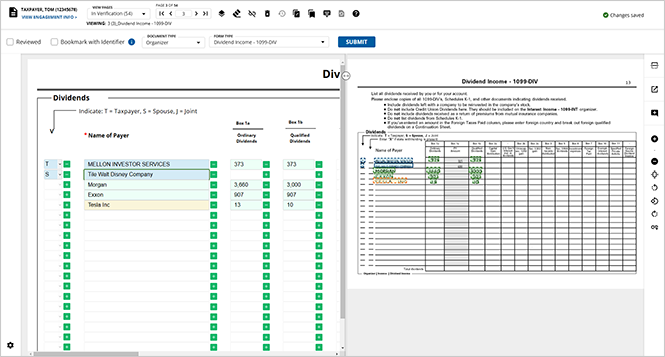
Users can set Review Wizard on Web as your firm's default Review Wizard experience. With Review Wizard on Web set as your default, your browser will know launch any In Verification binder in a new browser tab, allowing you to proceed with the verification process on any operating system with no additional software installation needed.
note
Regardless of your firm's default, users can configure their own personal default to their preference.
Make Review Wizard on Web your firm's default
Firm administrators can set
Review Wizard on Web
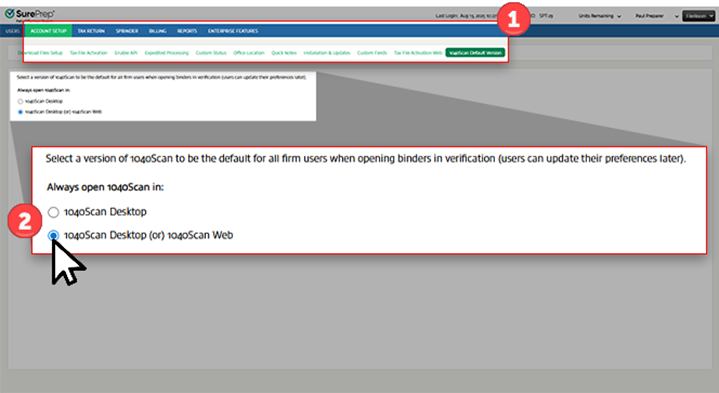
as the default Review Wizard experience when opening a binder for processing. Follow these steps to set Review Wizard on Web as your firm's default: - Open theACCOUNT SETUPsection inAccount Admin.
- Once inACCOUNT SETUP, select1040SCAN Default Version.noteOnly users with theAccount Setuppermission will have access to the1040SCAN Default Versiontab.
- Select the1040SCAN Desktop (or) 1040SCAN Weboption to set Review Wizard on Web as your firm-wide default.
Make Review Wizard on Web your personal default
The
1040SCAN Desktop (or) 1040SCAN Web
option in Account Admin
will set Review Wizard on Web as the default for all firm users, opening binders in a new browser tab for processing. If you'd prefer to leave your firm-wide settings as-is, individual users can open Review Wizard on Web from FileRoom:
- Find the binder you'd like to verify within FileRoom, then point to theOPTIONScolumn.
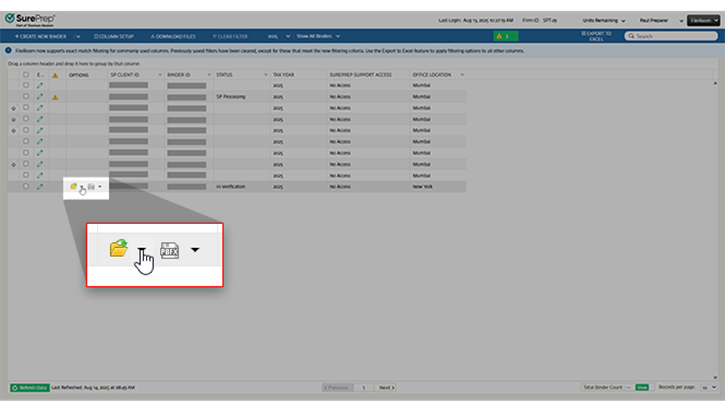
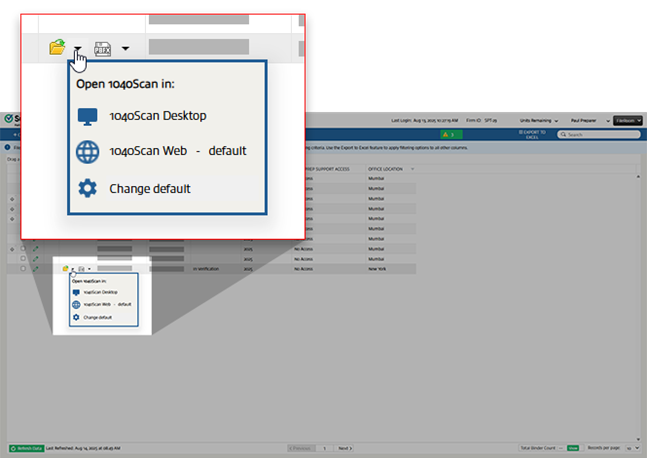
- Expand the dropdown menu fromOpenand select1040SCAN Webto open the binder in Review Wizard in your browser. Moving forward, eachIn Verificationbinder you open usingOpenwill be opened within your browser
Allow local network access on your browser
When launching Review Wizard on Web for the first time you must configure your browser permissions to allow
rw.sureprep.com
to connect to your local network.Upon first launch, your browser will prompt you to allow
rw.sureprep.com
to look for and connect to any device on your local network. Select Allow
to proceed with using Review Wizard on Web.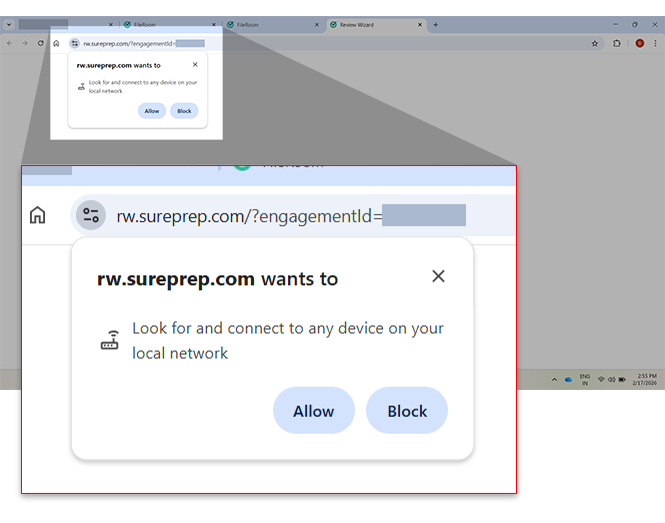
note
Failure to select
Allow
will result in a blank screen when attempting to load any binder in Review Wizard on Web.Update your local network access browser settings
If a user has already selected
Block
, they can update this configuration in their browser settings. Select Chrome
or Edge
for instructions to update your settings depending on your browser of choice.
Chrome
Follow these instructions to allow
rw.sureprep.com
to look for and connect to any device on your local network on Chrome.- Navigate to your Chrome settings.
- SelectPrivacy and security, thenSite settings.
- Selectrw.sureprep.comfrom theRecent activitypanel.
- Update theLocal network accesspermission toAllow, then reload the binder in Review Wizard on Web.
Edge
Follow these instructions to allow
rw.sureprep.com
to look for and connect to any device on your local network on Edge.- Navigate to your Edge settings.
- SelectPrivacy, search, and servicesthenSite permissions.
- SelectRecent activityandrw.sureprep.com.
- Update theSites can ask to connect to any device on your local networkpermission toAllow, then reload the binder in Review Wizard on Web.
Related Content
-
Step 1 - Pre-Verification
Format: Article

