
Review Wizard on Web FAQ
FAQ for users to better understand the Review Wizard on Web experience
To help new users unfamiliar with the Review Wizard on Web, we've gathered your questions to ensure all users can optimize their experience using the web platform.
Show all hidden content
Select from the drop-downs available below to review questions on that category.
Access and Training Resources
Questions relating to Access and Training Resources
- Are webinars available at multiple times to accommodate different schedules?Webinars will be held biweekly to ensure that all Review Wizard users are prepared for the Desktop retirement. Registered attendees will have access to session recordings at a later date.noteRecording access is limited to users who have previously registered for a session. To view a recording of an upcoming session, you must register in advance.
- Where can I find on-demand training videos for the Review Wizard?Training videos for Review Wizard on Web are available through the Guidance Hub. Open theGuidance Huband selectOpen Playlistto view videos relevant to the step you are currently on.
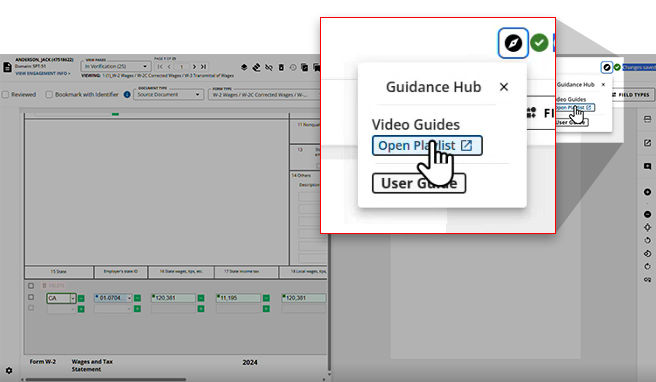 Alternatively, you can browse all available Review Wizard on Web videos here.noteWe are working on adding more videos for each step in the Review Wizard process so stay tuned for more content to come!
Desktop vs. Web Version / Migration
Questions relating to Desktop vs. Web Version/Migration
- When will the Desktop version be retired?The 1040SCAN Review Wizard desktop application will be retired onAugust 31, 2026. Starting September 1, 2026, users will need to continue their work in Review Wizard exclusively using Review Wizard on Web.
- Will the Web version support the same multi-monitor layout as the Desktop version?Yes. Review Wizard on Web can be spread across two monitors if needed. To do so, unmaximize your browser using the Maximize icon, then resize the browser window to span across both monitors.
- Will existing Review Wizard settings be preserved when switching to the Web version?Yes. All Admin settings will be retained upon switching to the Web version. You will not need to reconfigure yourAdmin>REVIEW WIZARDsettings once the Desktop version is retired.
- How do I, as a Firm System Administrator, set Review Wizard on Web as my default?Users can set Review Wizard on Web as your firm's default Review Wizard experience. To do so:
- Open theACCOUNT SETUPsection in Account Admin.
- Once inACCOUNT SETUP, select 1040Scan Default Version. Only users with the Account Setup permission will have access to this tab.
- Select the1040Scan Desktop (or) 1040Scan Weboption to set Review Wizard on Web as your firm-wide default.
- Can individual users change their own default settings independently?Yes. If you'd prefer only some users in your domain to use Review Wizard from Web, they can do so from within FileRoom by finding the binder they'd like to verify, then pointing to the OPTIONS column.
- Does the Web version require any updates or installations to use?No. The Web version does not require any updates or installations. Once a user has begun using it, they can proceed without needing to manage software updates.
Pre-verification
Questions relating to Pre-verification
- What scan resolution is recommended for optimal OCR results?300 DPI is the recommended resolution.
- Can we resize the info on the left side of the screen - similar to what's on the right?Yes. To adjust the width of the left panel, click and drag the dual arrow icon located at the top of the divider line between the two panels.
- Under what circumstances should a document or field be deleted during Pre-Verification?If you are uncertain whether a document or field should be deleted, it is recommended to leave it in place and address it in a subsequent step. Where possible, deletions should be handled during Pre-Verification to ensure that pages remain in sync and grouped correctly.
- Is there an undo option available after a field has been deleted?Yes. An undo button is available and can be used to restore a value that was accidentally deleted.
Verification
Questions relating to Verification
- If a user exits Review Wizard on Web before completing verification, will their progress be saved?Yes. Review Wizard on Web automatically saves progress upon exit. When the binder is reopened, the user can resume from where they left off.
- When using 1040Scan Verify, will the number of documents requiring manual verification be reduced?Yes. When using 1040SCAN Verify, the verification process is handled by the SurePrep service center. Users are primarily responsible for completing the association step in the New Form Review (NFR) wizard, which significantly reduces the volume of documents requiring manual review.
- How can a consolidated statement be reassembled if it was incorrectly split during Pre-Verification?If a consolidated document has been erroneously split, we recommend waiting until the New Form Review (NFR) step, where you can merge related documents back together using the merge documents feature.
- Can the "Move to Next Page After Reviewed" setting be configured as a firm-wide default?No. This setting must be configured on a client-by-client basis.
- If a field is not individually reviewed, will it appear as unverified in the Review Tree?Yes. Fields that are not individually reviewed will be reflected as unverified in the Review Tree within SurePrep.
- Is there a way to bulk override business rules for all unresolved fields on a page?No. To ensure the accuracy of your clients' data, users are required to manually review and override business rules on a field-by-field basis where necessary.
- How can all fields on a single page be approved without clicking into each one individually?While we strongly recommend reviewing each field individually, users do have the option to mark an entire page as reviewed at once. Navigate to the desired page and select the Review checkbox. This will mark all fields on the page as reviewed and allow you to proceed to the next page.tipUsers can enable the Selecting Review moves to next page option in Settings to automatically navigate to the next page once they select the Reviewed checkbox.
- What do the different highlight colors indicate during verification?Review Wizard will highlight data fields in various colors during the verification step. Each color denotes a different type of value in the source document:
- Pink: Fields auto-verified using the PDF's text layer. Auto-verified pages are hidden from verification by default.
- Blue: Proforma options for identifier fields (Name, SSN, EIN).
- Green: OCR has identified the value with high confidence.
- Yellow: OCR has identified the value with low confidence and may require manual review.
- Are there any keyboard shortcuts I can use to navigate between colored fields during verification?Unlike the Desktop version, the Tab key is not available for field navigation in the Web version, as it is reserved for standard web browser functionality. Instead, useCTRL + .to advance to the next field, orCTRL + ,to return to the previous field.For a full list of available keyboard shortcuts, refer to theKeyboard Shortcuts for Step 2: Verification Wizardarticle.
- Why do percentage values in the Review Wizard appear different from those listed on a K-1?Percentage values greater than 1 are automatically divided by 100 during import.
- Where are all the keyboard shortcuts listed?When in Review Wizard, you can click the Keyboard Shortcuts icon in the upper-right corner of the screen to review these features. You can also use the shortcut H + K to open the list of hotkeys in Review Wizard.
- What does the "Bookmark with Identifier" option do, and why does it not create a visible bookmark in the final PDF?Bookmarking a page with an identifier removes all field references from that page — except for identifier fields such as Payer's Name, EIN, and SSN — preventing those references from being exported to the tax software. This action is distinct from creating a navigational bookmark in the final PDF.
- How do you mark something as superseded during Step 2?During Step 2, you can use the keyboard shortcutP + Sto mark a page as superseded. The keyboard shortcut P + S marks a page as superseded in the Verification Wizard.
Superseded and New Form Review Wizards
Questions relating to Superseded and New Form Review Wizards
- How do you mark a document as Superseded?To mark a page as a duplicate, select the checkbox next to it in the Superseded Documents panel. The page will be marked as SUPERSEDED in the document viewer, and an SS badge will appear next to it for easy identification.
- Is there a way to mark documents as superseded in bulk?Yes. The Bulk Superseded feature is available within the Review Wizard on Web. This allows verifiers to mark multiple documents as superseded at once rather than doing them one by one.-
- Can I undo a Superseded marking from a document after it has been applied?Yes, but only within the Superseded Wizard. If a document has been incorrectly marked as Superseded, deselect its checkbox to remove the SS marking. Once you proceed to the next step in the Review Wizard process, you cannot return to this step, and all Superseded markings will be permanent.
- What is the difference between the matching step in Form Review and the matching performed in earlier verification steps?The New Form Review wizard includes additional fields to improve matching accuracy against the proforma form.

