
Bookmarking Pages
Bookmarking a page removes all references (except identifier fields like Payer's name, EIN, and SSN) from the source document, preventing the removed references from being exported to the tax software. If you'd like to bookmark an individual page in a client's binder, you can click the
Bookmark with Identifier
checkbox to bookmark the page that you're currently viewing. 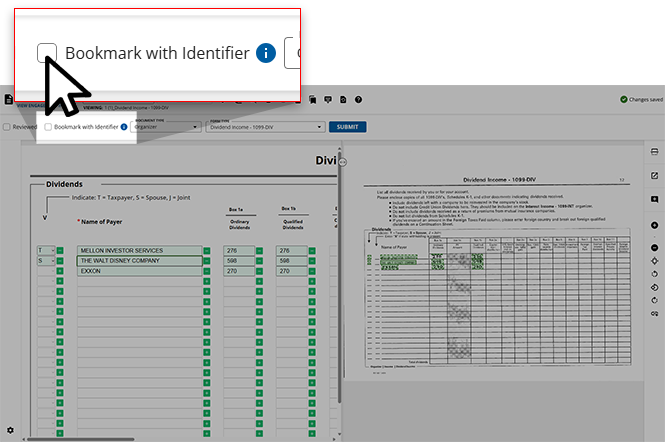
Bookmarking pages with an Identifier
The
Bookmark with Identifier
checkbox allows users to place a bookmark on the current source document in the Verification Wizard. Doing so will remove all references, except for identifier fields (i.e. Payer's name, EIN, SSN) from the source document. 
note
OCR automatically bookmarks Federal K-1 if it is an IRA. However, you can manually select/clear the check box if necessary.
Follow these steps to use the
Bookmark with Identifier
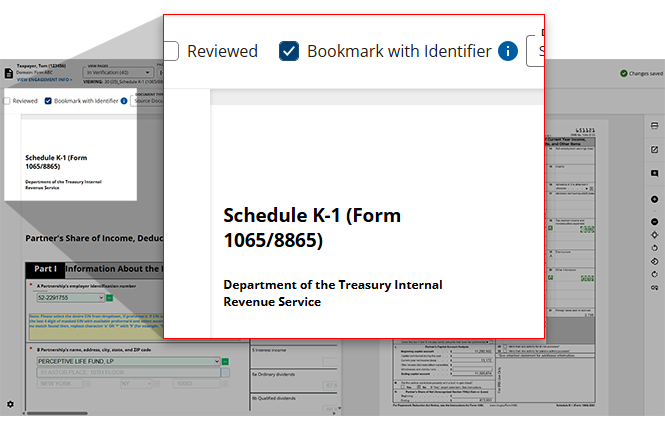
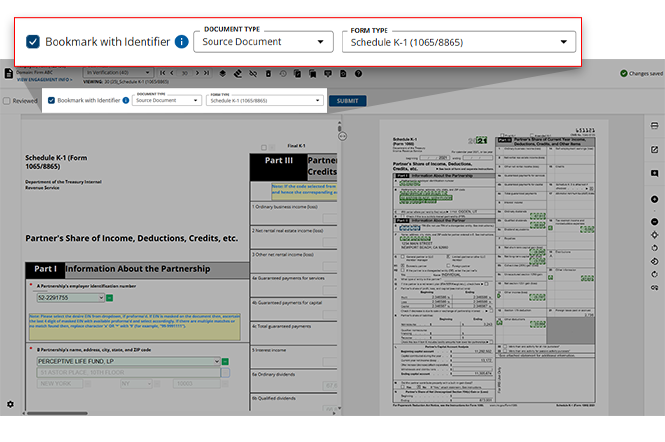
feature for data captured by OCR:- Select theBookmark with Identifiercheckbox.
- All references (except for identifier fields) will be disabled in the document template to the left, and the page is bookmarked i.e. no amount data will be exported from that page.The page will be displayed only in the following wizards:
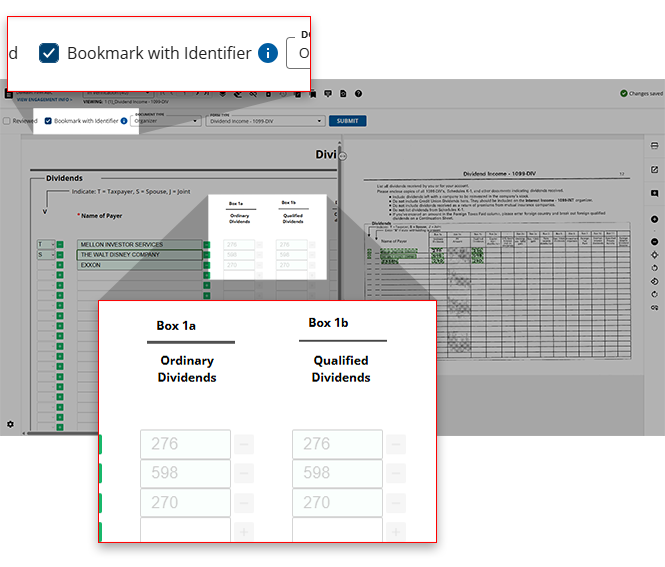
- Child Form Association: You can define the relationship of any document and properly associate it to its respective parent.
- New Form Review: If the Payer name is not matched to the proforma’d name, there is a facility to bookmark pages to the proforma’d entity.
Bookmarks with Identifiercheckbox but actually do want to capture all data from that page, deselect theBookmark with Identifiercheckbox to re-enable all fields in the document template.
Automatically bookmark organizer pages
The
Bookmark with Identifier
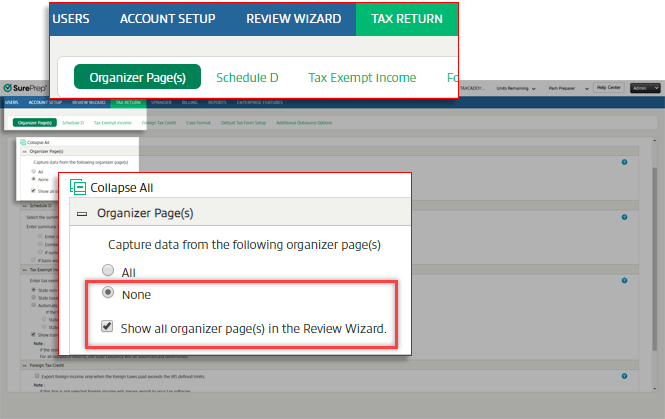
checkbox will be automatically selected and disabled for organizer pages if your firm has indicated this prference in its Organizer Page(s) setting configurations.To do so, select None
and Show all organizer page(s) in the Review Wizard
in the Tax Return
section of Account Admin
. 
The
Bookmark with Identifier
checkbox will be disabled for all Organizer Pages.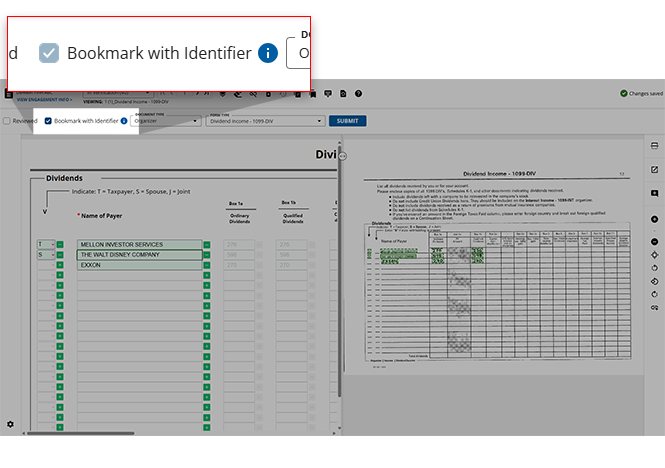
Bookmark multi-page document
If a source document spans multiple pages, you can click the
Bookmark with Identifier
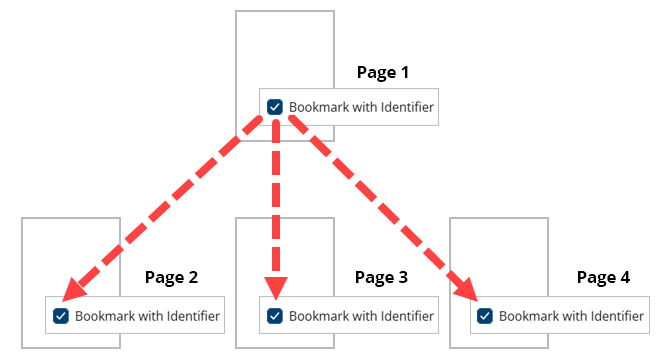
checkbox to place a bookmark that page and all pages connected to that page will also be automatically bookmarked. Conversely, you can deselect the Bookmark with Identifier
checkbox on one of the pages to clear the bookmark from all pages in the set.Multi-page documents include:
- Schedule K-1
- Consolidated Statements
- Grantor Letters
Schedule K-1
For example, if a Schedule K-1 is five pages, placing a bookmark on Page 1 will automatically bookmark the other remaining pages in the Verification Wizard, including State K-1's.
Any pages connected will automatically be bookmarked.
note
Bookmarking a Federal K-1 will bookmark all Federal K-1, State K-1, and Supplemental Pages associated with the Federal K-1.If you did not bookmark the Federal K-1 but individually bookmarked a State K-1, then only that State K-1 and its supplemental pages will be bookmarked.
Clearing the IRA/SEP checkbox on a Federal K-1 document removes the
Bookmark with Identifier
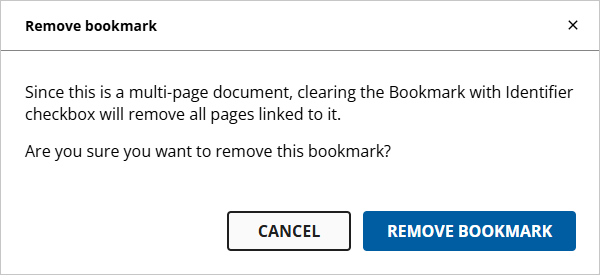
from all pages linked to that K-1. The Remove bookmark
dialog box will appear asking you to confirm your choice to remove the bookmark. Click REMOVE BOOKMARK
to proceed with this decision. Click CANCEL
if you'd like to leave the bookmark on this document.Since this is a multi-page document, clearing the Bookmark with Identifier checkbox will remove all pages linked to it.Are you sure you want to remove this bookmark?"
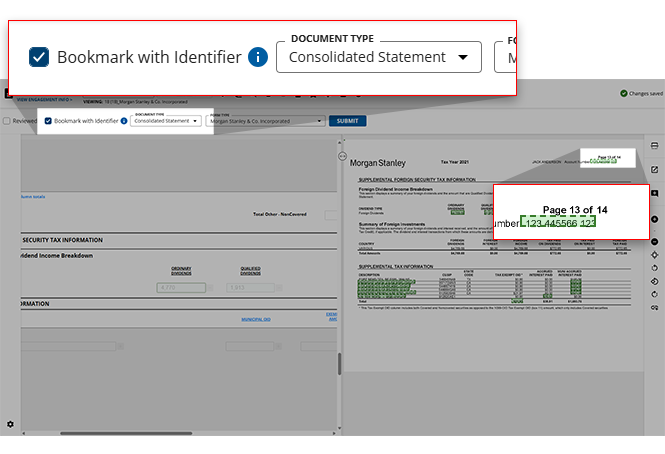
Consolidated Statements
Selecting
Bookmark with Identifier
on any page of the Consolidated Statement
will sync the bookmark selection to all the pages associated with the Consolidated Statement
.
note
Firms can place SurePrep barcodes on pages to automatically bookmark a document when scanned by OCR. Pages with a
Bookmark with Identifier
barcode placed on it will automatically skip to the next Review Wizard step, if applicable.Bookmarking multiple pages at once
If you'd like to bookmark multiple pages at once, you can use the  tool in the Verification Wizard Toolbar to streamline your bookmarking process.
Bulk Bookmark
tool in the Verification Wizard Toolbar to streamline your bookmarking process.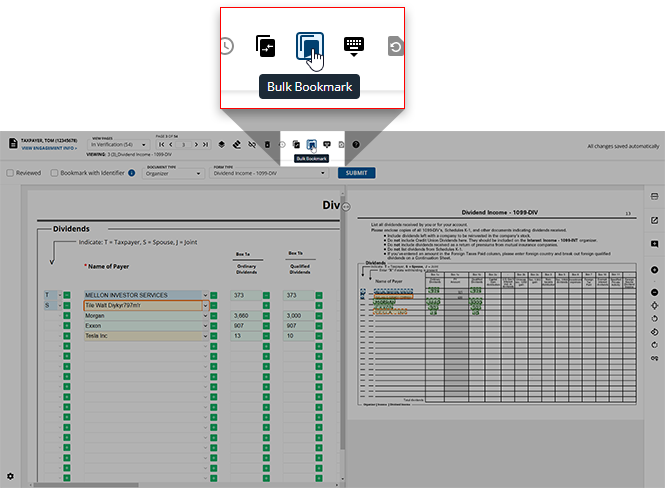
Related Content
-
Step 2 - Verification
Format: Article

