
Bulk Bookmark
If you're looking to bookmark multiple pages at once, you can use the 
Bulk Bookmark
feature in the Verification Wizard toolbar to streamline the process and save you the time it would take to do so on a page-by-page basis. Users only looking to bookmark the page they are currently viewing can select the
Bookmark with Identifier
checkbox to do so. Follow these steps to mark multiple pages of a binder as
Bookmarked with Identifier
:- To bookmark documents in bulk, click theBulk Bookmark icon on the Verification Wizard toolbar.
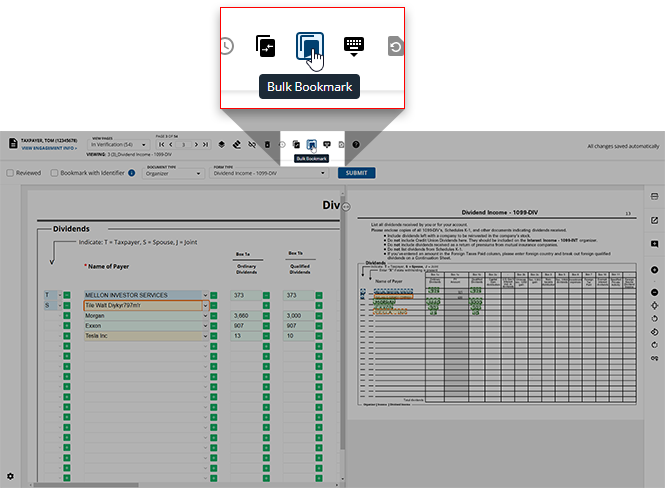
- TheBulk Bookmarkwindow will appear. Select the checkbox next to all of the page(s) that should be bookmarked.noteTheBulk Bookmark tool can only be used for Organizerpages. If you'd like to bookmarkSource DocumentsorConsolidated Statements, you must navigate to those pages to do so individually.If all of the pages listed should be bookmarked , you can select the
 Select Allcheckbox to select all of the pages. You can use theDeselect Allfeature if you'd like to deselect all of the pages you've previously selected.
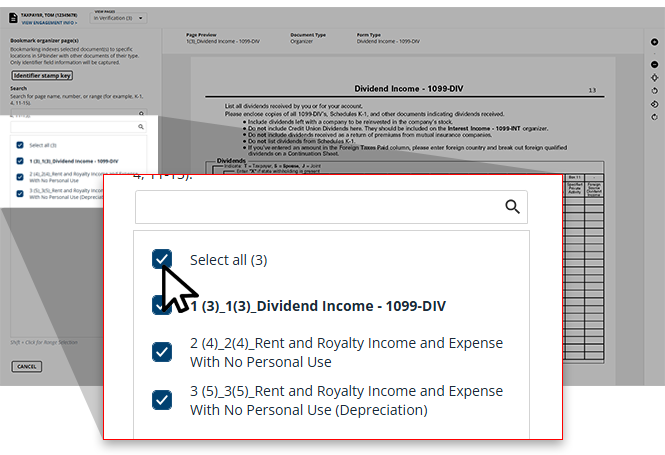 noteIf you're looking for a specific page, you can type the name of this page into theSEARCHbar at the top.
 - Once you've selected all of the pages you'd like to bookmark, clickSAVEto stamp each selected page asBookmarked with Identifierand remove the captured data when the verification is submitted.If you'd like to close the
 Bulk Bookmarkwindow without making any changes, clickCANCEL.
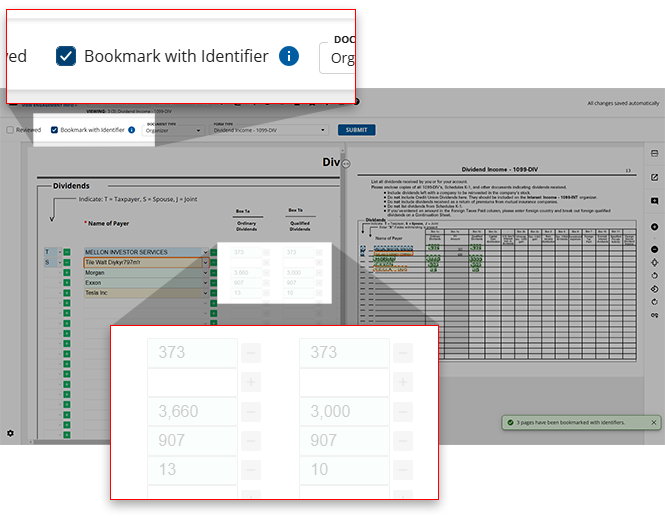
 - Once the changes have been saved, theBookmark with Identifiercheckbox of the bookmarked pages will be selected and the fields of the pages will be disabled.
Removing bookmarks in bulk
If a document has erroneously been marked with the tool.
Bookmark with Identifier
checkbox (subsequently disabling its fields), users can deselect the checkbox in bulk using the Bulk Bookmark
tool.- Click theBulk Bookmark icon in the Verification Wizard toolbar.
- Once theBulk Bookmarkwindow appears, click the checkbox of the document(s) that you believe were wrongfully bookmarked.noteThe bookmarked pages will have theBI badge next to them for an easier time locating them from the listed pages.

- Once all of the wrongfully bookmarked documents' checkboxes have been deselected, clickSAVEto save your changes and return to the Verification Wizard.

Related Content
-
Step 2 - Verification
Format: Article

