
Bulk Superseded
If you find duplicate copies of a document, you can use the
Bulk Superseded
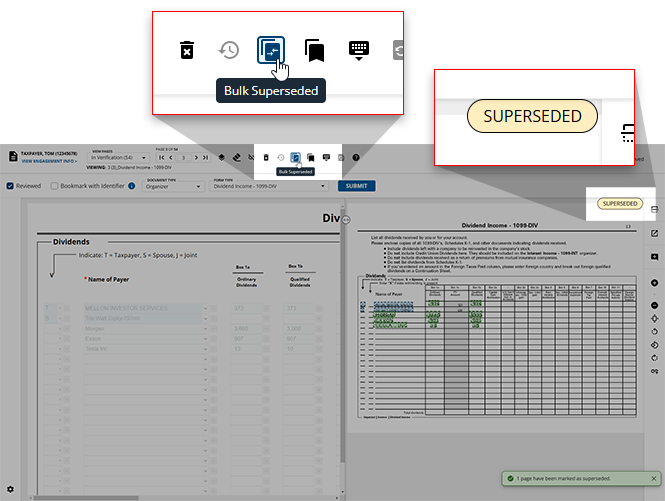
feature to mark the duplicate copy as Superseded while leaving the original copy intact. Superseded pages will show the SUPERSEDED
stamp on top.In SPbinder, Superseded pages will appear under Index Tree
> Unused
> Superseded
. Data from the pages associated under the Superseded Documents
folder will be deleted from all areas in SPbinder (i.e. Leadsheets).Follow these steps to mark a document as Superseded:
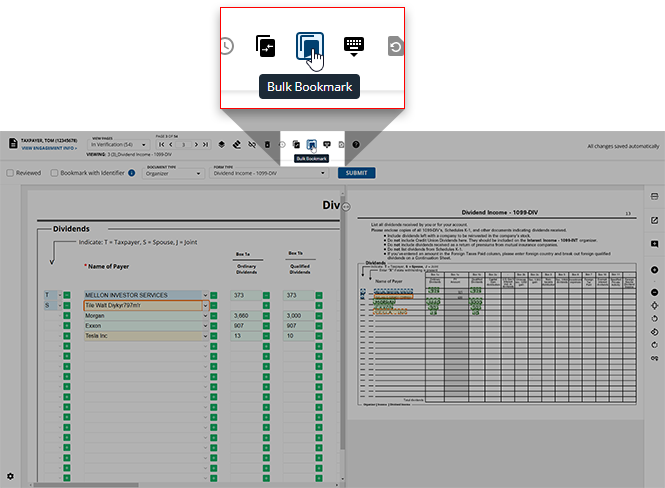
- To Supersede documents, navigate to the intended pages, then click theBulk Superseded
 icon on the Verification Wizard toolbar.
- TheBulk Supersededwindow will appear. Select the checkbox next to all of the page(s) that should be superseded.If all of the pages listed should be superseded, you can select the
 Select Allcheckbox to select all of the pages. You can use theDeselect Allfeature if you'd like to deselect all of the pages you've previously selected.
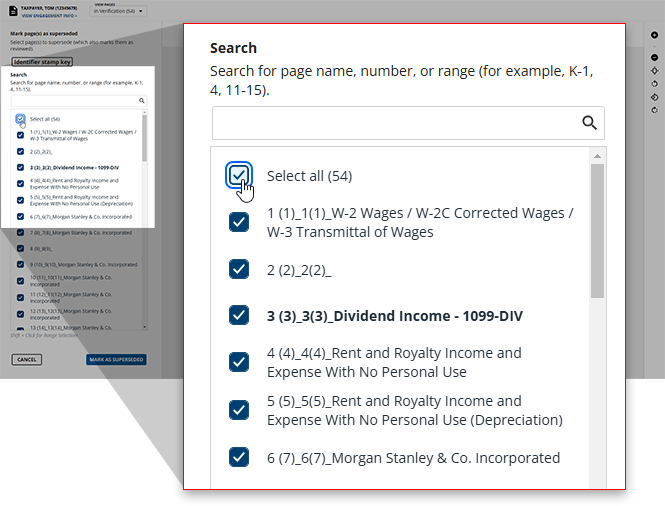 noteIf you're looking for a specific page, you can type the name of this page into theSEARCHbar at the top.
 - Once you've selected all of the pages you'd like to supersede, clickSAVEto stamp each selected page asSUPERSEDEDand remove the captured data when the verification is submitted.If you'd like to close the
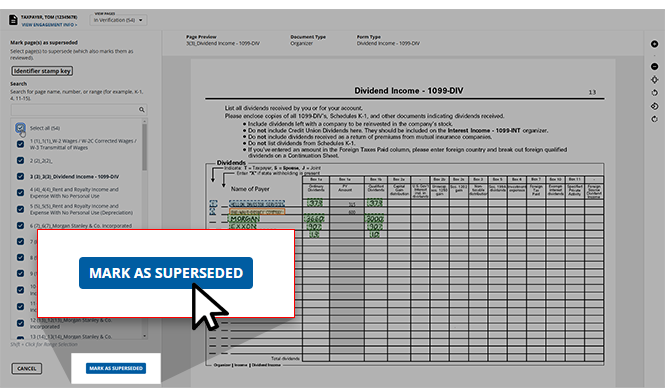 Bulk Supersededwindow without making any changes, clickCANCEL.
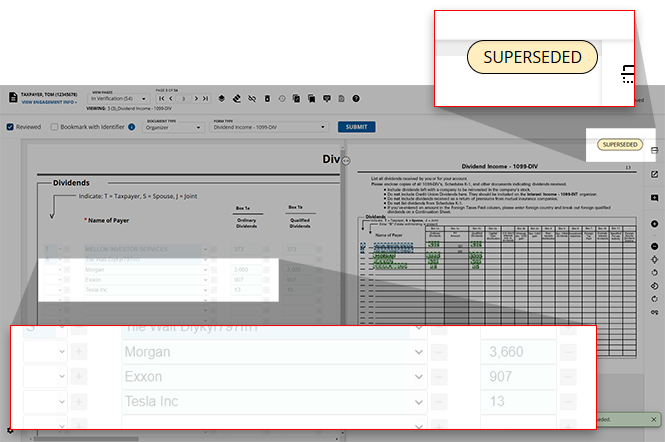
 - Once superseded, the selected pages will have theSUPERSEDEDstamp at the top of the page, and the fields for this page will be disabled.
Removing the SUPERSEDED stamp
SUPERSEDED
stamp If a document has erroneously been marked with the tool.
SUPERSEDED
stamp (subsequently disabling its fields), users can remove this stamp using the Bulk Superseded
tool.- Navigate to the wrongfully marked document, then click theBulk Superseded icon in the Verification Wizard toolbar.
- Click the checkbox of the document(s) that you believe were wrongfully marked with theSUPERSEDEDstamp.noteThe Superseded pages will have theSS
 badge next to them for an easier time locating them from the listed pages.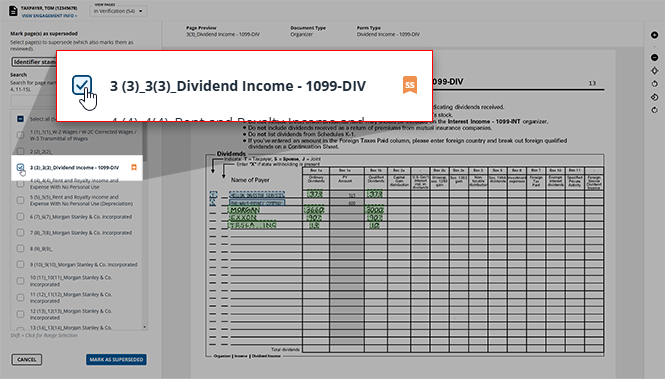
- Once all of the wrongfully Superseded documents' checkboxes have been deselected, clickMARK AS SUPERSEDEDto save your changes and return to the Verification Wizard.
Related Content
-
Step 2 - Verification
Format: Article

