
Changing document or form type
When reviewing a document in the Verification Wizard, it is important that users review the
Document Type
and Form Type
to ensure that Review Wizard's records accurately reflect the source document's.If a document has been wrongfully saved with the incorrect
Document Type
or Form Type
, users can make updates to these fields to ensure that the document is correctly categorized moving forward. For example, if an Interest Income
document is wrongly associated as a Dividend Income
form, then you can rectify this using the DOCUMENT TYPE
and FORM TYPE
drop-down menus of the Verification Wizard toolbar.- TheDOCUMENT TYPEdrop-down menu displays the type of document currently visible on the page. Select theDOCUMENT TYPEdrop-down where you can select the reclassification as:Document TypeForm TypeSource DocumentShows list of all source documents captured by OCR (as they appear in theIndex Treetab of SPbinder).Consolidated StatementShows list of brokerage statements captured by OCR in this drop-down menu.OrganizerShows list of all organizer pages for that tax software captured by OCR (as they appear in theIndex Treetab of SPbinder).
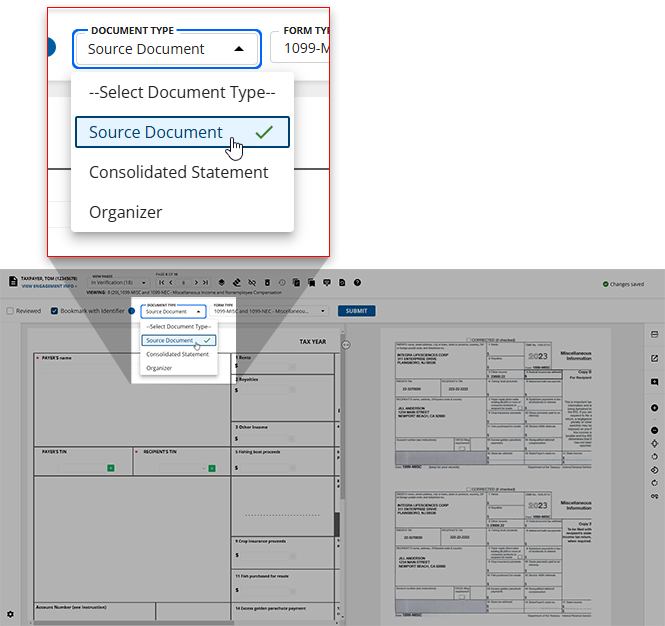
- Upon reselecting a document type, theFORM TYPEvalue will revert to--Select Form Type--, indicating that you can select this drop-down menu to select the correct form type for this new document type.noteForm Typeoptions are based on the selectedDocument Type.

- Once you make your selection, theForm TypeSelectiondialog box will appear notifying you that selecting a newForm Typewill delete all of the data on the selected page. If you'd like to proceed with updating this document'sDocumentandForm TypeselectYES, otherwise, selectNOto return to the document.

- If you choose to proceed, a blank template for the selectedFORM TYPEwill appear where you can provide the information from the document.

note
If you've changed a document's
Document
and Form Type
by mistake and removed it's OCR data, you can use the Restore OCR Data
icon in the Verification Wizard toolbar to revert to the document's original state.Related Content
-
Step 2 - Verification
Format: Article

