
Deleting transactions
When you encounter a transaction in a client's document template that is not relevant to the client's records, you can delete these transactions in the Verification Wizard.
- Locate the transactions that you would like to delete from the client's document template in the Verification Wizard.
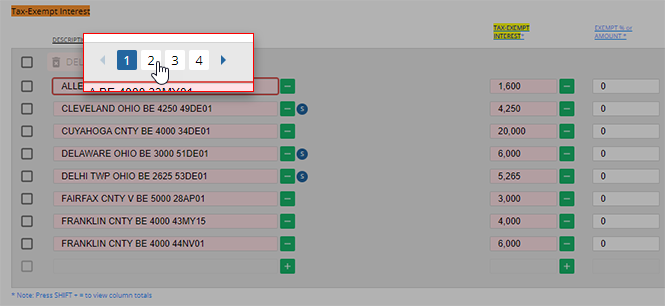
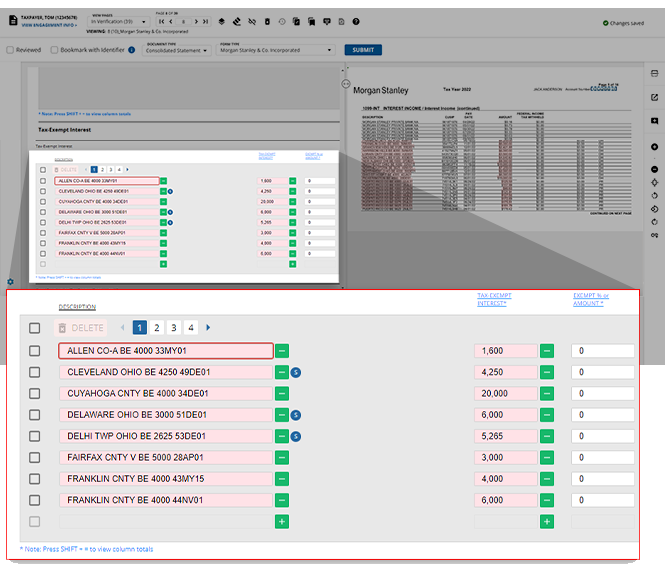 noteTransactions will be listed in groups of eight. If you do not see a transaction that you would like to delete, you can use the arrows and page numbers to navigate through the available transactions.
 - Once you locate the transaction you would like to delete, select the checkbox associated with this transaction.
 noteIf you want to select all transactions within a section of a page, click theUsers can select multiple checkboxes if there are multiple unwanted transactions.Select Allcheckbox that appears above the individually listed checkboxes of the panel.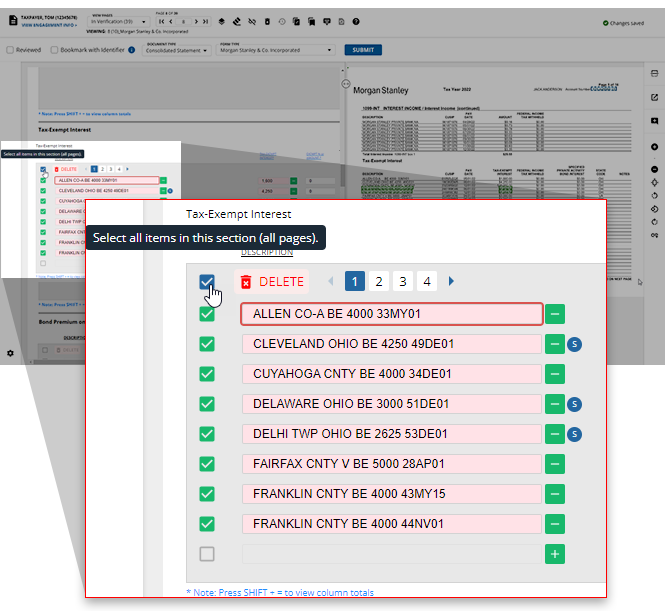
- SelectDELETEto delete the selected transaction(s).
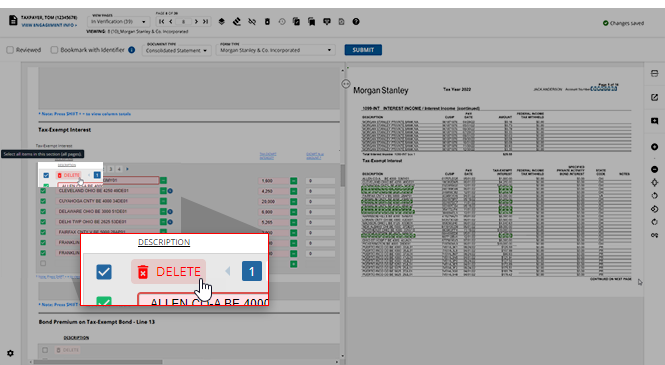
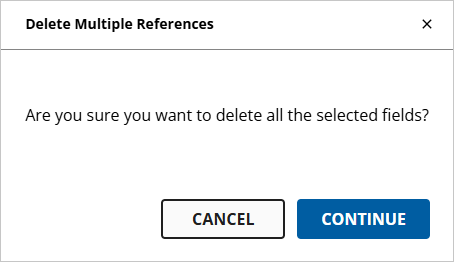
- TheDelete Multiple Referenceswindow will appear asking you to confirm your choice to delete the selected transactions. If you'd like to proceed with the deletion, selectDELETE. If you'd like to return to the Verification Wizard without deleting any transactions, selectCANCEL.
Related Content
-
Step 2 - Verification
Format: Article

