
Disassociating documents
Disassociating documents from templates deletes all of the data and the template associated with the page. If the incorrect  icon and then changing the
Form Type
was captured and you need to remove multiple pages, then disassociating pages in bulk can save you time.You can disassociate a document individually by clearing the data on the page using the disassociate pages keyboard shortcut, or using the Clear Page Data
icon and then changing the Document
/Form
type once its data is cleared. Disassociating individual pages
Follow these steps if you'd like to disassociate a single page in the binder:
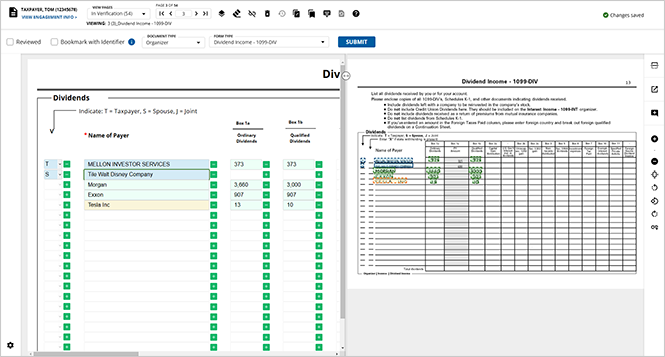
- After opening the client's binder, navigate to the page that you'd like to disassociate.noteEnsure that you are not currently editing any field on the selected template to avoid unintentionally overwriting any values.
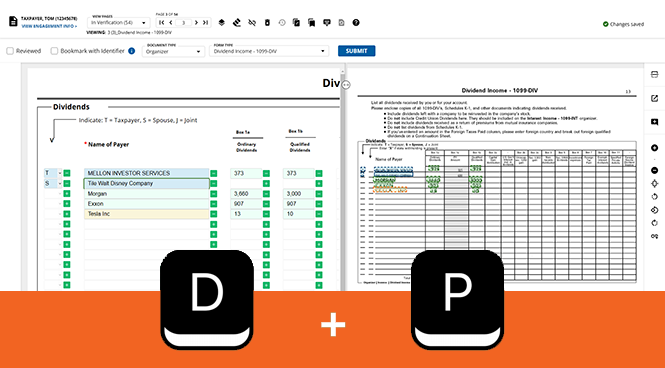
- With the intended page open, press theDandPkeys on your keyboard to use the disassociate keyboard shortcut.
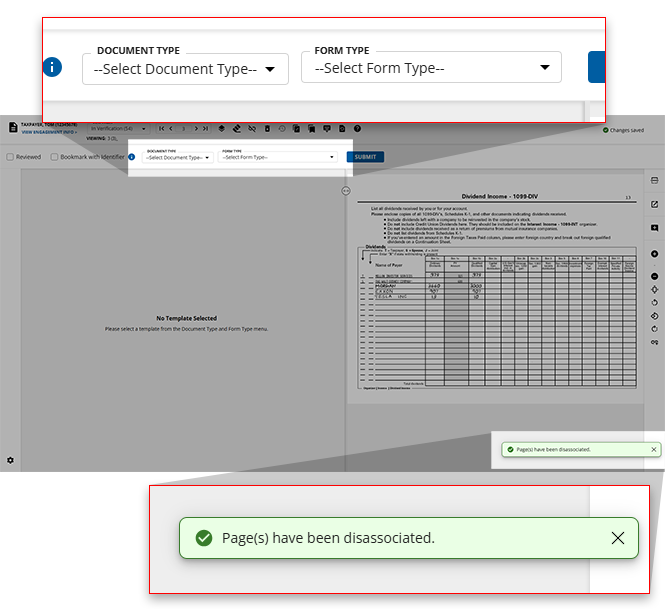
- The selected page will instantly be disassociated and a notification will appear in the bottom-right of your screen to confirm the disassociation. TheDOCUMENT TYPEandFORM TYPEfields will be reset for users to select the correct information.
 noteIf a page is disassociated by mistake, you can select theRestore OCR Data
 icon in the Document Viewer toolbar to revert it to its original state.
Disassociating pages in bulk
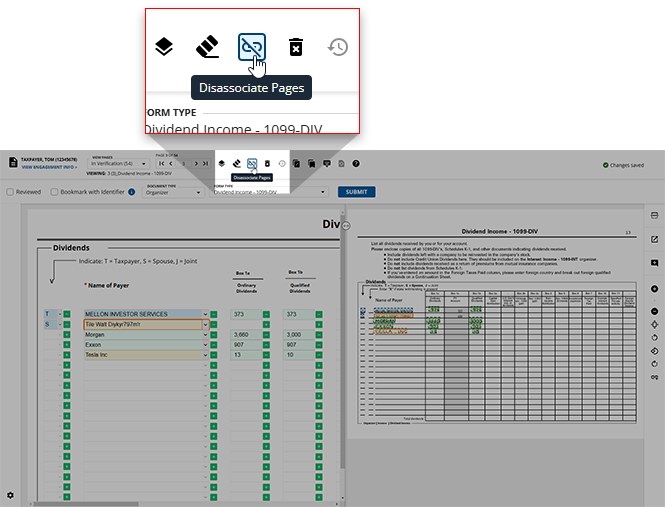
- To disassociate multiple documents at once, select theDisassociate Pages
 icon on the toolbar.
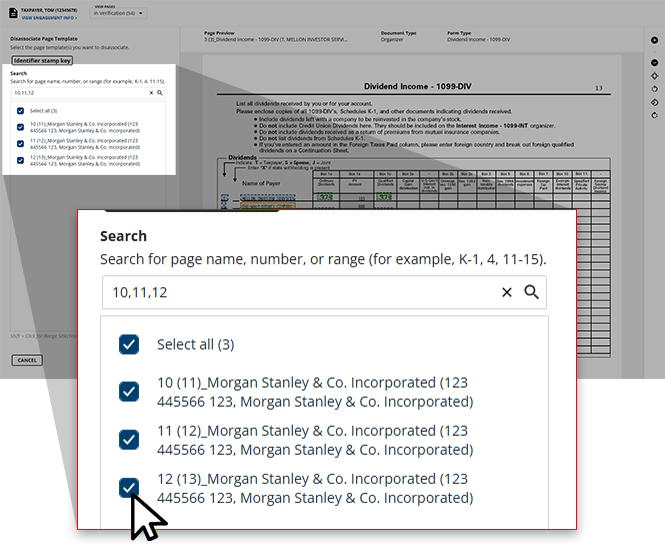
- TheDissassociate pagewindow will appear.
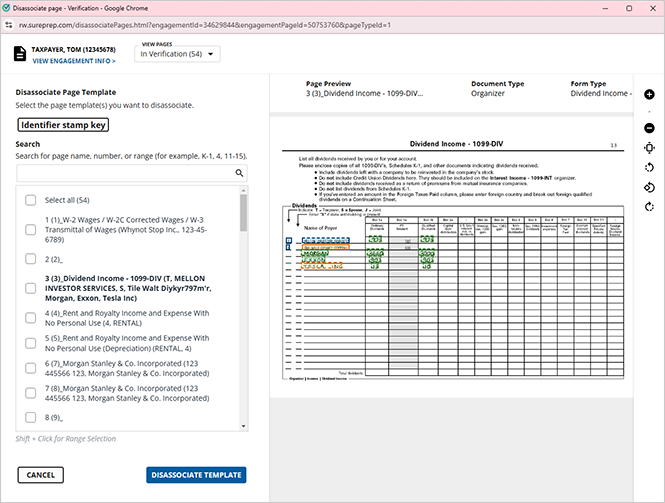 You can specify the types of pages you'd like to view from theVIEW PAGESdrop-down menu.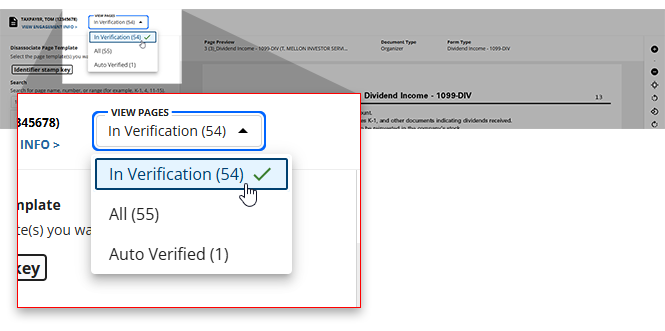
- Provide the pages that you would like to disassociate in theSearchfield.
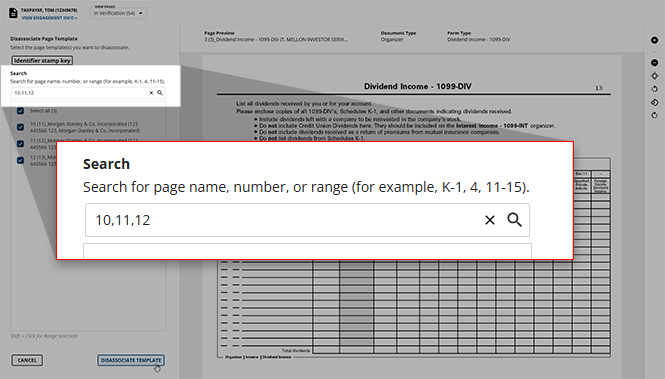 noteYou can select Identifier Stamp Key to open theDisassociate Template-Identifier Stamp Keydialog box listing the different stamps a document could have depending on what it was marked as.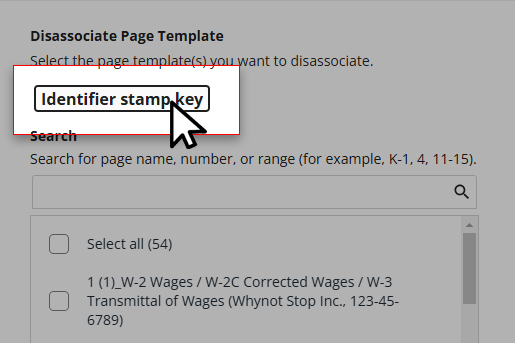
- Select the checkbox for all page templates that you would like to disassociate.
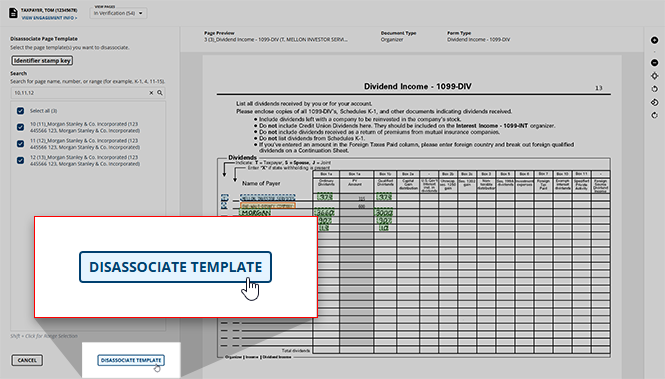
- Once you're ready to disassociate the provided pages, selectDISASSOCIATE TEMPLATE.
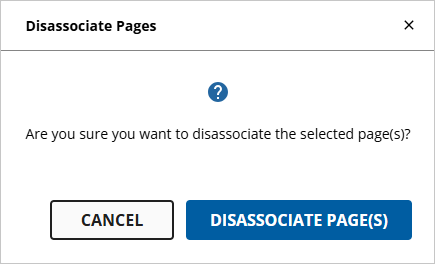
- You will see a dialog box asking you to confirm your choice to disassociate the selected pages. If you wish to continue with disassociating, selectDISASSOCIATE PAGE(S), otherwise selectCANCELto return to theDisassociate Page(s)dialog box.
- All page data and the associated template will be removed from the page/document.
note
If a page is disassociated by mistake, you can select the
Restore OCR Data
icon in the Document Viewer toolbar to revert it to its original state.Related Content
-
Step 2 - Verification
Format: Article

